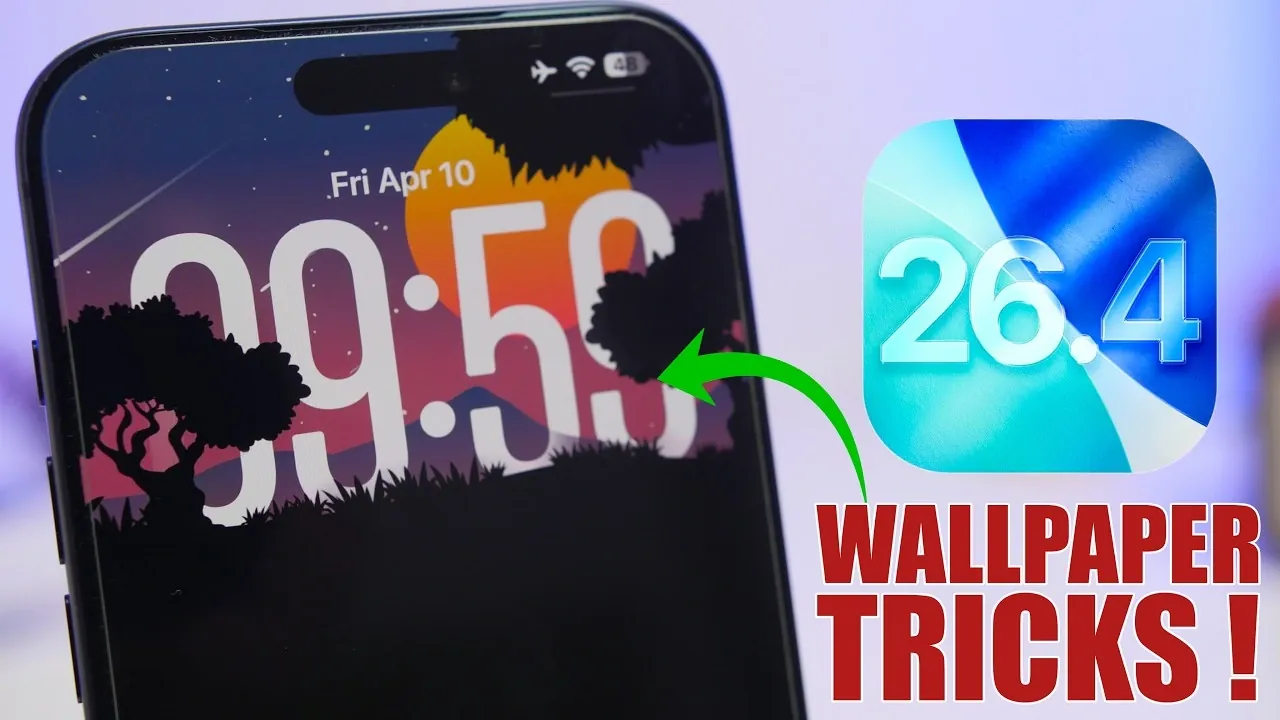
Customizing your iPhone wallpaper is one of the simplest yet most effective ways to make your device feel personal and unique. With the release of iOS 26, Apple has introduced a range of advanced features and tools that allow you to create visually stunning and functional lock and home screens. Below are five creative wallpaper tricks that can help you enhance your iPhone’s aesthetic and functionality in a great new video from iReviews.

1. Add Drama with a Black-and-White Lock Screen
A black-and-white lock screen can create a bold and sophisticated contrast when paired with a colorful home screen. This technique not only enhances the overall aesthetic of your device but also adds a sense of elegance and modernity.
Steps to achieve this effect:
- Select the same image for both your lock and home screens during the wallpaper setup process.
- Apply a monochrome filter exclusively to the lock screen while keeping the home screen in full color.
This simple trick results in a visually striking transition between screens, offering a clean and polished look that stands out.
2. Turn Videos into Live Wallpapers
Transform your lock screen into a dynamic and interactive display by converting videos into live wallpapers. This feature allows you to add motion and personality to your device, making it more engaging and unique.
How to create a live wallpaper:
- Download a video-to-live wallpaper app from the App Store.
- Select a video from your gallery and trim it to your desired length.
- Adjust the zoom settings and save the video as a live wallpaper.
Once set, your lock screen will feature a short, looping video that activates with a simple press, adding a touch of liveliness to your device.
3. Use Complementary Wallpapers for a Seamless Look
Pairing complementary wallpapers for your lock and home screens can create a cohesive and visually harmonious design. This approach ensures that your device feels well-organized and aesthetically pleasing.
How to find complementary wallpapers:
- Search online for “paired iPhone wallpapers” or use specialized apps like Wallcraft.
- Choose designs that align with your personal style, whether minimalist, abstract, or nature-inspired.
By selecting wallpapers that flow seamlessly together, you can achieve a polished and professional look that enhances your iPhone’s overall appeal.
4. Highlight Key Elements with Framed Wallpapers
Framed wallpapers are a clever way to emphasize specific elements on your lock screen, such as the clock or notification icons. These wallpapers often feature borders or design elements that align perfectly with your screen layout, creating a clean and organized appearance.
Steps to use framed wallpapers:
- Search for “frame iPhone wallpapers” or explore options on wallpaper apps like Wallcraft.
- Customize the colors and alignment during setup to match your preferred theme.
This technique not only adds a professional touch to your device but also ensures that key elements on your screen stand out clearly.
5. Create Depth with 3D Spatial Effect Wallpapers
For a truly immersive experience, try using wallpapers with a 3D spatial effect. This feature, introduced in iOS 26, uses depth and motion to create a sense of dimension on your screen, making your device feel more interactive and engaging.
How to enable the 3D spatial effect:
- Select a spatial wallpaper from your photo gallery or download one from a trusted source online.
- Activate the spatial scene feature during the wallpaper setup process.
- Adjust the zoom level and clock placement to optimize the 3D effect.
The result is a wallpaper that reacts to your device’s movements, adding a layer of interactivity and depth that enhances your iPhone’s visual appeal.
Explore These Creative Options
These five wallpaper tricks provide exciting ways to personalize your iPhone’s lock and home screens. Whether you prefer the timeless sophistication of a black-and-white filter, the dynamic motion of live wallpapers, or the immersive depth of 3D spatial effects, iOS 26 offers the tools to make your device a true reflection of your style. Experiment with these techniques to transform your iPhone into a visually stunning and uniquely personal device.
Expand your understanding of iPhone wallpaper customization with additional resources from our extensive library of articles.
- Best iPhone Home Screen Customization Tips
- Customize iPhone Wallpapers Like a Pro with iOS 26
- Get the Most Out of iOS 18.1: 5 Awesome Home Screen Setups
Source & Image Credit: iReviews
Disclosure: Some of our articles include affiliate links. If you buy something through one of these links, Geeky Gadgets may earn an affiliate commission. Learn about our Disclosure Policy.
