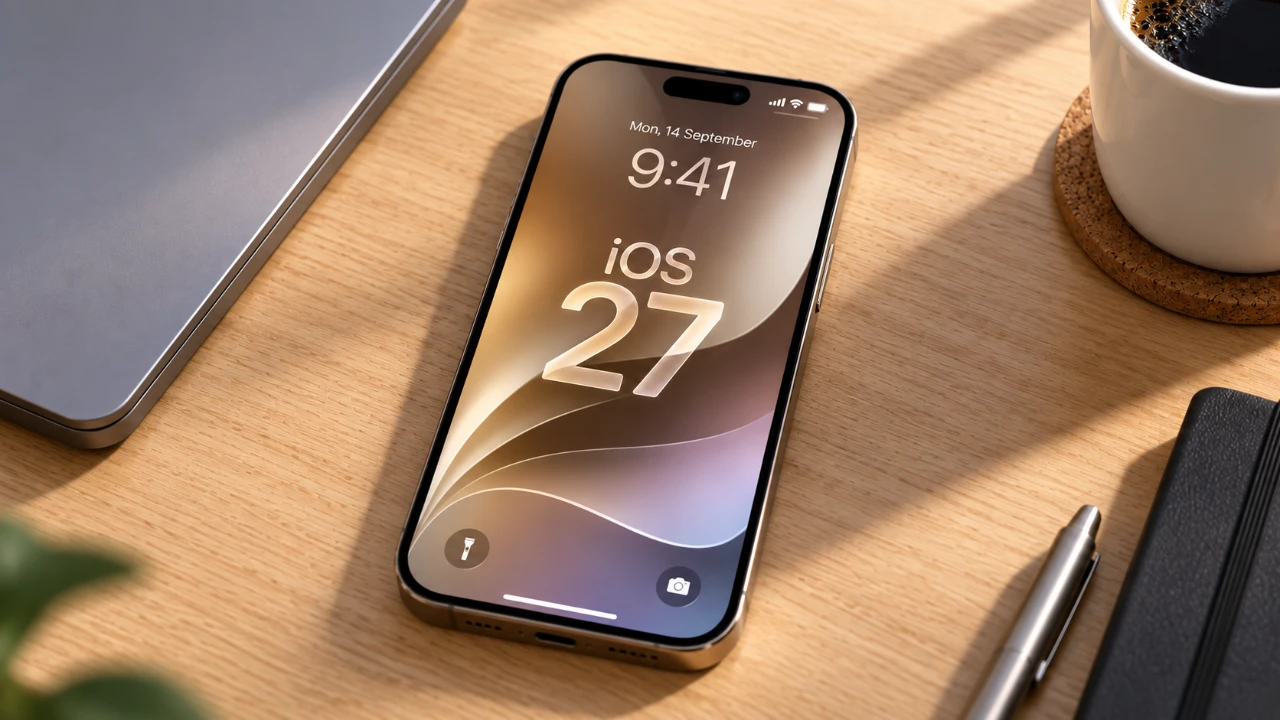
The iOS 27 update brings a redesigned lock screen that combines personalization, simplicity, and battery efficiency. With features like the “Always On Display” and a range of customizable options, you can create a lock screen that reflects your preferences while conserving power. The video below from Daniel About Tech provides a step-by-step walkthrough to help you unlock the full potential of these features.

1: Update Your Device to iOS 27
To access the new lock screen features, ensure your device is running iOS 27 or later. Updating your device is the first step toward unlocking these enhancements. Follow these steps to check and update your software:
- Open the “Settings” app on your device.
- Navigate to “General” and tap “About” to view your current software version.
- If your device is not running iOS 27, return to “General” and select “Software Update.”
- Follow the on-screen instructions to download and install the latest version.
Keeping your device updated ensures access to the latest features, improved security and optimal performance.
2: Enable and Customize the “Always On Display”
The “Always On Display” is a standout feature of iOS 27, allowing you to view essential information like the time and date without fully waking your device. This feature is designed to balance convenience and power efficiency. To enable and personalize it:
- Open “Settings” and go to “Display & Brightness.”
- Select “Always On Display” and toggle it on.
- Customize the display by choosing which elements to show, such as the wallpaper, notifications, or widgets.
By default, the “Always On Display” shows the time and date, but you can adjust its appearance to match your preferences. For a cleaner look, consider hiding the wallpaper or limiting visible notifications.
3: Create a Minimalist Lock Screen
A minimalist lock screen not only enhances the visual appeal of your device but also contributes to better battery performance. Simplifying your lock screen reduces unnecessary activity, helping your device conserve energy. Follow these steps to achieve a sleek, minimalist design:
- In the “Always On Display” settings, disable options like “Show Wallpaper” and “Show Notifications.”
- Remove widgets by pressing and holding the lock screen, selecting “Customize,” and clearing any active widgets.
- Tap on the clock during customization and select the smallest, simplest clock style available.
These adjustments result in a streamlined lock screen that displays only the most essential information, such as the time and date, while minimizing distractions.
4: Optimize Notifications and Focus Mode
For users who prefer to keep notifications visible, iOS 27 offers options to balance functionality and aesthetics. You can fine-tune your notification settings to ensure you stay informed without cluttering your lock screen. Here’s how:
- In the “Always On Display” menu, enable notifications if they are turned off.
- To reduce distractions, customize Focus Mode by navigating to “Settings,” selecting “Focus,” and adjusting the settings to filter notifications based on your preferences.
This approach allows you to maintain a clean lock screen while making sure that important alerts are still accessible.
Battery Efficiency Through Lock Screen Customization
The iOS 27 lock screen is designed with battery efficiency in mind. By reducing screen activity and limiting unnecessary elements, the minimalist design helps extend battery life. This is particularly beneficial for users who rely on their devices throughout the day and need to maximize power usage. Features like the “Always On Display” are optimized to consume minimal energy, making sure that your device remains functional for longer periods.
Customizing your lock screen to display only essential information not only enhances its appearance but also contributes to a more efficient use of your device’s resources.
Unlocking the Full Potential of iOS 27
The iOS 27 lock screen offers a perfect blend of personalization and practicality. By updating your device, allowing the “Always On Display,” and tailoring the settings to your preferences, you can create a lock screen that aligns with your style and usage habits. Whether you prefer a completely blacked-out design or a minimalist layout with selective notifications, these features adapt to your needs while optimizing battery performance. Take advantage of these tools to make your lock screen work for you, enhancing both the functionality and efficiency of your device.
Here are additional guides from our expansive article library that you may find useful on iOS 27.
- Apple Delaying iOS 27 Beta 5? Here’s When to Expect the Next Update
- New iOS 27 Beta 5 Release Arrives with a Big Shift Coming
- iOS 27 Beta 5 Is Late: What’s Holding Up Apple’s Next Release?
- The iOS 27 Beta 5 Release Imminent with More New Features
- Apple’s iOS 27 Beta 3 Is Just Days Away: Here’s When It Drops
- Apple iOS 27 Beta 5 Preview: a Look at the Next Release
Source & Image Credit: Daniel About Tech
Disclosure: Some of our articles include affiliate links. If you buy something through one of these links, Geeky Gadgets may earn an affiliate commission. Learn about our Disclosure Policy.
