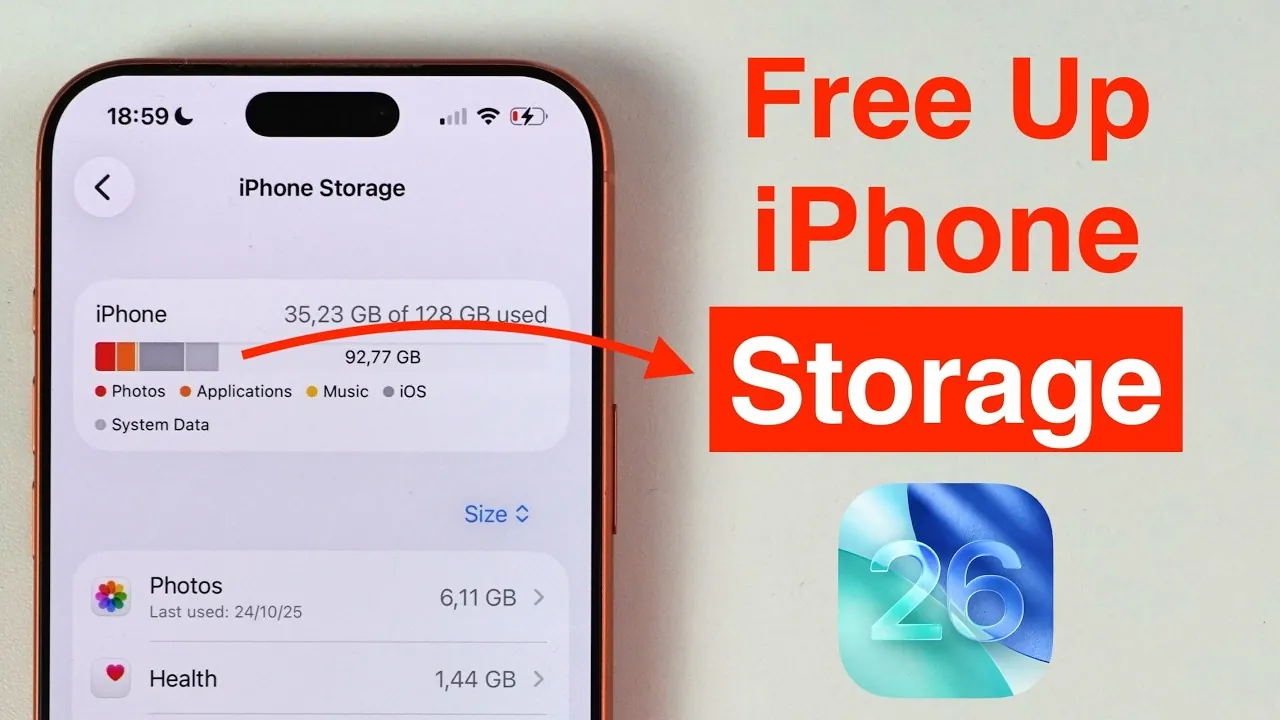
Running out of storage on your iPhone can disrupt your daily activities, especially as apps, photos, and system files accumulate over time. Fortunately, iOS 26 provides a range of tools and features designed to help you manage your device’s storage efficiently. By following practical steps, you can reclaim valuable space, optimize your app usage, and make the most of iCloud to ensure your iPhone continues to perform smoothly. The video below from Daniel About Tech shows us how to maximize your iPhone storage.

Understanding iPhone Storage
To effectively manage your iPhone’s storage, it’s essential to understand the two primary types of storage available:
- Internal Storage: This is the built-in storage on your device, used to store apps, photos, videos, and system files. It is fixed and cannot be expanded, so managing it wisely is crucial.
- iCloud Storage: A cloud-based solution that allows you to store files online. It can be expanded through subscription plans, making it a flexible option for offloading data and freeing up internal storage.
By using iCloud alongside internal storage, you can maintain access to your files while preventing your device from becoming cluttered.
Managing Apps to Reclaim Space
Apps can consume a significant portion of your iPhone’s storage, especially those that generate large amounts of cached data. To identify and manage apps that are taking up excessive space:
- Navigate to Settings > General > iPhone Storage to view a detailed breakdown of app usage.
- Delete apps you no longer use, making sure their associated data is also removed.
- Offload rarely used apps. This feature removes the app itself but retains its data, allowing you to reinstall it later without losing information.
For example, a streaming app or a game you haven’t used in months might be occupying gigabytes of storage. Offloading or deleting such apps can free up substantial space for more essential files or apps.
Optimizing Storage in Messaging Apps
Messaging apps like WhatsApp and iMessage can quickly accumulate large amounts of media, including photos, videos, and forwarded files. These can take up considerable storage if left unchecked. To manage this effectively:
- In WhatsApp, go to Settings > Storage and Data > Manage Storage to review and delete large files or media you no longer need.
- Clear specific chats or forwarded messages that are taking up excessive space.
- Regularly review and delete unnecessary media from messaging apps to prevent storage from filling up.
This method allows you to retain important conversations while eliminating unnecessary clutter, making sure your messaging apps remain functional without consuming excessive storage.
Reducing System Storage
System storage includes cached files, temporary data, and system files that can occupy a significant portion of your iPhone’s internal storage. While some of this data is essential for your device’s operation, there are ways to reduce unnecessary system storage:
- Restart your iPhone periodically to clear temporary files and refresh system processes.
- Disable features like Siri and Apple Intelligence if you don’t use them frequently, as these can store predictive suggestions and voice data.
- Update your iPhone to the latest version of iOS, as updates often include optimizations that reduce system storage usage.
Keep in mind that changes to system storage may take some time to reflect, so patience is key when implementing these strategies.
Using iCloud to Optimize Photo Storage
Photos and videos are often the largest contributors to storage usage on an iPhone. iCloud Photos offers a practical solution by storing full-resolution versions of your media in the cloud while keeping smaller, optimized versions on your device. To enable this feature:
- Go to Settings > Photos and turn on iCloud Photos.
- Select Optimize iPhone Storage to save space on your device while maintaining access to your media.
With this setup, you can access your full-resolution photos and videos anytime with an internet connection, while freeing up significant internal storage for other uses.
Additional Tips for Storage Optimization
To further enhance your iPhone’s storage management, consider implementing these additional strategies:
- Regularly review and delete large media files, such as videos or high-resolution photos, that you no longer need.
- Manage forwarded media in messaging apps to avoid unnecessary duplication of files.
- Evaluate your iCloud subscription plan to ensure it meets your storage needs, especially if you rely heavily on cloud storage for photos, videos, and documents.
- Clear Safari’s cache and browsing data by going to Settings > Safari > Clear History and Website Data, which can free up additional space.
By adopting these practices, you can maintain a well-organized device and prevent storage-related issues from disrupting your daily activities.
Efficient Storage Management with iOS 26
iOS 26 provides a comprehensive set of tools and features to help you manage your iPhone’s storage effectively. Whether you’re offloading unused apps, optimizing photo storage with iCloud, or reducing system storage, these strategies ensure your device remains efficient and clutter-free. By taking advantage of these options, you can avoid the frustration of running out of space and enjoy a seamless user experience on your iPhone.
Expand your understanding of iPhone storage optimization with additional resources from our extensive library of articles.
- 7 Effective Ways to Manage iPhone Storage in iOS 26
- AI Cleaner: Simplify iPhone Storage and Boost Performance
- How to Free Up iPhone Storage Space in 2025
- macOS 26 Beta 5: Full Breakdown of Features
- Top Tips to Improve iPhone Performance
Source & Image Credit: Daniel About Tech
Disclosure: Some of our articles include affiliate links. If you buy something through one of these links, Geeky Gadgets may earn an affiliate commission. Learn about our Disclosure Policy.
