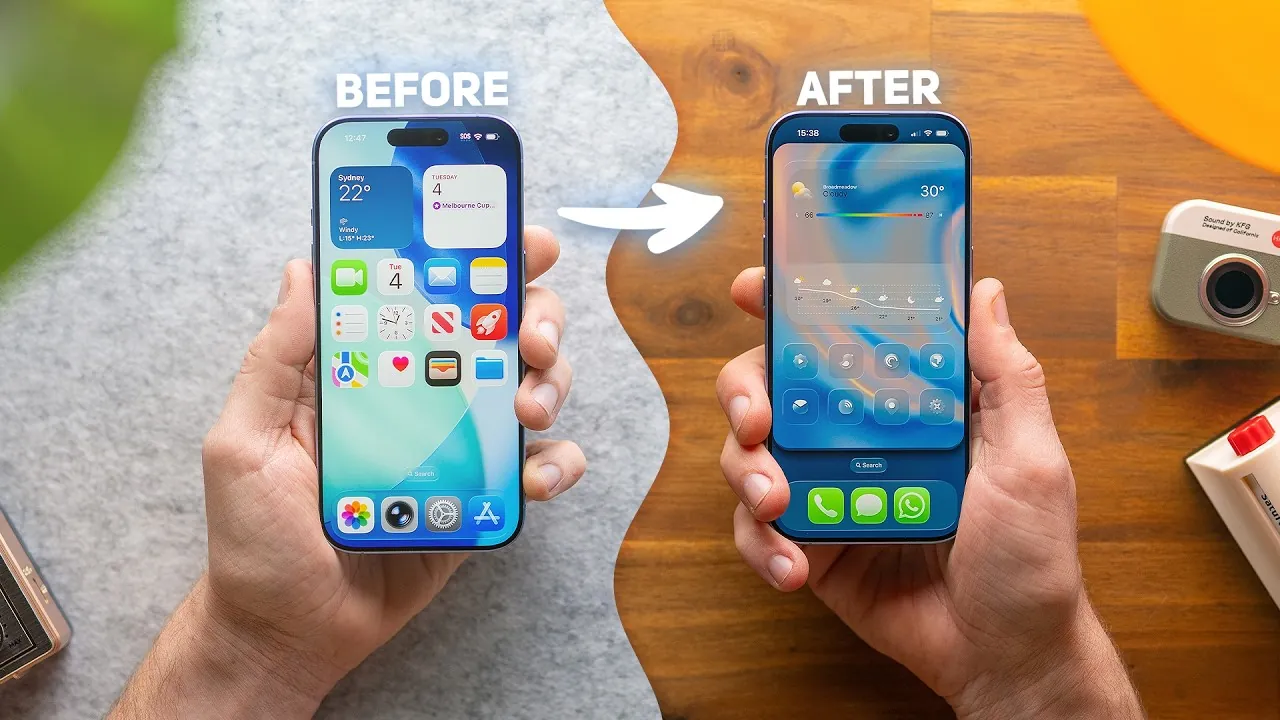
Apple’s iOS 26 introduces the innovative “liquid glass” design, offering a dynamic and reflective aesthetic that transforms home screen customization. This futuristic design not only enhances visual appeal but also redefines traditional customization techniques. To help you make the most of this update, the video below from Sam Beckman explores practical strategies and tools to create a home screen that is both visually stunning and functional, perfectly aligned with the liquid glass theme.
What Sets the iOS 26 Redesign Apart?
The defining feature of iOS 26 is its liquid glass design, characterized by shimmering borders and a translucent, reflective appearance. This visually captivating update challenges older customization methods, such as hiding the dock or creating fully transparent widgets. For example, the dock is now a fixed visual element, requiring creative approaches to seamlessly integrate it into your layout. Adapting to this new design language is essential to maintain both aesthetics and usability.
The liquid glass design also introduces a new level of depth and interactivity to the home screen. The reflective surfaces respond subtly to light and motion, creating a dynamic visual experience. This shift emphasizes the importance of cohesive design choices, making sure that every element of your home screen complements the liquid glass aesthetic.
Optimizing Wallpaper for the Liquid Glass Aesthetic
Your wallpaper serves as the foundation for the liquid glass theme, playing a crucial role in enhancing its reflective and translucent qualities. To achieve the best results, consider the following tips:
- Choose wallpapers with gradients, soft textures, or subtle reflections to amplify the shimmering effect of the liquid glass design.
- Avoid complex patterns that may clash with the dynamic borders and detract from the overall aesthetic.
- Use wallpapers that visually partition the dock, creating a natural separation without disrupting the design’s flow.
Many third-party apps offer tools to create or customize wallpapers specifically tailored to the liquid glass theme. These apps often include features like gradient generators and reflective overlays, making it easier to achieve a cohesive and polished look.
Integrating Glass-Inspired Widgets
Widgets are a key element in maintaining the liquid glass aesthetic, offering both functionality and visual harmony. Glass-inspired widgets, available through various third-party apps, mimic the reflective and translucent qualities of the new design. To seamlessly integrate these widgets into your home screen:
- Download a widget app that supports glass-themed designs, such as transparent or frosted styles.
- Select widget styles that complement your chosen wallpaper and overall aesthetic.
- Follow the app’s instructions to add and position widgets on your home screen for optimal visual balance.
These widgets not only enhance the liquid glass theme but also provide quick access to essential information, making sure your home screen remains both stylish and practical.
Customizing Icons for a Cohesive Design
Icon customization is essential for achieving a polished and cohesive home screen. With iOS 26, the Shortcuts app allows you to replace default app icons with glass-themed icon packs. To customize your icons effectively:
- Download a glass-themed icon pack that aligns with the liquid glass aesthetic.
- Use the Shortcuts app to create shortcuts for each app you want to customize.
- Assign the desired icons to these shortcuts and add them to your home screen.
Although this process requires some effort, the result is a personalized interface that perfectly complements the liquid glass design. Many third-party apps also offer pre-configured icon packs, simplifying the customization process.
Balancing Aesthetics and Functionality
While the liquid glass design emphasizes visual appeal, functionality should remain a priority. Striking the right balance ensures your home screen is both beautiful and practical. Consider these strategies:
- Keep notification badges visible for essential apps to stay informed without compromising the design.
- Place frequently used apps and widgets in accessible locations for an intuitive layout.
- Use iOS 26’s reduced shortcut banner prominence to simplify navigation and enhance usability.
By prioritizing both form and function, you can create a home screen that not only looks great but also supports your daily tasks seamlessly.
Using Third-Party Tools for Advanced Customization
Third-party apps are invaluable for taking your customization to the next level. These tools provide a wide range of resources, including wallpapers, widgets, and icon packs designed specifically for iOS 26. Key advantages of using these apps include:
- Previewing your setup before applying changes saves time and effort.
- Step-by-step guides for importing and configuring resources, making the process user-friendly.
- Access to diverse design options tailored to the liquid glass theme, allowing for endless creativity.
These tools simplify the customization process, allowing you to create a home screen that reflects your personal style while embracing the unique features of iOS 26.
Creating a Personalized and Functional Home Screen
The liquid glass design in iOS 26 redefines home screen customization, offering a blend of aesthetic innovation and practical functionality. By focusing on wallpaper selection, widget integration, icon customization, and using third-party tools, you can craft a home screen that is both visually striking and highly functional. This new design language invites you to explore creative possibilities, allowing your device to reflect your personal style while maintaining usability. Embrace the liquid glass aesthetic to transform your home screen into a seamless blend of art and utility.
Below are more guides on the iOS 26 redesign from our extensive range of articles.
- The iOS 26 Redesign: Will You Love It or Hate It?
- Apple iOS 26 Redesign: What You Need to Know
- Apple iOS 26: A Bold Redesign with Surprising Omissions
- Apple’s iOS 26: Year-Based Naming and Stunning Redesign
- iOS 26 Camera App Redesign: Features, Tips, and Tricks
Source & Image Credit: Sam Beckman
Disclosure: Some of our articles include affiliate links. If you buy something through one of these links, Geeky Gadgets may earn an affiliate commission. Learn about our Disclosure Policy.
