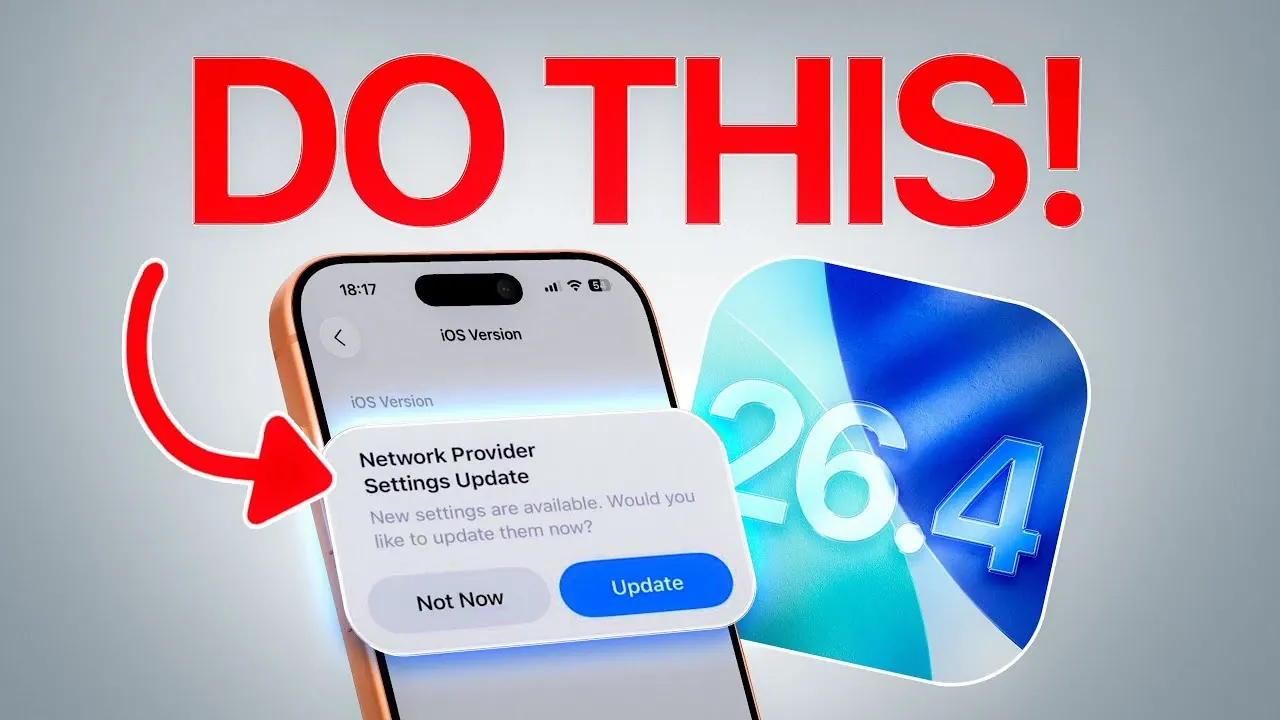
Apple has officially released iOS 26.4, bringing a range of new features, performance improvements, and critical updates to enhance user experience. However, simply installing the update is not enough to ensure your device operates at its peak. To fully benefit from iOS 26.4 and maintain optimal functionality, there are several important steps you should take immediately after updating. These actions are particularly crucial for addressing potential issues related to beta testing, app compatibility, keyboard performance and network reliability.
1. Adjust Beta Settings
If you participated in Apple’s beta testing program, it is essential to review and adjust your beta settings after installing iOS 26.4. This ensures your device runs the stable, official release of the software, which is optimized for everyday use. Follow these steps to manage your beta settings:
- Open the Settings app on your device.
- Navigate to General > Software Update.
- Disable beta updates.
By disabling beta updates, you prevent your device from inadvertently downloading unstable beta builds, which could lead to performance issues or app compatibility problems. If you wish to continue testing future iOS versions, you can re-enable beta updates at a later time.
2. Reset Keyboard Dictionary for Improved Accuracy
After updating to iOS 26.4, you might notice changes in your keyboard’s typing accuracy or predictive text functionality. This is because the update may alter how the keyboard processes input. To recalibrate and optimize your keyboard’s performance, reset the keyboard dictionary:
- Open the Settings app.
- Go to General > Reset.
- Select Reset Keyboard Dictionary.
This step removes any custom words you have added to the dictionary, allowing the keyboard to adapt to the latest software changes. While it may take some time for the keyboard to relearn your typing habits, this process ensures better autocorrect suggestions and improved swipe-to-type predictions.
3. Update Third-Party Apps for Compatibility
Third-party apps often require updates to remain compatible with the latest iOS version. Outdated apps may experience crashes, reduced performance, or even fail to function properly, especially if they rely on system-level features that have been modified in iOS 26.4. To update your apps:
- Open the App Store on your device.
- Tap your profile icon in the top-right corner of the screen.
- Scroll down to view available updates and install them.
Regularly updating your apps not only ensures compatibility but also provides access to new features and bug fixes introduced by developers. This proactive step minimizes the risk of app-related issues and contributes to a smoother overall experience.
4. Verify Carrier Settings Updates
Carrier settings updates are often overlooked but are essential for maintaining optimal network performance. These updates align your device with your carrier’s latest configurations, improving call quality, data speeds and overall connectivity. To check for carrier settings updates:
- Open the Settings app.
- Navigate to General > About.
- If a carrier update is available, a prompt will appear to install it.
Failing to install carrier updates can result in dropped calls, slower data speeds, or other connectivity issues. Taking a moment to verify and apply these updates ensures your device remains in sync with your carrier’s network optimizations.
Maximizing the Benefits of iOS 26.4
Updating to iOS 26.4 is a significant step, but it is only the beginning of making sure your device operates smoothly and efficiently. By completing the following post-update actions, you can maximize the benefits of the latest software:
- Adjust beta settings to maintain stability and avoid unintended beta builds.
- Reset your keyboard dictionary to enhance typing accuracy and predictive text functionality.
- Update third-party apps to ensure compatibility and access new features.
- Check for carrier settings updates to optimize network performance and connectivity.
These steps are essential for maintaining a seamless and reliable user experience. By taking the time to address these tasks, you can ensure your iPhone or iPad fully uses the enhancements introduced in iOS 26.4, providing you with a more efficient and enjoyable device experience.
Here are additional guides from our expansive article library that you may find useful on iOS 26.4.
- iOS 26.4 Icon Changes: How Apple’s New Liquid Glass Look Works
- Everything New in iOS 26.4 Beta 4: CarPlay, AI, and More
- iOS 26.4 Guide: New Features, Release Date, and Performance
- iOS 26.4 Release Date, Features, and Performance Details
- When Will iOS 26.4 Be Released? Full Details Inside
- iOS 26.4 RC Fixes iPhone Keyboard Accuracy Bug: What’s New
Source & Image Credit: iDeviceHelp
Disclosure: Some of our articles include affiliate links. If you buy something through one of these links, Geeky Gadgets may earn an affiliate commission. Learn about our Disclosure Policy.
