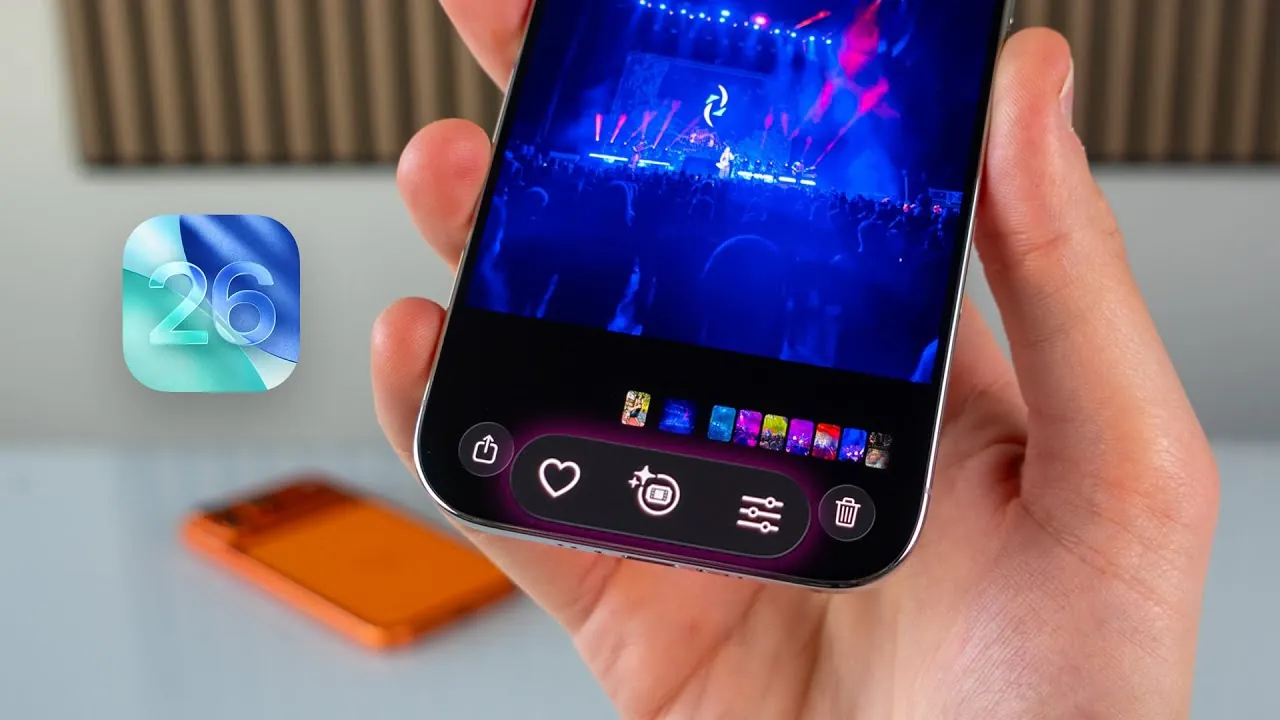
iOS 26 delivers a wide array of features designed to enhance usability, customization, and overall efficiency. Whether you’re a casual user or a tech enthusiast, this guide will help you explore the most impactful updates. From improved navigation to smarter photo management, these features are crafted to ensure you get the most out of Apple’s latest operating system. The current version of iOS is 26.1, with 26.2 on the way and in beta at the moment. The video below from iDB shows us a range of tips and tricks for iOS 26.
Streamlined Gesture-Based Navigation
Navigating your device is now more intuitive than ever. iOS 26 introduces enhanced gesture controls, allowing you to swipe back from anywhere on the screen. This eliminates the need to reach for the edge, making one-handed use more practical, especially on larger devices. Switching between apps or returning to previous screens is faster and more seamless, making sure a smoother user experience. These refined gestures are particularly beneficial for multitasking, offering a more fluid way to interact with your device.
Smarter Photo Recognition with AI
The Photos app in iOS 26 uses advanced artificial intelligence to transform how you manage and explore your photos. It can now identify specific events, such as concerts or sports games, and automatically provide relevant details like artist bios or game stats. Additionally, the app links to related content, allowing you to dive deeper into your captured moments. This feature not only enhances photo organization but also transforms your gallery into a dynamic hub of information and discovery.
Customizable Lock Screen Features
The lock screen in iOS 26 offers greater customization options, giving you more control over its functionality and appearance. You can now disable the swipe-to-open camera feature, reducing accidental activations when your device is in your pocket or bag. The updated liquid glass design allows you to adjust transparency levels, striking a balance between aesthetics and readability. These enhancements ensure your lock screen is both visually appealing and tailored to your preferences.
Haptic Feedback for Gesture Controls
Apple has introduced haptic feedback to gesture-based controls, adding a tactile dimension to your interactions. For instance, in Apple Music, you can swipe to switch songs in the mini or full-screen player and feel subtle vibrations that confirm your actions. This feature improves precision and creates a more immersive experience, making everyday tasks like navigating playlists or adjusting settings more engaging and intuitive.
Improved Camera App Usability
The Camera app in iOS 26 has been optimized for greater usability and convenience. A new swipe-up gesture lets you quickly access settings, making it easier to adjust options like video modes or resolution during one-handed use. Additionally, the update introduces the ability to record high-quality audio and video during calls, with customizable storage locations for better file organization. These improvements ensure that capturing and managing media is more efficient and user-friendly.
Expanded Control Center Shortcuts
The Control Center in iOS 26 is now more versatile, offering expanded shortcut options for frequently used features. You can add shortcuts for tasks like creating reminders or accessing specific apps with a single tap. The flashlight control has also been upgraded—partially swiping to open the camera automatically turns off the flashlight, providing a quicker and more intuitive alternative to the traditional method. These updates make the Control Center a more powerful tool for managing your device.
Safari’s Compact Tab Bar
Browsing in Safari is more efficient with the introduction of a redesigned compact tab bar. This feature incorporates swipe gestures for opening and managing tabs, reducing clutter and improving navigation. The streamlined layout is particularly useful for multitasking across multiple tabs, making sure a smoother and more organized browsing experience. Whether you’re researching or simply exploring the web, this update enhances productivity and ease of use.
Customizable Screenshot Behavior
For users who frequently take screenshots, iOS 26 offers the ability to customize screenshot behavior. You can now disable full-screen previews, opting instead for the previous thumbnail behavior. This minimizes interruptions and allows you to maintain focus on your tasks. This small yet impactful change is ideal for those who prioritize efficiency and prefer a more streamlined workflow.
Enhanced iMessage Photo Management
Managing photos within iMessage is now more flexible and tailored to your needs. iOS 26 introduces the option to prevent images taken in the app from being saved to your photo library. This keeps your gallery organized and free of clutter, making it especially useful for temporary or casual photos that don’t require long-term storage. This feature ensures that your photo library remains focused on what matters most to you.
Reminder Scheduling for Missed Calls
Missed calls are easier to manage with the new reminder scheduling feature in the Phone app. You can set reminders directly from the call log, making sure you follow up promptly. This integration simplifies task management and helps you stay on top of your communication, making it easier to maintain both personal and professional connections.
Unlock the Full Potential of iOS 26
iOS 26 introduces a range of features designed to enhance convenience, customization, and efficiency. From smarter navigation to AI-powered photo recognition, each update is crafted to improve your interaction with your device. By exploring these features and tips, you can tailor iOS 26 to your unique preferences and unlock its full potential, making sure a more seamless and enjoyable user experience.
Advance your skills in iOS 26 tips and tricks by reading more of our detailed content.
- iPadOS 26 Tips & Tricks: Unleash Your iPad’s Full Potential
- Make Your iPhone AMAZING with These iOS 26 Tips & Tricks
- 10 Essential iOS 26 Tips to Maximize Your iPhone’s Potential
- iOS 26 Tips: 24 Settings You Should Adjust Immediately
- iOS 26 Camera App Redesign: Features, Tips, and Tricks
Source & Image Credit: iDB
Disclosure: Some of our articles include affiliate links. If you buy something through one of these links, Geeky Gadgets may earn an affiliate commission. Learn about our Disclosure Policy.
