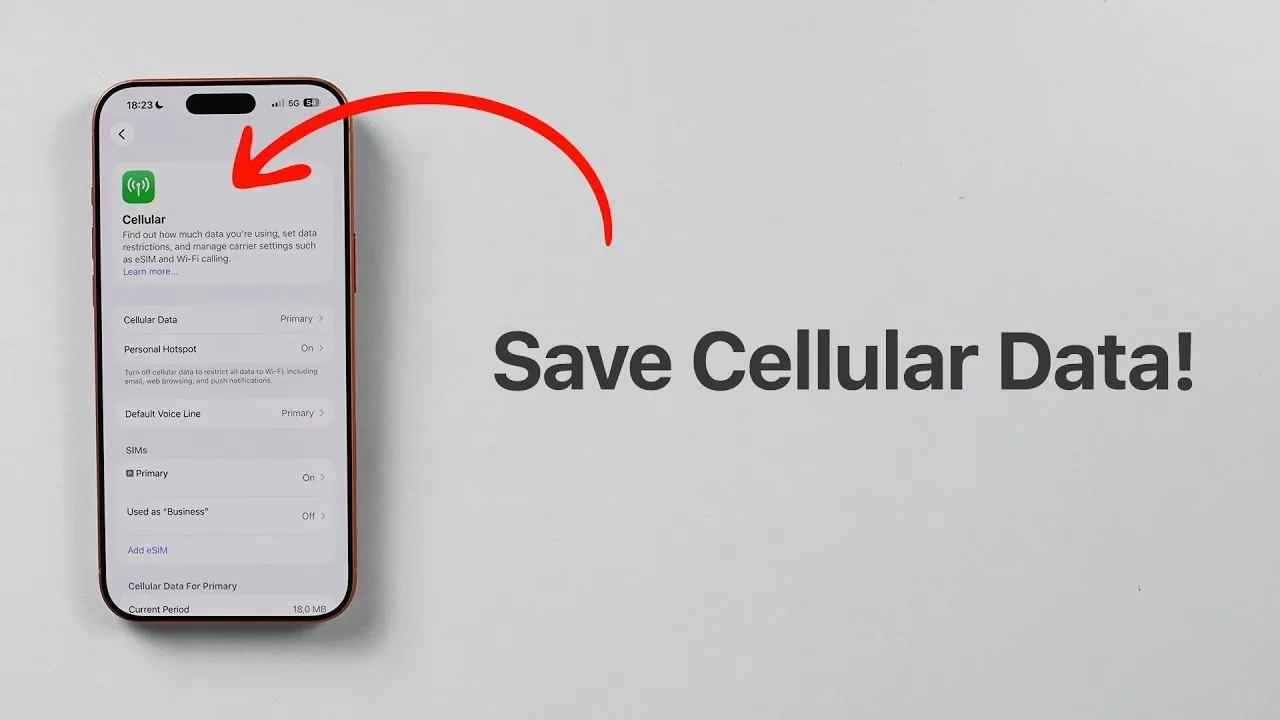
Effectively managing mobile data usage on your iPhone is essential for avoiding overage charges and staying within your monthly data limits. With a few targeted adjustments to your device settings, you can significantly reduce unnecessary data consumption while maintaining essential functionality. The video below from Daniel About Tech outlines practical strategies to help you optimize your iPhone’s cellular data usage, making sure a more cost-efficient and seamless mobile experience.
Enable Low Data Mode
Low Data Mode is a built-in feature designed to minimize background data usage. When activated, it restricts non-essential tasks such as automatic updates, background app refreshes and large downloads, while still allowing critical notifications and internet access. This feature is particularly useful if you are on a limited data plan or nearing your monthly cap.
To enable Low Data Mode:
- Open Settings > Cellular > Cellular Data Options.
- Toggle on Low Data Mode.
By allowing this feature, your iPhone prioritizes essential activities, helping you conserve data without requiring constant manual adjustments.
Disable Wi-Fi Assist
Wi-Fi Assist is a feature that automatically switches your iPhone to cellular data when your Wi-Fi connection becomes weak. While this ensures uninterrupted connectivity, it can also lead to unexpected data usage. Disabling Wi-Fi Assist ensures that your iPhone relies on Wi-Fi whenever possible, reducing unnecessary cellular data consumption.
To turn off Wi-Fi Assist:
- Go to Settings > Cellular.
- Scroll to the bottom and toggle off Wi-Fi Assist.
This adjustment gives you greater control over your data usage, making sure that cellular data is only used when absolutely necessary.
Turn Off iCloud Backup on Cellular Data
iCloud Backup is a valuable tool for safeguarding your data, but it can consume significant amounts of cellular data if not properly configured. To prevent large data transfers over your mobile network, you can restrict iCloud Backup to Wi-Fi only.
Here’s how to disable iCloud Backup on cellular data:
- Navigate to Settings > [Your Name] > iCloud > iCloud Backup.
- Turn off the option to use cellular data for backups.
This ensures that your backups occur over Wi-Fi, preserving your mobile data allowance while maintaining the security of your information.
Manage iCloud Drive Usage
iCloud Drive allows seamless file storage and access across your devices, but frequent uploads and downloads over cellular data can quickly deplete your data plan. If constant file syncing is not essential while on the go, consider disabling iCloud Drive for cellular data.
To manage iCloud Drive usage:
- Go to Settings > Cellular.
- Scroll to iCloud Drive and toggle it off.
If you rely on iCloud Drive for work or personal tasks, you can enable it only when necessary to strike a balance between convenience and data conservation.
Monitor and Reset Data Usage Statistics
Tracking your data usage is a vital step in staying within your plan’s limits. Your iPhone provides detailed statistics that allow you to identify data-heavy apps and monitor overall consumption. Regularly reviewing and resetting these statistics can help you make informed decisions about your data usage.
To access and reset data usage statistics:
- Open Settings > Cellular.
- Review the data usage breakdown for each app.
- Scroll to the bottom and tap Reset Statistics at the start of your billing cycle.
By resetting these statistics monthly, you can better track your usage patterns and adjust your settings as needed to avoid exceeding your data limits.
Additional Tips for Reducing Mobile Data Usage
Beyond the core strategies outlined above, there are additional measures you can take to further reduce mobile data consumption on your iPhone. These include:
- Disable Background App Refresh: Navigate to Settings > General > Background App Refresh and turn it off for apps that don’t require constant updates.
- Limit Streaming Quality: In apps like YouTube, Netflix, or Spotify, adjust the streaming quality settings to lower resolutions or download content over Wi-Fi for offline use.
- Turn Off Automatic Downloads: Go to Settings > App Store and disable automatic downloads for apps, updates and media when using cellular data.
- Use Data-Saving Modes in Apps: Many apps, such as social media platforms, offer built-in data-saving modes that can reduce image and video quality to conserve data.
Incorporating these additional tips into your routine can further enhance your ability to manage mobile data effectively.
Take Control of Your Data Usage
By implementing these strategies, you can take full control of your iPhone’s mobile data usage. Activating Low Data Mode, disabling Wi-Fi Assist, managing iCloud settings and monitoring usage statistics are straightforward yet effective methods for conserving data. Additionally, adopting habits like limiting streaming quality and disabling background app refresh can further optimize your data consumption. These adjustments not only help you stay within your monthly limits but also ensure a smoother and more cost-efficient mobile experience.
Source & Image Credit: Daniel About Tech
Disclosure: Some of our articles include affiliate links. If you buy something through one of these links, Geeky Gadgets may earn an affiliate commission. Learn about our Disclosure Policy.
