Even though Apple’s personal assistant Siri is still in its infancy it can still be used for a wide variety of different functions depending on your needs. This quick guide will show you how to use Siri on iPhone and Apple Watch allowing you to get the most from all its features. Siri can simplify your life in a myriad ways, from sending texts, placing calls to providing weather updates or even telling jokes and flipping coins.
Siri is Apple’s built-in “intelligent assistant” that operates by voice command. It can handle a wide range of tasks, such as answering questions, setting reminders, sending messages, and much more. It’s designed to offer a seamless and natural way of interacting with your device. Before we start you need to make sure that Siri has been enabled on your iPhone and Apple Watch.

Activating Siri on iPhone
Before we dive into using Siri, we first need to ensure it’s activated on your iPhone. Here’s how to enable Siri:
- Open your iPhone settings: You can do this by tapping on the gear icon labelled “Settings” on your home screen.
- Tap on “Siri & Search”: This will open the Siri settings.
- Toggle on “Listen for ‘Hey Siri'”: This enables Siri to activate whenever you say “Hey Siri”.
Now that you’ve activated Siri, it’s time to get the conversation started!
Using Siri
1. Starting a conversation
You can begin using Siri in two main ways:
- Say “Hey Siri”: If you’ve enabled the “Hey Siri” feature, you can simply say “Hey Siri”, followed by your request or command.
- Press the side button: On newer iPhones, press and hold the side button until the Siri interface appears, then speak your command.
2. Making requests
You can ask Siri all sorts of things. Here are some examples of what you can do with Siri:
- Call or text someone: Say “Call [contact name]” or “Text [contact name] [your message]”.
- Set reminders or alarms: Say “Remind me to [task] at [time]” or “Set an alarm for [time]”.
- Ask about the weather: Ask “What’s the weather like today?” or “Do I need an umbrella?”.
- Play music: Request “Play [song name] by [artist name]” or “Play some jazz”.
Remember, Siri is designed to understand natural language, so you don’t need to speak in robotic commands!
3. Modifying settings
Siri can also modify settings on your iPhone, which can be a real time saver. For instance, you can say “Turn on Do Not Disturb” or “Increase the brightness”.

Troubleshooting Siri on iPhone
Sometimes, Siri might not work as expected. Here are some common issues and their solutions:
- Siri doesn’t respond: Make sure you’ve enabled “Hey Siri” in your settings and that your iPhone is not on silent mode.
- Siri doesn’t understand you: Speak clearly and try to reduce any background noise. Siri learns from each interaction, so it will get better over time.
- Siri’s voice is too low: You can adjust Siri’s volume by going to Settings > Siri & Search > Siri Voice > Siri Volume.

Activating Siri on your Apple Watch
Before starting to use Siri, you must first ensure that it’s activated on your device. Follow these simple steps:
1. Open the Settings app on your Apple Watch.
2. Scroll down and tap on ‘Siri.’
3. Toggle the switch to turn Siri on.
Remebers your Apple Watch needs an internet connection for Siri to function, so make sure you’re either connected to Wi-Fi or your iPhone’s data network plan.
How to use Siri on your Apple Watch
When you need to use Apple Siri on your watch you can activate it in three different ways :
- Raise to Speak: This feature lets you bring your Apple Watch close to your mouth and start talking. You’ll need to enable the ‘Raise to Speak’ feature in the settings for this to work.
- Press the Digital Crown: A simple press and hold of the digital crown on your Apple Watch will wake up Siri.
- Say “Hey Siri”: You can wake Siri up by saying “Hey Siri“, followed by your command or question. If your Apple watch does not do this you may need to go into the Settings and enable this option as explained above.
What can you do with Siri on your Watch?
Once you’ve got Siri up and running, there’s an impressive range of tasks she can perform right from your wrist:
Send Messages: Dictate your message to Siri, and she’ll send it for you. Just say “Send a text to [contact’s name]” followed by your message.
Make Calls: Want to initiate a call? No problem. Say “Call [contact’s name]”, and Siri will start the call.
Set Alarms and Reminders: Need a reminder about an upcoming event? Or an alarm set for a particular time? Siri’s got you covered. For example, “Remind me to buy milk at 6 PM” or “Set an alarm for 7 AM.”
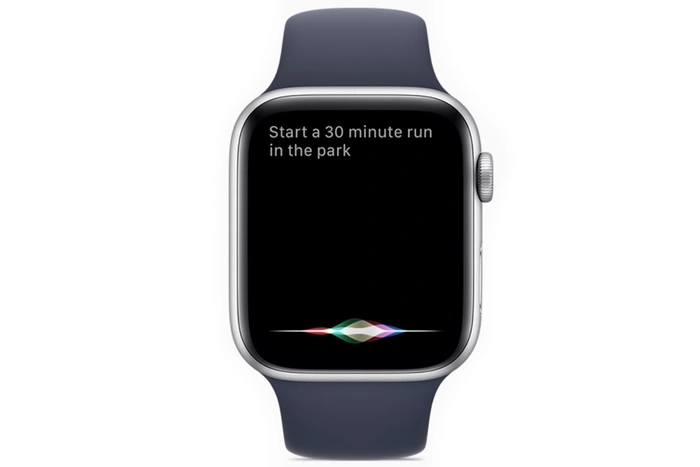
Start Workouts: You can command Siri to start a specific workout. For instance, “Start a 30-minute outdoor run.”
Check Your Heart Rate: Ask Siri to check your heart rate, and you’ll get a reading in no time.
Give You Directions: Need help navigating? Ask Siri for directions, and she’ll display the route using Apple Maps.
Play Music: Ask Siri to play a song, album, or playlist, and she’ll play it through your Apple Watch.
Check the Weather: Curious about the weather? Siri can provide current conditions, forecasts, and more.
How to get the most from Apple’s personal assistant
Finally, it’s worth taking a moment to consider how you can get the most out of Siri on your Apple Watch. Here are a few tips:
Speak Clearly: Siri uses voice recognition to interpret your commands. Be sure to articulate your words properly for the best results.
Use Specific Commands: Siri performs best when given specific instructions. Instead of saying, “Call John,” try saying, “Call John Smith on his mobile.”
Explore Different Commands: There’s an almost limitless number of commands Siri can understand. Don’t be afraid to experiment and try out new ones.
Use Siri for Accessibility: If you have difficulty seeing the small screen on your watch, Siri can be a great help. She can read texts, describe images, or tell you who’s calling.
In conclusion, Siri on your Apple Watch is a powerful tool that can make your daily life easier and more organized. With a broad array of functions at her disposal, she can handle many of your tasks efficiently. From managing your communication to assisting you in maintaining a healthy lifestyle, Siri is an exceptional asset for every Apple Watch user. So, why wait? Start exploring and make the most of this fantastic assistant on your wrist.
Troubleshooting Siri on Apple Watch
If you’re having trouble with Siri, try these fixes:
Check Internet Connection: Siri needs an internet connection to work. Check if your Apple Watch is connected to your iPhone or a Wi-Fi network.
Restart Your Apple Watch: Sometimes, a simple restart can fix many issues. Press and hold the side button, then slide to power off. Press the side button again to turn it back on.
Check Siri Settings: Make sure Siri is turned on in your settings, and the language and region are correctly set.
Remember, practice makes perfect. The more you use Siri, the better it gets at understanding and executing your commands. So, go on and explore what this fantastic assistant has to offer on your Apple Watch.
If you are still experiencing issues trying to use Siri on your iPhone or Apple Watch it might be worth visiting the official Apple support website or if needed booking an appointment with an Apple Genius bar representative to help sort any issues you may be struggling with.
Disclosure: Some of our articles include affiliate links. If you buy something through one of these links, Geeky Gadgets may earn an affiliate commission. Learn about our Disclosure Policy.
