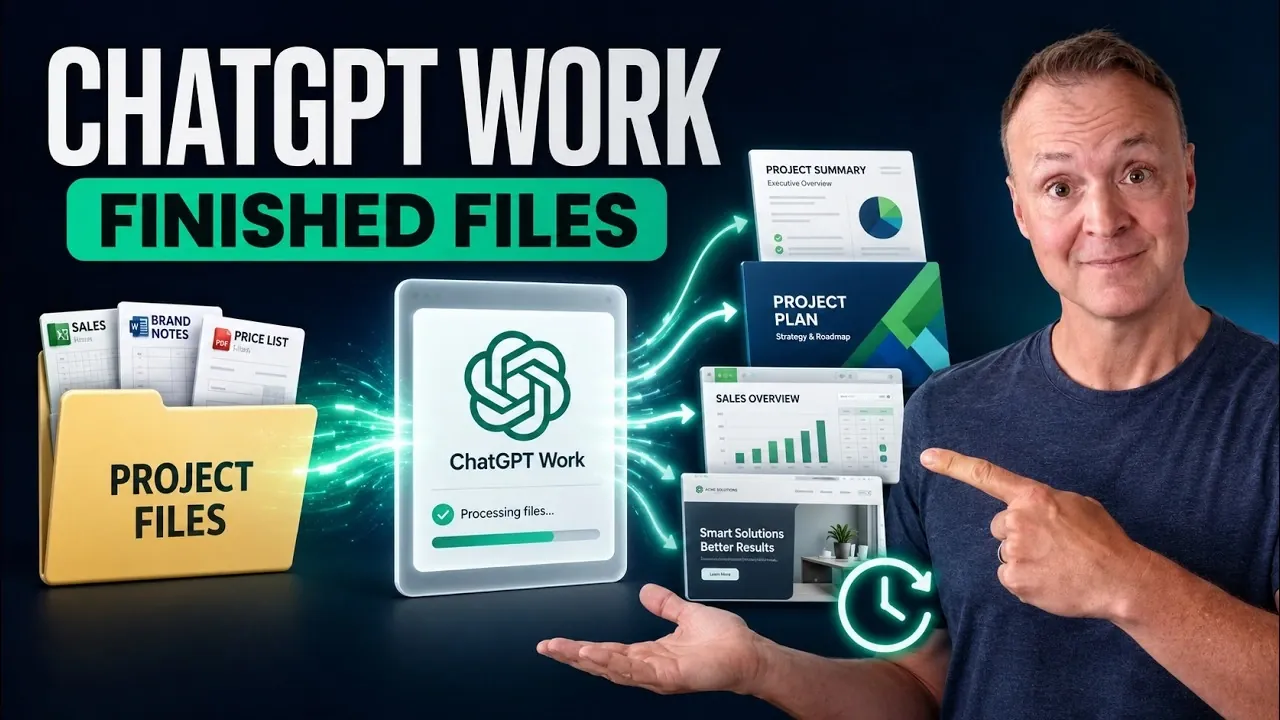
ChatGPT’s “Work” mode is designed to support structured, task-oriented activities by focusing on actionable outputs. Unlike the conversational “Chat” mode, it prioritizes tasks such as generating detailed reports, creating presentations, or automating recurring processes. Teacher’s Tech explains how this mode connects with local folders, cloud platforms and plugins to enhance organization and efficiency. For example, linking a project to a local folder allows direct access to files, making sure resources are well-organized and easy to manage throughout your work.
Discover how to create task-specific prompts for accurate results, automate recurring actions like generating weekly reports and use templates to maintain consistency across projects. Gain insight into integrating services like Google Drive or Gmail to keep your workflows synchronized. This hands-on walkthrough will equip you with practical steps to navigate “Work” mode effectively, from managing resources to streamlining repetitive tasks.
ChatGPT Work Mode July 2026
TL;DR Key Takeaways :
- “Work” Mode Overview: ChatGPT’s “Work” mode is designed for task-oriented workflows, allowing users to create polished outputs like reports, presentations and websites while integrating with local files, cloud services and plugins.
- Key Features: Includes project-based file management, task prompts for structured outputs, automation and scheduling for recurring tasks and reusable templates for consistency and efficiency.
- Plugins and Integrations: Offers access to over 1,000 tools, including Gmail and Google Drive, enhancing functionality for file sharing, email drafting and cloud storage management.
- Platform-Specific Benefits: Desktop provides the most robust experience with advanced features, while web and mobile focus on cloud-based tasks and remote access for flexibility.
- Productivity Tips: Use permissions control for security, optimize performance with the model slider and separate “Chat” mode for brainstorming from “Work” mode for finalized outputs to maintain focus and efficiency.
Understanding ChatGPT’s Modes
ChatGPT offers several modes tailored to specific needs:
- Chat: Ideal for conversational interactions, brainstorming and answering quick questions.
- Work: Designed for task management, automation and delivering finalized outputs with precision.
- Code Interpreter (Codeex): A specialized mode for coding tasks (not covered in this guide).
“Work” mode stands out for its ability to streamline workflows, making it particularly useful for projects requiring organization, automation and integration. By focusing on actionable outputs, it transforms how users approach productivity.
Getting Started with “Work” Mode
To access “Work” mode, you’ll need the ChatGPT desktop app. While all users can access it on the desktop, web and mobile access is limited to paid plans. The desktop app provides the most comprehensive experience, especially for tasks involving local file integration and advanced features. Once installed, you can begin exploring the mode’s capabilities, from managing projects to automating repetitive tasks.

Become an expert in ChatGPT with the help of our in-depth articles and helpful guides.
- GPT-5.6 Pro Leaks Expose a Massive Jump in AI Reasoning Power
- ChatGPT 5.6 vs Claude Mythos 5 : Leaks Reveal Two Very Different Futures for AI
- Leaked ChatGPT 5.5 Pro Tests Reveal OpenAI’s “Spud” Building Interactive 3D Worlds
- OpenAI Introduces ChatGPT 5.6 Sol, Terra and Luna Models
- What ChatGPT 5.6’S Delay Means for the Future of Open Source AI
- What the Leaked ChatGPT 5.6 Model Reveals About OpenAI’s Next Move
- How ChatGPT 5.5 Automates Repetitive Coding Tasks to Save You Time
- ChatGPT 5.5 Instant Launches : Navigating Its Strengths and Weaknesses
- ChatGPT 5.6 vs Claude Fable 5: Which AI Actually Comes Out on Top?
- OpenAI’s GPT-5.6 Release is Triggering an AI Price War
Key Features of “Work” Mode
Projects
Projects form the foundation of “Work” mode. By linking a project to a local folder, you enable seamless file access and updates. Tasks within a project automatically pull relevant files, making sure efficiency and accuracy. For instance, if you’re drafting a overview, the project can access related spreadsheets or documents stored in the linked folder, reducing the need for manual file handling.
Task Prompts
Task prompts allow you to define desired outcomes, specify sources and set expectations for results. Outputs, such as reports or presentations, are saved directly to the linked folder, keeping all project-related files organized and easily accessible. This feature ensures that your work remains structured and aligned with your objectives.
Automation and Scheduling
Automation is one of the standout features of “Work” mode. You can schedule tasks to run at specific times, such as generating weekly reports or drafting daily emails. While desktop-based tasks require your computer to remain on, cloud-based tasks operate independently, offering flexibility and reliability. This capability is particularly useful for recurring tasks, allowing you to focus on more strategic activities.
Templates and Reusability
“Work” mode allows you to save completed tasks as reusable templates. For example, a presentation template can be repurposed for future projects, saving time and making sure consistency. These templates can also be shared as plugins, allowing team-wide standardization and collaboration. By using templates, you can maintain a professional and cohesive output across multiple projects.
Plugins and Integrations
With access to over 1,000 tools, including Gmail, Google Drive and other external services, plugins significantly enhance the functionality of “Work” mode. They allow you to interact with external files and services directly, streamlining processes such as file sharing, email drafting and cloud storage management. This integration capability ensures that your workflows remain connected and efficient, regardless of the tools you use.
Additional Features
“Work” mode includes several supplementary tools to enhance your productivity:
- Desktop Pet: A visual assistant that provides real-time updates on task progress, keeping you informed without disrupting your workflow.
- Browser Integration: Conduct online research without leaving the app, making sure a seamless and uninterrupted workflow.
- Computer Use Plugin: Automate actions in other desktop applications, such as editing documents or managing spreadsheets, further expanding the mode’s versatility.
These features are designed to complement the core functionalities of “Work” mode, providing additional support for complex or multitasking scenarios.
Tips for Effective Use
To maximize the potential of “Work” mode, consider these best practices:
- Permissions Control: Start with restricted access to sensitive files and adjust permissions as needed for specific tasks to maintain security.
- Model Slider: Optimize performance by adjusting the model for speed or accuracy. Paid plans offer more customization options, allowing you to tailor the mode to your needs.
- Separate Usage Pools: Use “Chat” mode for brainstorming and “Work” mode for producing finalized outputs. This separation helps maintain focus and efficiency in your workflows.
By following these tips, you can ensure that “Work” mode is used to its fullest potential, aligning with your specific goals and requirements.
Platform-Specific Insights
Each platform offers unique advantages for using “Work” mode:
- Desktop: Ideal for local file integration and advanced features like automation and scheduling. This platform provides the most robust experience for users handling complex tasks.
- Web: Focuses on cloud-based tasks and plugin functionality, making it suitable for users prioritizing online tools and remote collaboration.
- Mobile: Provides remote access to desktop projects, allowing task management on the go. This flexibility ensures that you can stay productive even when away from your primary workstation.
Understanding the strengths of each platform allows you to choose the one that best aligns with your workflow and productivity needs.
Using “Work” Mode for Productivity
ChatGPT’s “Work” mode is a versatile tool for automating and managing tasks, seamlessly integrating with both local and cloud resources. By using features like projects, templates and plugins, you can streamline workflows, reduce repetitive tasks and focus on achieving your goals efficiently. Whether you’re managing files, automating schedules, or collaborating with a team, “Work” mode equips you with the tools needed to stay organized and productive. With its robust capabilities and user-friendly design, “Work” mode is an essential resource for anyone looking to optimize their work processes.
Media Credit: Teacher’s Tech
Disclosure: Some of our articles include affiliate links. If you buy something through one of these links, Geeky Gadgets may earn an affiliate commission. Learn about our Disclosure Policy.
