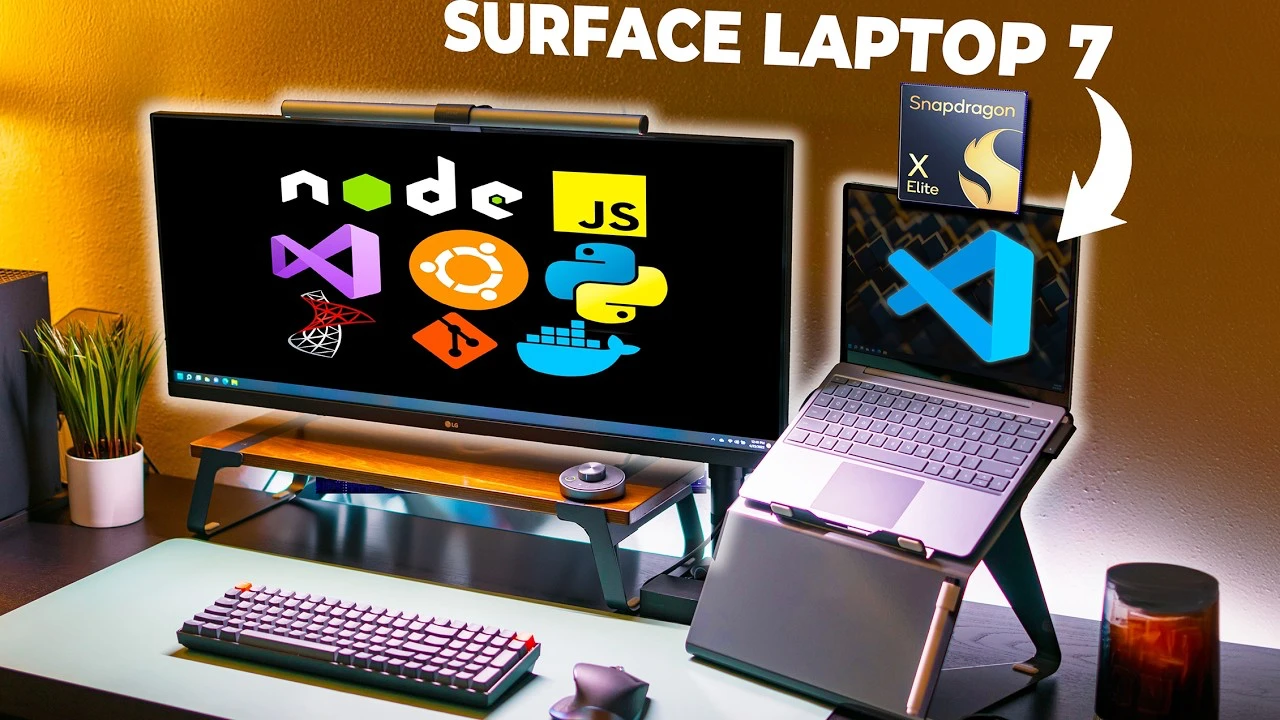
The Microsoft Surface Laptop 7, powered by the Snapdragon chip, is a versatile and powerful device that can be transformed into an ideal machine for software development. The video below from Alex Ziskind will walk you through the essential steps to optimize your Surface Laptop 7 for coding, including system updates, performance optimization, and the installation of crucial development tools such as WSL (Windows Subsystem for Linux), Visual Studio, Node.js, Python, Docker, and PowerToys. By following these instructions, you’ll be able to configure both Windows and Linux environments to maximize performance and flexibility, ensuring a seamless development experience.

Ensuring Your System Is Up-to-Date
To begin, it’s crucial to ensure that your system and software are up-to-date. This step is essential for maintaining security and optimal performance. To check for updates:
- Navigate to Settings > Update & Security > Windows Update
- Click on “Check for updates” and install any available updates
Next, use the Task Manager to manage startup apps and system performance. This will help you optimize boot times and overall system responsiveness. To access Task Manager:
- Press Ctrl + Shift + Esc to open Task Manager
- Go to the Startup tab
- Disable any unnecessary startup programs to improve boot times
Optimizing Performance Settings
To ensure your Surface Laptop 7 is running at its best, adjust your power settings for maximum performance:
- Go to Settings > System > Power & Sleep > Additional power settings
- Select the High performance plan
Additionally, disabling unnecessary visual effects can improve system responsiveness:
- Right-click on This PC and select Properties
- Click on Advanced system settings
- Under the Performance section, click Settings
- Choose Adjust for best performance
Configuring Your Development Environment
To set up your development environment, start by allowing Developer Mode in Windows settings:
- Go to Settings > Update & Security > For developers
- Toggle on Developer Mode
Next, install and configure WSL (Windows Subsystem for Linux). This will allow you to run a Linux environment directly on Windows, providing access to a vast array of Linux tools and utilities:
- Open PowerShell as an administrator
- Run the command
wsl --installto install the default Linux distribution - You can choose a different distribution later if needed
Installing Essential Development Tools
Git
Install Git for both Windows and Linux environments to enable version control and collaboration:
- For Windows, download Git from the official website and install it
- For Linux, use the terminal command
sudo apt-get install git
Visual Studio and Visual Studio Code
Install Visual Studio for .NET development and Visual Studio Code for web development:
- Download and install both from their respective websites
- Configure them according to your specific development needs
Node.js
Use Node Version Manager (NVM) in WSL for managing multiple Node.js versions:
- Install NVM by running
curl -o- https://raw.githubusercontent.com/nvm-sh/nvm/v0.38.0/install.sh | bash - Install Node.js using the command
nvm install node
Python
Install Miniconda in WSL for managing Python environments:
- Download the Miniconda installer for Linux and run it
- Use Conda to create and manage Python environments
Docker
Install Docker Desktop for ARM architecture to enable containerization and deployment:
- Download Docker Desktop from the official website
- Follow the installation instructions, ensuring that WSL integration is enabled in Docker settings
Enhancing Productivity with Additional Utilities
To further enhance your productivity and streamline your workflow, consider installing Microsoft PowerToys:
- Download PowerToys from the official GitHub repository and install it
- Use tools like FancyZones and PowerRename to optimize your workspace and manage files efficiently
Practical Tips for Efficient Development
To make the most of your development environment on the Surface Laptop 7, consider the following tips:
- Use terminal commands for efficient software installation and configuration, such as
apt-getfor installing packages in WSL andchocofor Windows - Manage different development environments and tools effectively within both Windows and Linux subsystems to leverage the strengths of both operating systems
By following this comprehensive guide, you’ll be able to set up a robust and efficient development environment on your Microsoft Surface Laptop 7, taking full advantage of both Windows and Linux capabilities. This dual setup will provide you with the flexibility and power needed to tackle a wide range of software development projects.
Source & Image Credit: Alex Ziskind
Disclosure: Some of our articles include affiliate links. If you buy something through one of these links, Geeky Gadgets may earn an affiliate commission. Learn about our Disclosure Policy.
