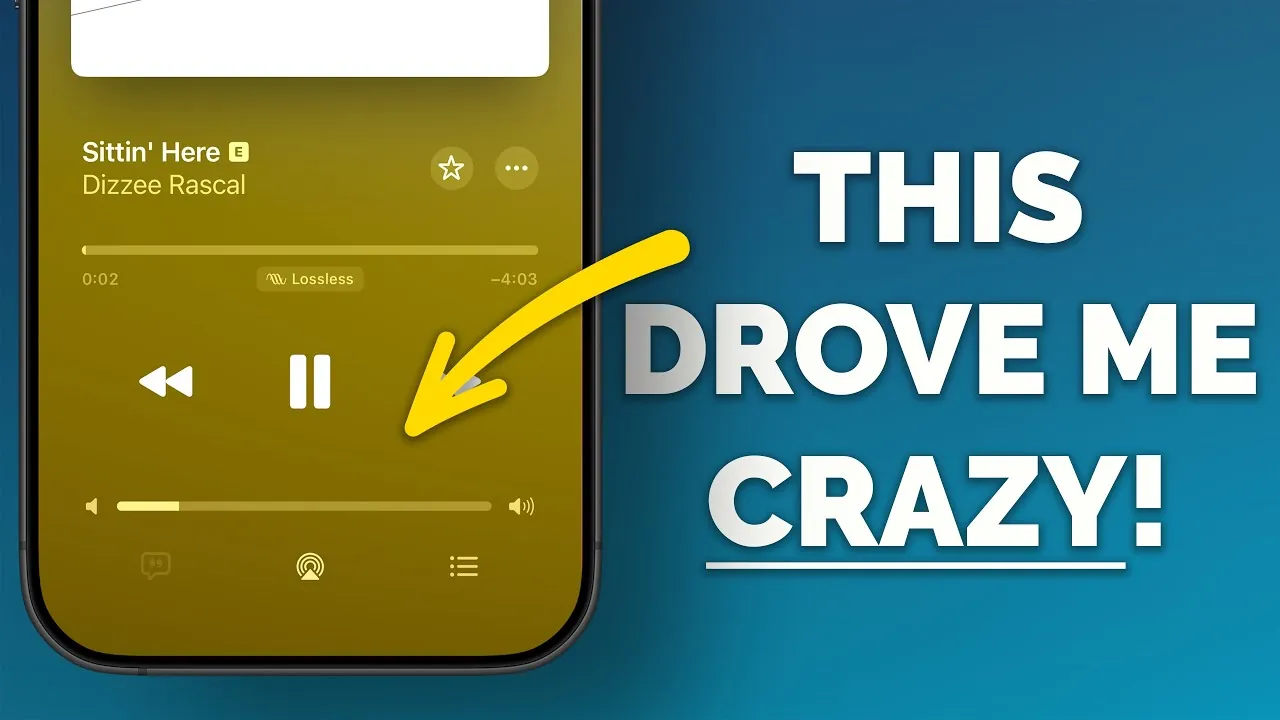
Your iPhone is a versatile and powerful device, but it’s not immune to occasional frustrations. From managing volume controls to decluttering your interface, small inconveniences can disrupt your experience. The good news is that most of these problems have straightforward solutions. In the video below, Proper Honest Tech explores 13 common iPhone issues and provides practical fixes to help you get the most out of your device.

1. Struggling with Volume Control?
If your iPhone’s volume feels inconsistent or unexpectedly loud, you can regain control with a simple adjustment. Navigate to Settings > Sounds & Haptics > Headphone Safety and enable “Reduce Loud Sounds.” This feature limits the maximum volume, helping to protect your hearing while making sure consistent audio levels. It’s particularly useful in noisy environments or when using headphones for extended periods.
2. Annoyed by Email Link Previews?
Email link previews can clutter your inbox and distract from important content. To disable them, go to Settings > Mail > Message Previews and select “None.” If you prefer plain links, long-press on a preview and choose “Copy Link.” These adjustments streamline your email experience, making it easier to focus on the messages that matter most.
3. Trouble Copying Specific Text in Messages?
Copying specific parts of a message doesn’t have to be a hassle. In iOS 16 and later, simply long-press on the message, adjust the selection handles to highlight the desired text, and tap “Copy.” This feature is ideal for sharing precise details, such as addresses or key phrases, without copying the entire message.
4. Accidental Back Tap Triggers?
The Back Tap feature, introduced in iOS 14, allows you to perform actions by tapping the back of your iPhone. If you find it triggering unintentionally, you can adjust its sensitivity. Go to Settings > Accessibility > Touch > Back Tap and switch from a double-tap to a triple-tap. This reduces accidental activations while keeping the feature functional for tasks like taking screenshots or opening apps.
5. Overwhelmed by Home Screen App Management?
Reorganizing your home screen can feel tedious, but there’s a faster way to manage multiple apps. Long-press one app until it starts to wiggle, then use another finger to select additional apps. Drag the group to a new location or folder for efficient organization. This method saves time and helps you keep your home screen tidy.
6. Need to Force Close Unresponsive Apps?
When an app freezes, force closing it can resolve the issue. Open the app carousel by swiping up from the bottom of the screen (or double-clicking the Home button on older models). Use three fingers to swipe up and close up to three apps simultaneously. This approach is quicker than closing apps one by one and can help restore your device’s performance.
7. Want a Customized Control Center?
The Control Center is a convenient tool, but its default layout might not suit your preferences. Customize it by going to Settings > Control Center and adding or removing features. For easier navigation, press and hold tiles to expand them, revealing function names for better clarity. Tailoring the Control Center ensures that your most-used tools are always within reach.
8. Frustrated with Auto-Brightness?
Auto-brightness doesn’t always align with your preferences, especially in varying lighting conditions. To disable it, go to Settings > Accessibility > Display & Text Size and toggle off “Auto-Brightness.” This gives you full control over your screen brightness, allowing you to adjust it manually to suit your surroundings.
9. Tired of Live Photos Taking Up Space?
Live Photos can consume significant storage space and aren’t always necessary. To turn them off permanently, open the Camera app, tap the Live Photo icon to disable it, and then go to Settings > Camera > Preserve Settings to save this preference. This ensures Live Photos remain off until you choose to re-enable them, helping you manage your storage more effectively.
10. Annoyed by App Rating Prompts?
Frequent app rating requests can interrupt your workflow and become a nuisance. To stop them, go to Settings > App Store and toggle off “In-App Ratings & Reviews.” This eliminates unnecessary interruptions, allowing you to focus on using your apps without distractions.
11. Cluttered Share Sheet with Siri Suggestions?
Siri Suggestions in the share menu can make it harder to find the options you need. To remove them, go to Settings > Siri & Search and disable “Suggestions in Share Sheet.” This creates a cleaner, more focused sharing interface, making it easier to locate the apps and contacts you use most frequently.
12. Missed Calculator App Features?
The Calculator app includes hidden features that can save time during quick calculations. If you make a mistake, swipe left or right on the number display to delete the last digit. While the native app doesn’t offer a calculation history, this simple shortcut can reduce frustration and improve your efficiency.
13. Need Quick Volume Adjustments on the Lock Screen?
If you frequently adjust music volume, adding a volume slider to your lock screen can be highly convenient. Go to Settings > Accessibility > Touch > AssistiveTouch and customize the lock screen controls to include the slider. This allows for quick volume changes without the need to unlock your device, making it easier to manage audio on the go.
Take Control of Your iPhone
By addressing these 13 common issues, you can significantly enhance your iPhone’s usability and efficiency. From customizing settings to managing apps and features, these solutions empower you to tailor your device to your needs. Whether you’re fine-tuning volume controls, decluttering your email, or optimizing your home screen, these tips ensure a smoother and more enjoyable experience with your iPhone.
Check out more relevant guides from our extensive collection on iPhone troubleshooting that you might find useful.
- Unresponsive iPhone Screen? Troubleshooting Guide
- iPhone Issues Solved: The Complete Troubleshooting Guide
- How to Fix Crashing iPhone Apps: A Simple Troubleshooting Guide
- How to troubleshoot common problems with your iPhone
- iPhone AirDrop Troubleshooting Guide: Get Back to Sharing
Source & Image Credit: Proper Honest Tech
Disclosure: Some of our articles include affiliate links. If you buy something through one of these links, Geeky Gadgets may earn an affiliate commission. Learn about our Disclosure Policy.
