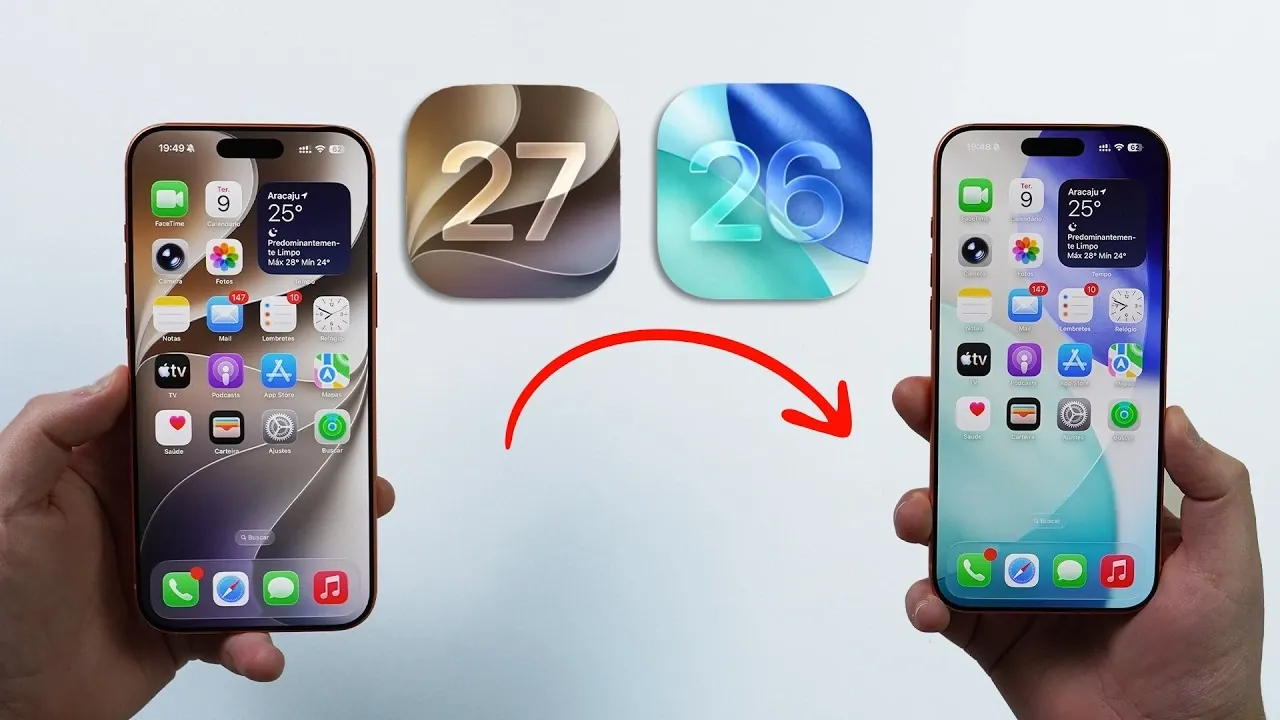
Upgrading to iOS 27 may not always meet your expectations. Whether due to performance concerns, app compatibility issues, or simply personal preference, you might find yourself wanting to return to iOS 26. Fortunately, the downgrade process is straightforward when approached with the right tools and preparation. The video below from Daniel About Tech provides a detailed walkthrough to help you transition back to iOS 26 smoothly and reliably, whether you’re using a Mac or a Windows PC.

Essential Tools and Resources
Before beginning the downgrade process, ensure you have everything you need to avoid unnecessary interruptions. Gather the following tools and resources:
- A computer: A Mac or a Windows PC is required for the downgrade process.
- Windows-specific software: Download the “Apple Devices” app from the Microsoft Store if you’re using a Windows PC.
- Firmware file: Visit ipsw.me to download the correct iOS 26 IPSW file for your iPhone model. Ensure the file is signed and compatible with your device.
- A compatible cable: Use a reliable cable to connect your iPhone to the computer.
Having these items ready will streamline the process and help you avoid potential errors or delays.
Preparing Your iPhone for Downgrade
Proper preparation is critical to ensure a successful downgrade. Follow these steps carefully to minimize risks such as data loss or errors:
- Backup your data: Create a full backup of your iPhone using iCloud or your computer. Since downgrading erases all data, this step is essential to recover your information later.
- Disable “Find My iPhone”: Navigate to Settings > [Your Name] > Find My > Find My iPhone and toggle it off. You will need your Apple ID password to complete this step.
- Check for “Stolen Device Protection”: If “Find My iPhone” is grayed out, disable “Stolen Device Protection” in the settings. Note that this may require a one-hour waiting period before proceeding.
- Download the IPSW file: Visit ipsw.me to download the latest signed iOS 26 IPSW file for your iPhone model. Ensure you select the correct file, as an incompatible version will result in errors during the installation process.
Once these steps are complete, your iPhone is ready for the downgrade process.
Step-by-Step Downgrade Instructions
Follow these detailed steps to downgrade your iPhone from iOS 27 to iOS 26:
- Connect your iPhone to your computer using a compatible cable.
- If prompted, trust the connection on both your iPhone and the computer.
- For Mac users, open Finder. For Windows users, launch the “Apple Devices” app.
- Locate your iPhone in the software interface and select the “Restore iPhone” option.
- Hold down the appropriate key while clicking “Restore iPhone” to open a file selection window:
- Mac users: Hold the Option key.
- Windows users: Hold the Shift key.
- Select the downloaded iOS 26 IPSW file from your computer.
- Confirm the restore process. The software will erase all data on your iPhone and install iOS 26. This step may take several minutes, so ensure your iPhone remains connected throughout.
Avoid disconnecting your iPhone or interrupting the process, as this could lead to errors or incomplete installation.
Post-Downgrade Setup
After the downgrade is complete, follow these steps to set up your iPhone and restore your data:
- Complete the initial setup by following the on-screen instructions on your iPhone.
- Restore your data from an iCloud or computer backup. This will help you recover your apps, photos and settings.
- Verify the downgrade by navigating to Settings > General > About and checking the iOS version. It should now display iOS 26.
These steps will ensure your iPhone is fully functional and configured to your preferences.
Important Considerations
To ensure a smooth and successful downgrade, keep the following points in mind:
- Data loss: The downgrade process will erase all data on your iPhone. Always create a backup before proceeding to avoid losing important information.
- Signed firmware: Only the latest signed version of iOS 26 can be installed. Unsigned firmware files are not supported and will result in errors.
- Patience: The process may take time. Avoid disconnecting your iPhone or interrupting the restore process to prevent complications.
By adhering to these guidelines, you can safely and effectively downgrade your iPhone from iOS 27 to iOS 26. This method ensures compatibility and reliability, allowing you to address any issues or preferences related to the latest iOS update.
Below are more guides on iOS downgrade from our extensive range of articles.
- How to Downgrade iOS 26 to iOS 18 (Step-by-Step Guide)
- How To Downgrade Your iPhone from iOS 26 to Stable iOS 18
Source & Image Credit: Daniel About Tech
Disclosure: Some of our articles include affiliate links. If you buy something through one of these links, Geeky Gadgets may earn an affiliate commission. Learn about our Disclosure Policy.
