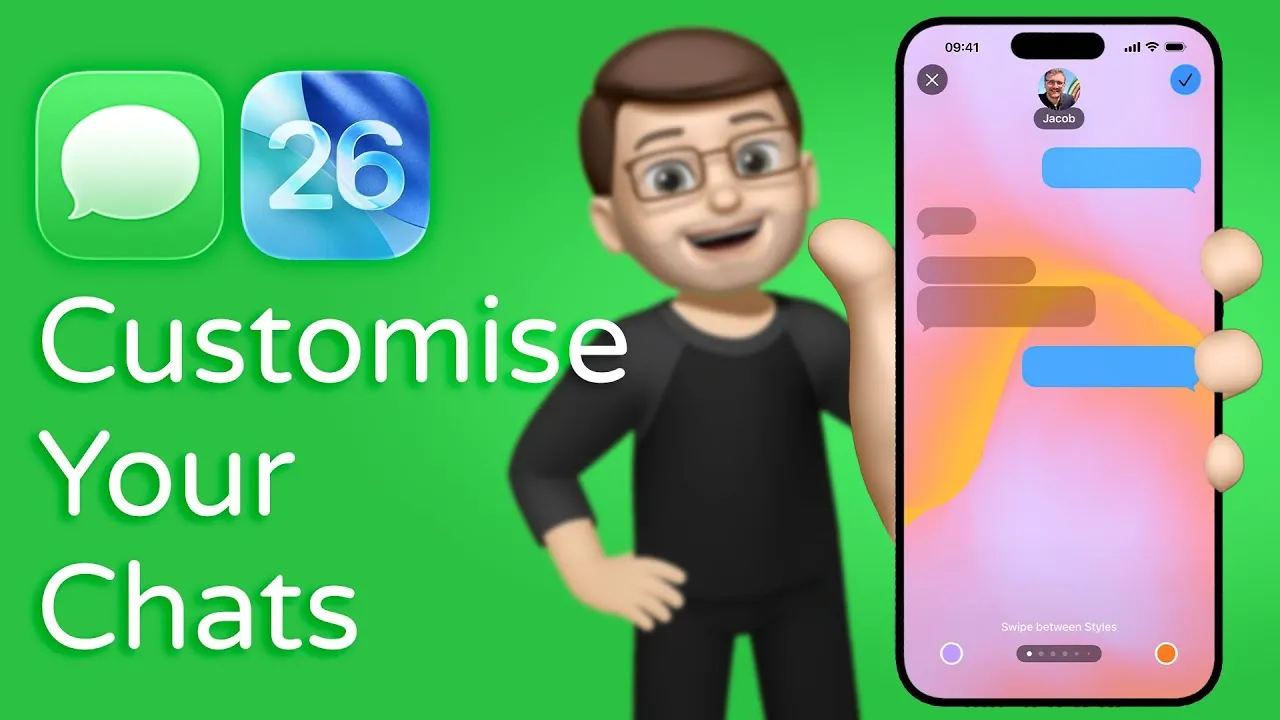
Apple’s iOS 26 public beta introduces an exciting new feature: the ability to customize iMessage chat backgrounds. This update transforms the messaging experience by allowing users to personalize their conversations with animated visuals, AI-generated images, and interactive elements. Whether you prefer pre-designed themes or want to create something entirely unique, this feature offers a range of tools to make your chats more engaging and visually appealing. Below is a detailed videoo from Jacob’s QuickTips to help you explore and use this functionality effectively.

Getting Started with Background Customization
Customizing your iMessage background is straightforward and intuitive. Follow these steps to begin:
- Open an iMessage conversation and tap the recipient’s name at the top of the chat window.
- From the dropdown menu, select the new “Backgrounds” option.
- Access the customization interface, where you can preview and apply changes in real time.
The customization interface is designed with user-friendliness in mind, allowing you to explore various options such as preset themes, personal uploads, and AI-generated designs. The real-time preview feature ensures that you can see exactly how your chosen background will appear before finalizing your selection.
Exploring Preset Background Categories
Apple has curated a diverse collection of preset background categories to suit different moods, styles, and preferences. These categories include:
- Sky: Features drifting clouds and serene skies, perfect for a calming atmosphere.
- Aurora: Showcases vibrant, dynamic light displays inspired by the northern lights.
- Water: Offers tranquil underwater scenes with flowing waves and aquatic visuals.
- Colour: Provides bold, animated color gradients for a modern and energetic vibe.
Each category includes dynamic, animated visuals that add depth and movement to your chats. These presets are ideal for users who want visually stunning backgrounds without the need for extensive customization.
Creating Custom Backgrounds
For those seeking a more personalized touch, iOS 26 allows you to create custom backgrounds using your own images or Apple’s AI-powered tools. Here’s how you can make your iMessage interface truly unique:
- Upload Photos: Select images from your device to use as chat backgrounds. This option lets you incorporate personal memories, favorite visuals, or meaningful artwork into your conversations.
- AI-Generated Designs: Use Apple’s “Image Playgrounds” tool to create custom backgrounds. Simply enter a text prompt, such as “sunset over the mountains” or “city skyline at night,” and the AI will generate a unique design tailored to your description.
These customization options empower users to express their individuality and creativity, making sure that every chat feels personal and distinctive.
Interactive Animations
One of the standout features of this update is the introduction of interactive backgrounds. Unlike static visuals, these backgrounds respond dynamically to user interactions, adding a layer of immersion to your chats. For example:
- Sending a reaction, such as a heart or thumbs-up, can trigger ripples, shimmering effects, or other animations in the background.
- Background animations adapt to the flow of the conversation, creating a seamless and engaging experience.
This feature enhances the visual and interactive aspects of iMessage, making conversations more dynamic and enjoyable.
Customizing Group Chats
The background customization feature is not limited to individual chats; it extends to group conversations as well. Here’s what you need to know about customizing group chat backgrounds:
- When a background is applied to a group chat, all participants will see the changes, making sure a cohesive and unified visual experience.
- Only the group admin has the authority to modify the background settings, maintaining consistency and preventing conflicts among participants.
This functionality ensures that group chats remain visually harmonious while still allowing for creative expression.
Reverting to Default Backgrounds
If you decide to return to the standard iMessage appearance, reverting to the default background is simple and quick:
- Navigate to the “Backgrounds” menu within the customization interface.
- Select the “None” option to remove any applied backgrounds and restore the default look.
This option provides flexibility, allowing you to experiment with different designs while retaining the ability to reset your chat interface whenever desired.
Enhancing Your Messaging Experience
The iOS 26 public beta’s iMessage background customization feature represents a significant enhancement to the messaging experience. With options ranging from preset themes to AI-generated designs and interactive animations, it caters to a wide array of user preferences. The ability to customize group chats further expands its appeal, making sure a unified and visually engaging experience for all participants. Whether you’re looking to add a personal touch, explore creative visuals, or simply make your conversations more dynamic, this feature provides the tools to transform your iMessage interface into a platform that reflects your style and personality.
Take a look at other insightful guides from our broad collection that might capture your interest in iMessage background customization.
- iOS 26 iMessage Features: Customization, Translation, and More
- iPhone 16/16 Pro: 25 Essential Settings to Change NOW
- How to Use iPhone Advanced Dark Mode
- Secret iOS 18 Battery Saving Tips You Need to Know
- iOS 26 Features and Updates: Everything You Need to Know
Source & Image Credit: Jacob’s QuickTips for iPhone
Disclosure: Some of our articles include affiliate links. If you buy something through one of these links, Geeky Gadgets may earn an affiliate commission. Learn about our Disclosure Policy.
