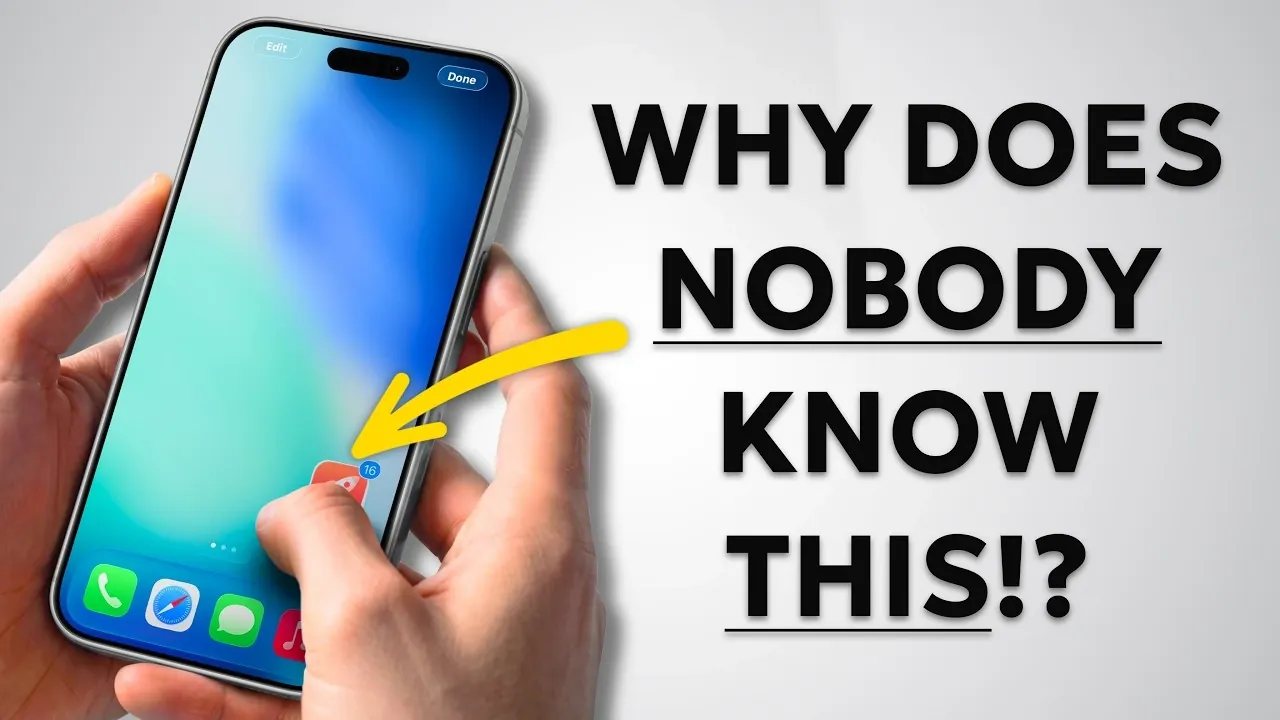
Think you’ve mastered every feature of your iPhone? Think again. Apple has discreetly integrated a variety of hidden gestures that can make your device more intuitive, efficient, and user-friendly. These gestures are designed to save time, enhance multitasking, and simplify navigation. Whether you’re organizing apps, editing text, or browsing in Safari, these tips can significantly elevate your iPhone experience. The video below from Proper Honest Tech gives us more details.

Streamline App Management
Managing apps on your iPhone doesn’t have to be tedious. With these gestures, you can organize your home screen more efficiently:
- Move Multiple Apps: Activate jiggle mode by holding down an app, then use another finger to tap additional apps. This creates a stack that you can move to another page or folder in one seamless motion.
- Drag from Spotlight: Skip the hassle of manually locating apps. Simply search for an app in Spotlight, then drag it directly to your home screen for quick access.
These gestures make app management faster and more intuitive, helping you keep your home screen organized with minimal effort.
Enhance Your Camera and Photo Experience
The Camera and Photos apps are packed with gestures that simplify common tasks and improve usability:
- Zoom While Recording: While recording a video, slide your finger up or down on the shutter button to zoom in or out without interrupting the recording.
- Select Multiple Photos: Quickly select a batch of photos by dragging diagonally across the screen, saving time when organizing or sharing images.
- Jump to the Earliest Photo: Tap the time displayed in the top-left corner of the Photos app to instantly scroll to your oldest photo, bypassing endless scrolling.
These gestures are designed to make capturing and managing your memories more seamless and efficient.
Master Text Editing and Notes
Editing text on your iPhone can be tricky, but these gestures simplify the process and improve precision:
- Trackpad Mode: Long-press the space bar to transform your keyboard into a trackpad, allowing for precise cursor movement when editing text.
- Copy and Paste with Gestures: Use three fingers to pinch in to copy text and pinch out to paste it, eliminating the need for menus or additional taps.
- Bullet Point Adjustments: In Notes or Mail, swipe gestures enable you to adjust bullet point indentation quickly, making formatting faster and easier.
These tools are particularly useful for students, professionals, or anyone who frequently works with text on their iPhone.
Unlock Safari’s Hidden Power
Browsing the web in Safari becomes more efficient with these hidden gestures:
- Quick Tab Management: Swipe left on the address bar to open a new tab, or swipe left or right to switch between open tabs effortlessly.
- Close All Tabs: Long-press the blue tick in the all-tabs view to close all open tabs at once, saving time when you’re done browsing.
These shortcuts make navigating the web faster and more convenient, especially for users who frequently multitask or manage multiple tabs.
Navigate with Ease
Navigating your iPhone becomes simpler and more intuitive with these gestures:
- Reachability: Swipe down on the bottom edge of the screen to bring the top of the screen closer, making one-handed use more comfortable.
- Menu Navigation: Swipe from the left edge of the screen to go back, or long-press the back button to jump multiple levels in menus, saving time when navigating complex apps.
- Undo Actions: Shake your iPhone to undo your last action. Ensure this feature is enabled in Settings for quick corrections.
These gestures are designed to make everyday navigation more fluid and user-friendly.
Optimize Maps and Scrolling
Maps and Safari also feature hidden gestures that improve usability and efficiency:
- Zoom with One Hand: In Maps, double-tap and swipe to zoom in or out with a single finger, making navigation easier when you’re on the go.
- Fast Scrolling: Drag the scroll bar in Safari to quickly navigate through lengthy pages without endless swiping, saving time when reading or researching.
These gestures are particularly helpful for users who rely on their iPhone for navigation or extensive web browsing.
Boost Productivity with Multitasking
Multitasking gestures can significantly enhance your workflow, allowing you to accomplish more in less time:
- Drag-and-Drop: Move images, text, or links between apps without the need for copying and pasting, streamlining multitasking across different applications.
- Close Multiple Apps: In the app carousel, swipe up with three fingers to close up to three apps simultaneously, making it easier to manage background tasks.
These gestures are ideal for power users who want to maximize their productivity and efficiency.
Unlock Your iPhone’s Full Potential
These 20 iPhone gestures are designed to make your device more efficient, intuitive and enjoyable to use. From managing apps and photos to navigating Safari and editing text, these tools can transform how you interact with your iPhone. By incorporating these gestures into your daily routine, you’ll save time, reduce frustration and unlock the full potential of your device. Whether you’re a casual user or a seasoned multitasker, mastering these gestures will enhance your overall experience and help you get the most out of your iPhone.
Here are more guides from our previous articles and guides related to iPhone gestures that you may find helpful.
- The Ultimate iPhone Gesture Guide: 26 Tricks Explained Fast
- FIXED! Most Annoying iPhone Problems & How to Solve
- 20+ Incredible iPhone Gestures You Didn’t Know About
Source & Image Credit: Proper Honest Tech
Disclosure: Some of our articles include affiliate links. If you buy something through one of these links, Geeky Gadgets may earn an affiliate commission. Learn about our Disclosure Policy.
