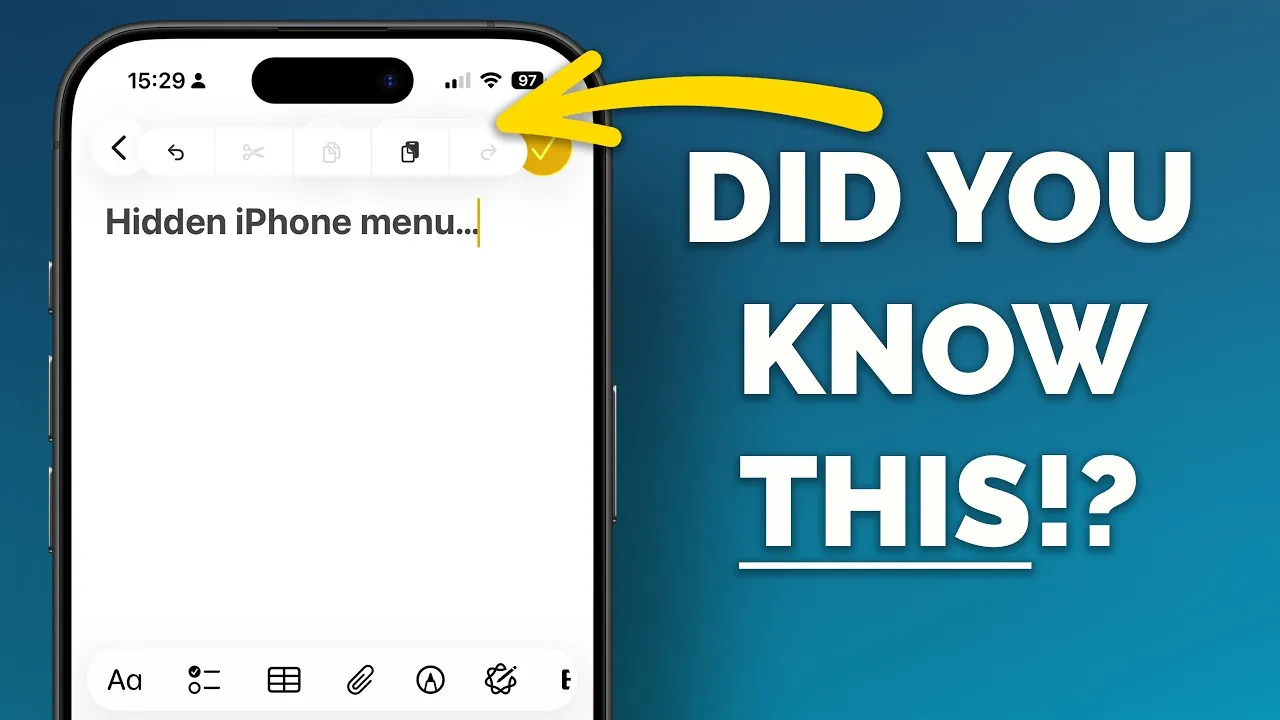
Mastering your iPhone’s gestures can significantly transform the way you interact with your device. These intuitive touch, tap, and swipe controls are designed to streamline tasks, improve productivity, and reveal hidden features. In the video below from Proper Honest Tech, you’ll discover 26 practical gestures that can elevate your iPhone experience, whether you’re browsing the web, managing apps, or editing text.
Safari Gestures for Seamless Browsing
Safari offers gestures that make web browsing faster and more intuitive. These shortcuts can help you navigate the internet with ease:
- Switch Tabs: Swipe left or right on the address bar to quickly move between open tabs, saving time when multitasking.
- All-Tabs View: Double-tap the ellipsis icon to view all your open tabs at once, making it easier to manage multiple websites.
These gestures are particularly useful for maintaining a smooth workflow while browsing.
System Settings: Undo, Reachability, and Accessibility
Your iPhone’s system settings include gestures designed to enhance convenience and accessibility:
- Shake to Undo: Shake your device to undo recent actions, such as deleting text or reverting edits, without needing to navigate menus.
- Reachability: Enable this feature to lower the screen, making it easier to access content at the top when using your phone with one hand.
These gestures are especially helpful for reducing repetitive actions and improving usability, particularly for those who prefer one-handed operation.
Volume and Scrolling Precision
Fine-tune your control over volume and scrolling with these gestures:
- Volume Adjustment: Tap and drag the volume slider for precise changes, allowing you to set the perfect sound level.
- Scroll Bar Navigation: Drag the scroll bar to move through lengthy pages with greater accuracy, saving time when reviewing detailed content.
These small yet impactful gestures can enhance your daily interactions with your device.
Quick Selection and Multi-Item Management
Managing lists, tasks, and emails becomes more efficient with multi-touch gestures:
- Multi-Item Selection: Use two fingers to drag across the screen and select multiple items in apps like Mail, Notes, or Reminders.
This feature is a significant time-saver when organizing or editing large amounts of content.
Maps App: One-Handed Zooming
Navigating maps on the go is more convenient with this gesture:
- One-Handed Zoom: Double-tap the screen, then swipe up or down to zoom in or out without needing to pinch, making it easier to adjust the view with one hand.
This functionality is particularly useful when you’re multitasking or holding your device in one hand.
Photos App: Batch Selection and Organization
The Photos app includes gestures that simplify photo management and sharing:
- Batch Selection: Drag across multiple photos to select them for editing, sharing, or organizing into albums.
- Quick Navigation: Tap the time at the top of the screen to instantly jump to the earliest photos in your library.
- Drag and Drop: Move images directly into emails, messages, or other apps by dragging and dropping them.
These gestures make it easier to manage your photo library efficiently.
Text Editing Made Simple
Editing text on your iPhone is faster and more precise with these gestures:
- Three-Finger Controls: Use three fingers to undo, redo, cut, copy, or paste text, streamlining text editing tasks.
- Indentation Adjustment: Swipe left or right to adjust bullet list indentation in notes or documents.
- Text Selection: Tap or use the space bar as a trackpad to select text with precision, making it easier to edit or format content.
These tools are invaluable for anyone who frequently works with text on their device.
Home Screen Management
Organizing your home screen is more efficient with multi-finger gestures:
- Move Apps: Drag apps between pages or folders using multiple fingers, allowing you to rearrange your layout quickly.
- Spotlight Integration: Drag apps from Spotlight search results directly to your home screen or app library for faster access.
These shortcuts simplify the process of customizing your home screen to suit your preferences.
Camera App Shortcuts
The Camera app includes gestures that provide quick access to essential settings:
- Menu Options: Swipe up to reveal options like aspect ratio, filters, or timer settings, and swipe down to hide them when you’re done.
These gestures allow you to adjust settings on the fly without navigating through multiple menus.
Back Tap Feature for Custom Actions
The Back Tap feature offers a customizable way to interact with your iPhone:
- Custom Actions: Assign double or triple taps on the back of your device to perform tasks such as taking screenshots, activating Siri, or opening specific apps.
This feature adds a layer of personalization, allowing you to tailor your device to your specific needs.
Unlocking the Full Potential of Your iPhone
By mastering these 26 gestures, you can unlock a new level of efficiency and functionality on your iPhone. From browsing in Safari to managing photos, editing text, and customizing your home screen, these intuitive controls are designed to simplify everyday tasks. Integrating these gestures into your routine not only enhances navigation but also makes your overall experience more seamless and enjoyable.
Explore further guides and articles from our vast library that you may find relevant to your interests in iPhone gestures.
- op iPhone Gesture Tips to Simplify Your Daily Tasks
- 10 Essential iOS 26 Tips to Maximize Your iPhone’s Potential
- How to Delete Multiple iPhone Contacts
- iOS 18: Control Siri with Head Gestures & AirPods Pro
- 10 Hidden iPhone Features in iOS 18 You Need to Try Today
Source & Image Credit: Proper Honest Tech
Disclosure: Some of our articles include affiliate links. If you buy something through one of these links, Geeky Gadgets may earn an affiliate commission. Learn about our Disclosure Policy.
