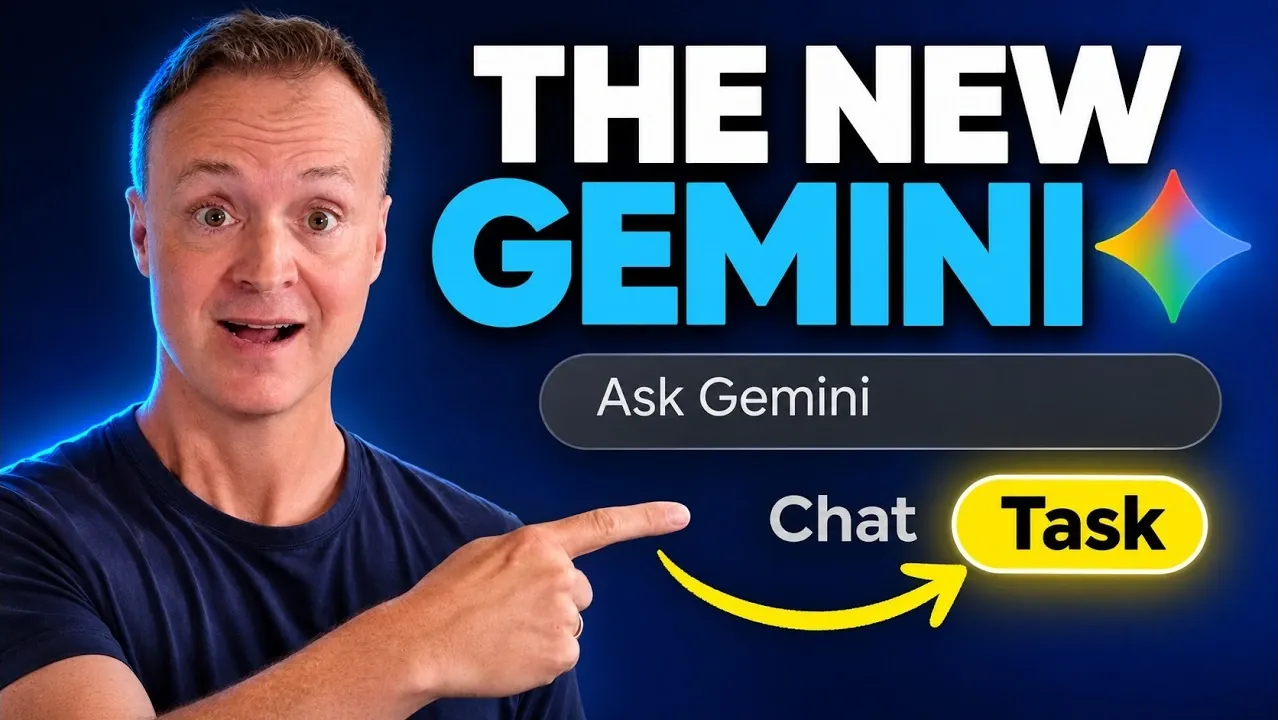
Google Gemini is reshaping how users approach productivity by combining AI-driven features with practical applications. Its interface is designed for efficiency, offering sections like New Chat, Library, and Scheduled actions, which streamline workflows and centralize project management. For instance, the platform allows users to automate up to 10 tasks, such as responding to supplier emails or generating weekly reports, with results delivered as notifications or marked unread. Additionally, its three AI models, Flash-Lite, Flash, and Pro, cater to varying levels of task complexity, ensuring flexibility for both casual and advanced users, as explored by Teacher’s Tech.
In this guide, you’ll explore how to navigate Gemini’s chat modes for writing and brainstorming, use notebooks to organize project materials, and customize workflows with reusable skills. Learn how to automate multi-step tasks with Task mode, integrate apps like Dropbox and Google Workspace, and even create visuals or videos using Gemini’s AI capabilities. By the end, you’ll have a clear understanding of how to implement these features into your daily routines for greater efficiency.
TL;DR Key Takeaways :
- Google Gemini is a versatile AI platform designed for tasks like writing, image and video creation, workflow automation, and project management, with features such as Chat, Task mode, notebooks, and reusable instructions called skills.
- Gemini offers three AI models, Flash-Lite, Flash, and Pro, tailored for different levels of complexity, while the advanced Gemini 4 Argon model, available on Pro and Ultra plans, is designed for long, multi-step tasks but reportedly uses more plan limits.
- For content creation, Gemini supports generating documents, spreadsheets, slide decks, PDFs, images, and videos, with tools for precise edits and customization, though users are advised to review outputs for accuracy, especially in video generation.
- Notebooks centralize project materials, integrating with Google Workspace and allowing users to store chats, files, and instructions, while enabling memory ensures all notebook content is considered in responses.
- Task mode and scheduled actions automate multi-step workflows and recurring tasks, but users should verify outputs and permissions, as errors or outdated details may occur in automated processes.
Getting Started with Google Gemini
The Google Gemini interface is divided into key sections. The left sidebar includes options such as New Chat, Library, Images, Scheduled, and Customize. Users can also access Videos and notebooks, with chat history filterable by status: All, Ready, Needs Attention, and In Progress. A “Pinned Chats” feature keeps important conversations at the top.
The Scheduled page replaces the old Scheduled Actions page, allowing users to automate tasks on a timer. Actions can be triggered by events, such as a supplier email about a shipment delay, or set for specific times. Users can maintain up to 10 active scheduled actions, with results marked unread on the web or sent as notifications to mobile devices. Free accounts may experience results prepared hours in advance.
Gemini offers three AI models for different needs:
- Flash-Lite: A fast model for everyday tasks like summaries and brainstorming, available on free accounts.
- Flash: Balances speed and reasoning for moderately complex tasks.
- Pro: A high-capability model for math, coding, and large files, available on paid plans.
For Pro and Ultra plan users, the advanced Gemini 4 Argon model handles long, multi-step tasks and provides concise answers with minimal filler. However, it uses more of the user’s plan limit, making it suitable for complex challenges. Gemini 4 Carbon, a larger model currently limited to select security partners, may expand access in the future.
Writing, Images, and Videos
Google Gemini supports creating and editing various content types directly in the chat interface. For writing, it can generate documents, spreadsheets, slide decks, and PDFs. For example, it created a one-page wholesale price sheet with placeholders for tasting notes and pricing, which users could customize. Example pricing included $15 per 1 lb bag, $60 per 5 lb bag, and $55 per 5 lb bag for orders of four or more. Ordering details specified a minimum order of 5 lb, email-only orders, and a payment deadline of 15 days.
In image creation, Gemini uses Google’s Nano Banana models to generate visuals from user prompts. Markup tools like Sketch and Text allow precise edits while preserving the rest of the image. Users can adjust aspect ratios, such as making an image square for Instagram, and refine visuals incrementally.
For video generation, Gemini employs Google’s Veo models to create short clips from text or images. A 10-second example included soft morning light, swaying trees, and a camera push-in toward a coffee bag. Unprompted details, like a steaming coffee cup, were added automatically, so users should review clips before publishing. Video generation is subject to daily limits based on the user’s plan.

Find more information on Google Gemini by browsing our extensive range of articles, guides and tutorials.
- Google Preps Gemini 4 Pro Content Creation for October 2026
- Google Confirms Gemini 4 Replaces Gemini 3.5 Pro Entirely
- Leaked Gemini 4 Pro Enters Arena Testing for Multimodal AI
- Google Pushes Gemini 4 Pro Release Date to October 2026
- Google Confirms Gemini 4 Replaces Gemini 3.5 Pro Entirely
- Leaked Gemini 4 Pro Reportedly Defeats Opus 5.5 and GPT6 Astra
- Google Reportedly Cancels Gemini 3.5 Pro for Gemini 4 Pivot
- Google Gemini 4 Argon Delayed as GPT-6.1 Ultrafast and Claude Motion Arrive
- Gemini 4 Argon Rolling Out Soon to Google AI Ultra Users
- Google Reportedly Preps Gemini 3.7 Flash Amid Pro Delays
Organizing Projects with Notebooks
Gemini notebooks centralize project materials, allowing users to store chats, files, and instructions in one place. Memory can be enabled so Gemini considers all notebook content when responding. Users can add sources like PDFs, website links, and Drive files, and customize instructions for each notebook. For example, a coffee roaster’s product launch notebook stored a PDF launch plan and a coffee tasting video, which Gemini combined to generate detailed responses.
Notebooks integrate with Gemini Notebook, Google’s research notebook app, syncing updates across both platforms. Users can pin notebooks for quick access or add chats to notebooks by typing “@Gemini Notebook.” Past chats within a notebook are stored and accessible, and enabling memory ensures all previous chats are considered when generating answers.
Automating Tasks with Skills and Scheduled Actions
Skills in Google Gemini let users save reusable instructions for specific tasks, such as “Keep it friendly,” “under 150 words,” or “end with a question.” These can include reference files like style guides or example images. Skills are available on all plans and can be created in a chat, manually written, or uploaded from shared skills. Pre-made skills, like “Match your writing style” and “Prep for meetings,” are also included.
Skills activate automatically when prompts match their descriptions, though users should review outputs for accuracy. For instance, a skill-generated announcement incorrectly listed “250 g bags” instead of “1 lb bags.” Skills can be combined for complex tasks, such as merging “brew-voice” and “wholesale-email” to create tailored emails for cafe buyers. Users can edit skills in a chat or deactivate them to prevent automatic use while still allowing manual activation.
The Customize page includes sections for Skills and a Discover section for apps and skills. Apps available in Discover include Dropbox, Shopify, Canva, Wix, Adobe, Hootsuite, Xero, and Google Ads. Installed apps appear under Connectors, with Google Workspace pre-added for integration with Gmail, Drive, and Docs.
Scheduled actions automate recurring tasks, such as providing weekly coffee industry news and marketing ideas every Monday at 7:00 a.m. Event-triggered schedules can also be set, such as updating a spreadsheet and drafting notes when a supplier email indicates a shipment delay. Users can maintain up to 10 active tasks, and free accounts may experience earlier task execution. Gemini asks clarifying questions before setting up event-triggered schedules to ensure accuracy.
Task Mode: Automating Multi-Step Workflows
Task mode, available on Pro and Ultra plans, automates multi-step workflows across Google Workspace apps like Gmail, Calendar, Docs, Sheets, and Drive. It can also browse the web to gather information. For example, it created a Google Sheet summarizing emails from cafes, excluded irrelevant data, and drafted replies using a predefined skill. Task mode flagged missing information, such as delivery notice details, and saved drafts for user review, avoiding errors like outdated pricing.
Tasks can be scheduled, such as drafting replies to unanswered emails every Friday at 3:00 p.m., or triggered by events. Permissions can be adjusted so Gemini asks before opening a browser to complete tasks. Task mode can also filter out irrelevant data, such as emails from non-cafes like a green bean supplier or a retail customer.
Customizing and Expanding Gemini
The Customize page acts as a hub for apps and skills. Users can connect apps like Dropbox, Shopify, Canva, and Wix, depending on regional availability. Google Workspace is pre-added, allowing integration with Gmail, Drive, and Docs. Installed apps appear under Connectors, which are essential for features like scheduled actions and Task mode.
Gemini also includes Verify AI, a feature that verifies the source of images or videos found online, adding reliability for content creators.
What Google Gemini Adds Up To
Google Gemini is a versatile platform for automating workflows, creating content, and managing projects. Its strengths include handling complex tasks, organizing materials with notebooks, and saving reusable instructions with skills. However, users should carefully review outputs, especially when using skills or Task mode for precise details. While free accounts offer significant functionality, advanced features like Gemini 4 Argon and Task mode are available only on paid plans. In the opinion of the creator, those who invest time in setting up skills and notebooks effectively will find Gemini to be a comprehensive productivity tool.
Media Credit: Teacher’s Tech
Disclosure: Some of our articles include affiliate links. If you buy something through one of these links, Geeky Gadgets may earn an affiliate commission. Learn about our Disclosure Policy.
