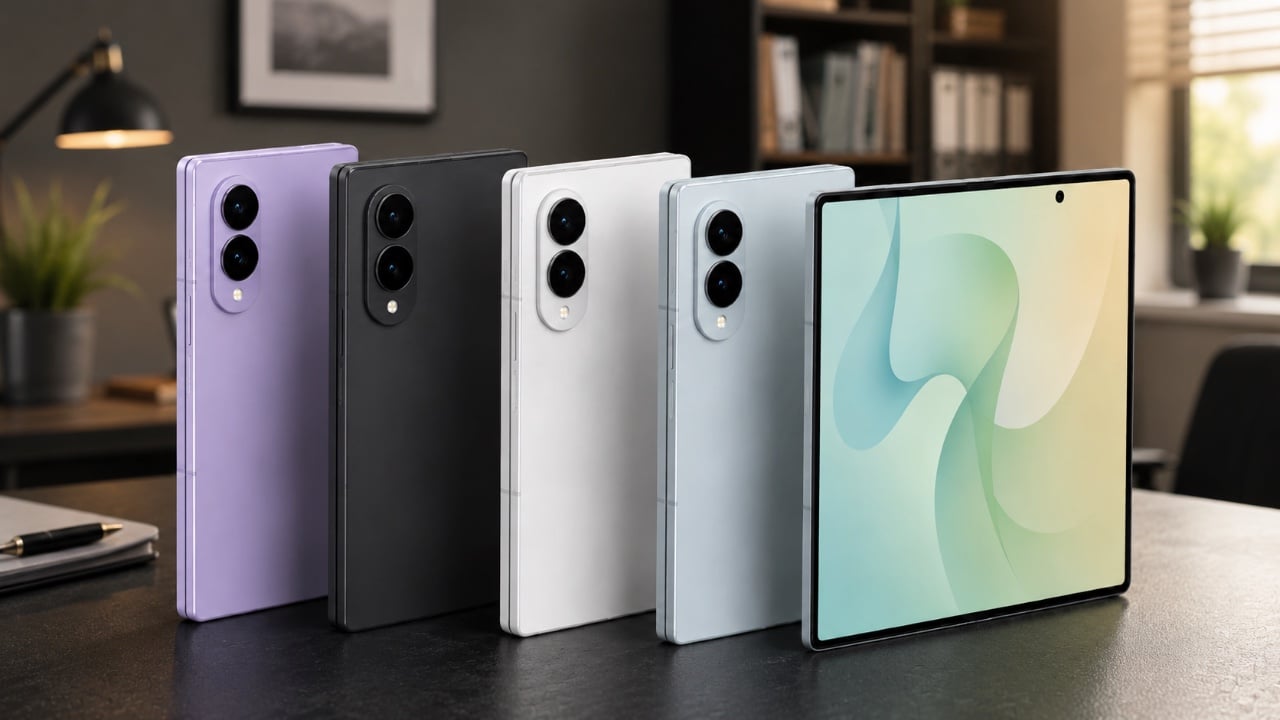
The Galaxy Z Fold 8 is more than just a smartphone; it’s a highly adaptable device designed to cater to your preferences and needs. By exploring its settings and using Samsung’s Good Lock app, you can unlock hidden features, enhance functionality, and personalize your experience. Below are 10 essential settings that can elevate how you interact with your Galaxy Z Fold 8. The video below from WhatGear gives us more details on the settings to change on the new Galaxy Z Fold 8.

1. Customize Your Home Screen for Maximum Efficiency
The home screen serves as the central hub of your device, making its optimization a priority. The Galaxy Z Fold 8 allows you to adjust the cover screen grid layout, consider using a 5×5 grid to fit more apps and improve organization. Enable pop-up folders for a cleaner interface and modify folder shapes and sizes to align with your aesthetic preferences. These adjustments not only enhance functionality but also ensure your home screen is visually appealing and tailored to your workflow.
2. Enhance Navigation with Custom Gestures
Navigating a foldable device like the Galaxy Z Fold 8 can feel unique, but custom gestures simplify the process. The “One-Handed Operation Plus” plugin allows you to create personalized gestures, such as swiping to open specific apps or features. Additionally, you can remap the side key to function as a back button, making one-handed use more convenient. These small yet impactful changes streamline daily interactions and improve usability.
3. Unlock Hidden Camera Features
The Galaxy Z Fold 8’s camera is a versatile tool, but some of its most impressive features are hidden. Activate the 24-megapixel photo mode for sharper, high-quality images in well-lit conditions. This complements the existing 12 and 50-megapixel options, giving you the flexibility to choose the best setting based on lighting and image quality needs. Whether you’re capturing detailed landscapes or vibrant portraits, these settings ensure stunning results every time.
4. Streamline Screenshot Management
Managing screenshots can be a hassle, especially when accidental captures clutter your gallery. The “Nice Shot” plugin offers a simple solution by adding a delete button to your screenshots, allowing you to quickly discard unwanted images. This feature helps maintain an organized gallery, making sure you only keep the screenshots that matter.
5. Bring Your Device to Life with Dynamic Wallpapers
Dynamic wallpapers can transform your Galaxy Z Fold 8 into a more engaging and personalized device. The “Wonderland” plugin enables you to create 3D depth-effect wallpapers with motion and particle effects. These customizable wallpapers not only enhance the visual appeal of your device but also reflect your unique style, making your phone truly one of a kind.
6. Personalize Icons to Match Your Style
Icons play a significant role in defining your device’s visual identity. With the “Theme Park” plugin, you can apply effects like liquid glass or gradients to your icons, giving them a sleek and modern appearance. This level of customization ensures that your Galaxy Z Fold 8 feels uniquely yours, blending functionality with personal expression.
7. Take Control of Notifications
Effectively managing notifications is crucial for maintaining focus and productivity. Set up a “Do Not Disturb” routine with a custom widget for quick activation. To make this feature even more intuitive, consider adding visual cues, such as a wallpaper change, to indicate when the mode is active. These tools help you stay in control of your notifications without missing important updates.
8. Convert Images to PDFs with Ease
The Galaxy Z Fold 8 offers a practical feature for productivity: PDF conversion. Using “Gallery Labs,” you can compile multiple images into a single PDF file. This is particularly useful for organizing receipts, creating documents, or sharing visual content in a professional format. This feature ensures that your device is not just a smartphone but also a powerful productivity tool.
9. Add a Personal Touch with Custom Animations
Custom animations can make your device feel more engaging and personalized. Adjust the back gesture animations to suit your preferences, adding a unique flair to your interactions. These subtle tweaks enhance the overall user experience, making every interaction with your Galaxy Z Fold 8 smoother and more enjoyable.
10. Optimize Your Device with Advanced Settings
The Galaxy Z Fold 8 is designed to adapt to your specific needs, and exploring its advanced settings can unlock even more potential. From fine-tuning display preferences to adjusting performance modes, these options allow you to tailor your device’s functionality to match your lifestyle. Whether you prioritize battery life, performance, or visual quality, these settings ensure your device operates exactly as you want it to.
Source: WhatGear
Disclosure: Some of our articles include affiliate links. If you buy something through one of these links, Geeky Gadgets may earn an affiliate commission. Learn about our Disclosure Policy.
