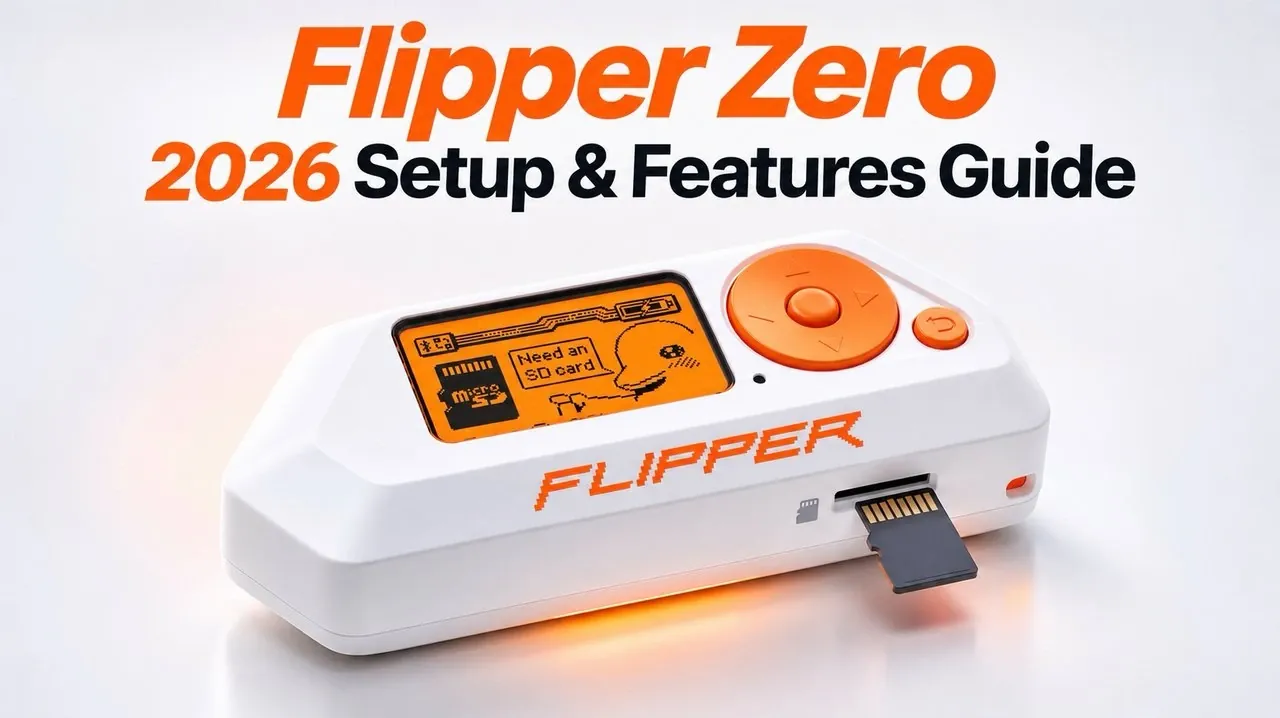
What can you do with a Flipper Zero? The Flipper Zero from Flipper Devices is a handheld electronics device that can learn your remote’s button commands and send them again. Talking Sasquach explains how to get started, and you can install free community apps without replacing the official firmware. Setup requires a microSD card, but one isn’t included. Walk through setup and ways to use it with equipment you own, and understand how changing remote codes and encrypted cards limit what you can copy.
Flipper Zero: A Guide to Its Tools
TL;DR Key Takeaways :
- The Flipper Zero costs $169 at the official US store and requires a separate microSD card.
- Its Sub-GHz radio can record and replay compatible remote signals, but rolling codes prevent recordings from being endlessly reusable.
- It reads supported 125 kHz RFID tags and 13.56 MHz NFC cards, but encryption prevents copying a bank card for payment.
- Its infrared transmitter and receiver can learn remote commands and send them to compatible devices.
- The device has 13 GPIO pins for external electronics, including an optional Wi-Fi Dev Board costing about $35.
The Flipper Zero is a portable electronic multi-tool from Flipper Devices for exploring hardware and digital protocols. Its radio, card-reading and infrared functions are combined in one handheld device, which also has a virtual dolphin that levels up as you use it.
Its key specifications:
- 1.4-inch display with a 128 × 64-pixel resolution.
- 2,100 mAh battery, with up to 28 days of life claimed by Flipper Devices.
- 315, 433, 868 and 915 MHz Sub-GHz bands, depending on region.
Use the Flipper Zero only on equipment and signals you own or have explicit written permission to test. Unauthorized access, transmission or interference may violate the law.
Set Up Storage and Update Firmware
At the official US store, the Flipper Zero costs $169 and requires a microSD card, which is not included. Flipper Devices recommends a card between 2GB and 32GB; the device supports up to 256GB. Talking Sasquach says 16GB to 32GB is sufficient and recommends buying a reputable brand.
Insert the card, then hold the power button to turn on the device. If the card does not appear, open Settings, choose Storage and format it there. Before removing the card, use the Unmount control in the same menu.
Flipper Devices recommends updating the firmware during setup. The Flipper Mobile App connects over Bluetooth and supports Android and iOS, while qFlipper runs on Windows, macOS and Linux and connects over USB. A USB-C to USB-A cable is included; any replacement cable must carry data as well as power.
In qFlipper, connect the device, select the official release firmware and choose Install. The app also offers release-candidate and development branches, though development builds can contain newer additions that could cause problems. The wrench menu checks for updates to installed apps.
If the device freezes, hold Left and Back until it reboots; if it will not turn on, charge it first. If the screen does not respond, hold OK and Back for 30 seconds, connect the device to a computer and select Repair in qFlipper. Repair wipes settings and pairings but leaves data on the SD card intact.

Browse through more resources below from our in-depth content covering more areas on Flipper.
- BFFB for Flipper Zero : The Ultimate Upgrade to Supercharge Your Flipper
- Flipper One Gets a BIG Update : Flipper One vs Flipper Zero
Install Apps From the Official Catalog
The official firmware includes access to an Apps Catalog, so you do not need custom firmware to install extra tools or games. It contains free, open source apps made by community members and is available through the phone app or at lab.flipper.net.
On a computer, connect the Flipper Zero with a data-capable cable and select its serial port on the site. Then choose an app and select Install. The site can also update firmware, manage files and open the device’s command-line interface.
The phone app can back up saved cards and remotes, while qFlipper can back up and restore settings and user data; both can show a live view of the Flipper Zero screen. If an app will not install, try clearing storage space or updating the firmware.
Read and Replay Simple Radio Remotes
Sub-GHz means radio frequencies below one gigahertz, which some garage door openers, ceiling fans, weather stations and outlet remotes use. The Flipper Zero’s CC1101 radio can find a remote’s frequency, read a signal, save it and play it back, subject to regional transmission restrictions.
To capture a signal, open the Sub-GHz menu, choose Read RAW and record while pressing a button on the remote. You can send a saved command from the Flipper Zero to operate a compatible device, such as a light controlled by a simple outlet remote.
Not every remote works this way: many use rolling codes that change each time you press a button. A recording of one button press is therefore not a reusable command for every remote.
Read RFID, NFC and iButton Keys
The rear antenna reads 125 kHz RFID, a low-frequency technology used by some older office badges, gym and apartment fobs, and pet microchips. The Flipper Zero can read, save and emulate supported tags, or write them to blank T5577 cards. Firmware 1.4 also added the ability to scan a pet chip and identify its country of origin.
NFC operates at 13.56 MHz and appears in newer hotel keys, access badges, stickers and transit cards. When you read a card, the Flipper Zero can show its UID, or serial number, and any data it can access. Many cards are encrypted, so only part of their data may be readable.
A bank card cannot be copied and used as a payment card with the Flipper Zero: it can read some basic information, but encryption prevents it from functioning as the card. Firmware 1.5.1 added identification of the protocol used by a hotel card.
Metal contacts on the back handle iButton keys, which are used with some older doors and intercoms. Touch a supported key to the contacts to read it; the device can then emulate it or write it to a blank key.
Control Infrared Devices
Infrared is the invisible light used by many TV remotes. The Flipper Zero has an infrared transmitter and receiver behind its front window, which can learn commands from a remote one button at a time.
Open the infrared function, choose to learn a remote and press the button you want to capture; the device can send that command later. Its universal remote functions can also cycle through known power codes for TVs, air conditioners, projectors and soundbars until a compatible code works.
Connect to Computers and Add Hardware
Built-in Bluetooth Low Energy connects the Flipper Zero to a phone and can also let it act as a computer mouse, keyboard or presentation clicker. Its Bad USB function runs DuckyScript commands over a cable or Bluetooth, making the device type as a keyboard. Talking Sasquach recommends running only scripts you understand and know what they do.
The U2F function can act as a two-factor security key: after entering a password, you connect the Flipper Zero and press a button. Its keys are stored on the SD card. Flipper Devices recommends a certified key for banking and other important uses, and Talking Sasquach recommends treating the Flipper Zero as a backup key.
On top, 13 GPIO pins connect external electronics, including boards that communicate over UART, SPI or I²C. The Flipper Zero has no built-in Wi-Fi radio, but the optional Wi-Fi Dev Board plugs into those pins and costs about $35.
We see the Flipper Zero’s greatest value in what it teaches. Watching everyday remotes, fobs and cards respond so openly makes weak security concrete in a way that reading about it rarely does. Replaying a simple remote command or emulating a supported access tag gives that lesson a clear, practical form. The limits matter to that understanding too: rolling codes stop a recording from being endlessly reusable, while encryption keeps a bank card from becoming a working copy. Those contrasts help show where the weaknesses lie.
Getting familiar with the official firmware first gives you a baseline for understanding what custom firmware adds. You can explore community-made apps before making that switch, leaving extra hardware for projects that go beyond the built-in tools. If you want hands-on experience with the electronics you own, the Flipper Zero is worth looking at in more detail.
Media Credit: Talking Sasquach
Disclosure: Some of our articles include affiliate links. If you buy something through one of these links, Geeky Gadgets may earn an affiliate commission. Learn about our Disclosure Policy.
