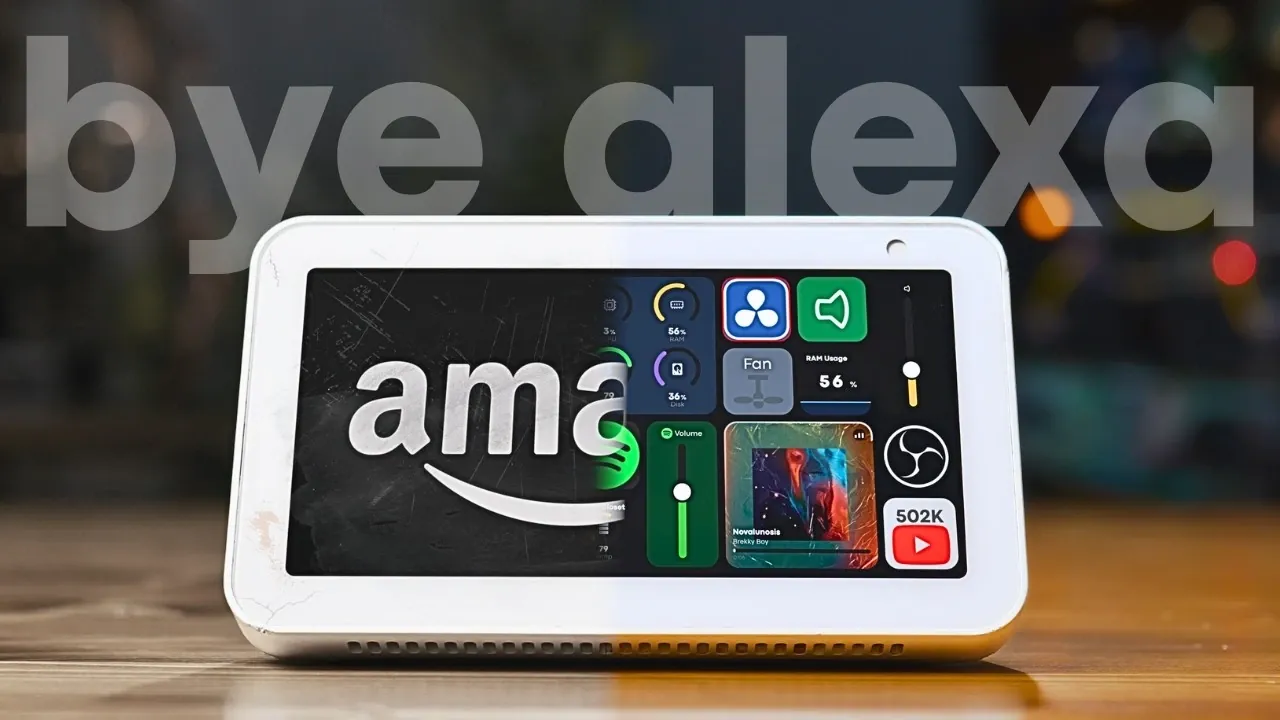
The Amazon Echo Show 5 has a 5.5-inch touchscreen, but newer firmware blocks the jailbreak that lets you run LineageOS. On compatible devices, LineageOS can run without Google apps. Installation requires a separate Windows or Linux computer and a micro USB cable that carries data. Once it’s set up, a paid MacroDeck app can connect the display to your computer over USB. Find out what the installation involves and how the display can be used afterward, as well as why the process can break the device, according to Hardware Haven.
Echo Show 5: Replace Fire OS With LineageOS
TL;DR Key Takeaways :
- Roger Ortiz’s exploit replaces Fire OS with open source, Android-based LineageOS on a first-generation Echo Show 5.
- The exploit covers first- and second-generation Echo Show 5 and first-generation Echo Show 8 devices, but newer firmware has patched it.
- Installation uses a Linux or Windows computer, a TWRP advanced wipe of system, disk and cache, and ADB sideload.
- MacroDeck turns the touchscreen into a computer controller, with a companion app that supports USB and requires a one-time paid licence.
- View Assist can turn the Echo into a Home Assistant display for voice commands, clocks and weather, using a voice pipeline and companion integrations.
An exploit developed by Roger Ortiz lets you replace Fire OS on Amazon’s first-generation Echo Show 5 with LineageOS, a free, open source operating system based on Android. The result is a basic Android device that can run custom tools instead of Amazon’s interface, without its former ability to record private conversations or serve ads in the home.
Stock Fire OS runs Alexa and other Amazon services. It supports watching media, checking a doorbell camera and performing basic smart-home tasks, but limits what you can install. With LineageOS, the Echo was used with open source software for computer shortcuts and Home Assistant controls.
Check the Model and Firmware First
The exploit covers first- and second-generation Echo Show 5 models and the first-generation Echo Show 8. A jailbreak also appears to be available for the second-generation Echo Show 8, but it uses a different process.
Newer firmware has patched the exploits, so Hardware Haven recommends checking a device’s firmware compatibility before buying it and avoiding updates to the stock software. Hardware Haven also warns that the process can break a device and recommends reading the documentation before starting.
The device used for the installation was bought on eBay; you can also check Facebook Marketplace for local listings. The first-generation Echo Show 5 has a touchscreen, built-in speaker and microphone array. Its connections and controls are useful to know before you repurpose it:
- Screen: 5.5-inch touchscreen.
- Controls: Power and volume buttons, plus a physical camera cover.
- Audio: Built-in speaker and 3.5 mm output.
- Data: Micro USB port for connecting to a computer.
- Power: 12-volt barrel-jack supply; USB cannot power the device.

Run the Exploit From a Computer
You need a separate Linux or Windows computer and a micro USB cable that supports data transfer. The jailbreak guide supplies the script used to install the recovery environment.
To enter fastboot mode, power on the Echo while holding all three top buttons. Connect the device to your computer over USB, then download and run the latest script from the guide.
When the script finishes, the Echo boots into TWRP, an open source recovery environment. From there, the guide calls for a wipe before you install LineageOS.
Wipe the Device and Install LineageOS
The wipe must include system, disk and cache. An initial attempt using TWRP’s basic wipe returned the Echo to Fire OS, while selecting the advanced wipe and checking those three areas allowed the installation to proceed.
Once TWRP was installed, holding all three buttons no longer returned the device to recovery. Holding the volume-plus button opened TWRP instead.
After the wipe and a reboot, you can install LineageOS using ADB sideload. ADB was enabled on the Echo, and the connection was checked from an Ubuntu computer with the following command. ADB sideload was then run with the LineageOS image:
adb devices
A subsequent reboot brought the Echo into LineageOS. The standard LineageOS installation does not include proprietary Google applications, and the operating system can run without them.
Turn the Display Into a Macro Controller
MacroDeck, an open source macropad system for Windows, macOS and Linux, can turn the Echo’s touchscreen into controls for your computer. It runs in the background on the computer and connects through a web browser or a companion app for Android or iOS.
The companion app requires a one-time paid licence and supports USB connections. On Android, the desktop application can install the companion app through ADB, without requiring a Google Play Store connection or a manual sideload.
Configured with editing macros, media playback, system metrics and Home Assistant controls, the touchscreen also permits sliders and gestures. Over USB, the app opened and connected when the Echo powered on, and its screen switched off when the computer slept or shut down.
The connection occasionally failed to return when the computer woke; restarting the system reportedly restored it. MacroDeck developer Manuel Meyer suggested the Echo project.
Add Home Assistant Voice and Display Controls
View Assist adds visual-device functionality to Home Assistant’s existing voice-assistant features. On the Echo, it can provide a smart display for voice commands and information such as a clock and weather.
The setup needs a Home Assistant voice pipeline with speech-to-text and text-to-speech components, the View Assist companion app on the Echo, its separate Home Assistant integration, and the main View Assist integration. In the setup, the companion app was installed on the Echo, and its integration was used to discover and configure the device. View Assist and its required Lovelace dashboard components were then installed.
You can also connect a local language model to handle requests that Home Assistant cannot resolve itself. Mark Parker and Donnie F, also known as Dinky, are credited for the View Assist and companion-app integrations.
A basic clock-and-weather setup requires less configuration than a more customised display. Hardware Haven warns that advanced View Assist layouts and functions can involve editing configuration files and troubleshooting. The published setup guides provide the starting point for that work.
We think this is a really great project if you fancy jailbreaking your own Amazon Echo Show 5 to run a custom operating system. It provides plenty of fun and lets you customise it to your exact requirements rather than use Amazon’s predetermined applications and functionality.
A compatible Echo Show 5 can find a new place at your desk or become part of your Home Assistant setup elsewhere in the house. For anyone interested in giving an older smart display a different job, the Echo Show 5 LineageOS project is well worth exploring in more detail.
Media Credit: Hardware Haven
Disclosure: Some of our articles include affiliate links. If you buy something through one of these links, Geeky Gadgets may earn an affiliate commission. Learn about our Disclosure Policy.
