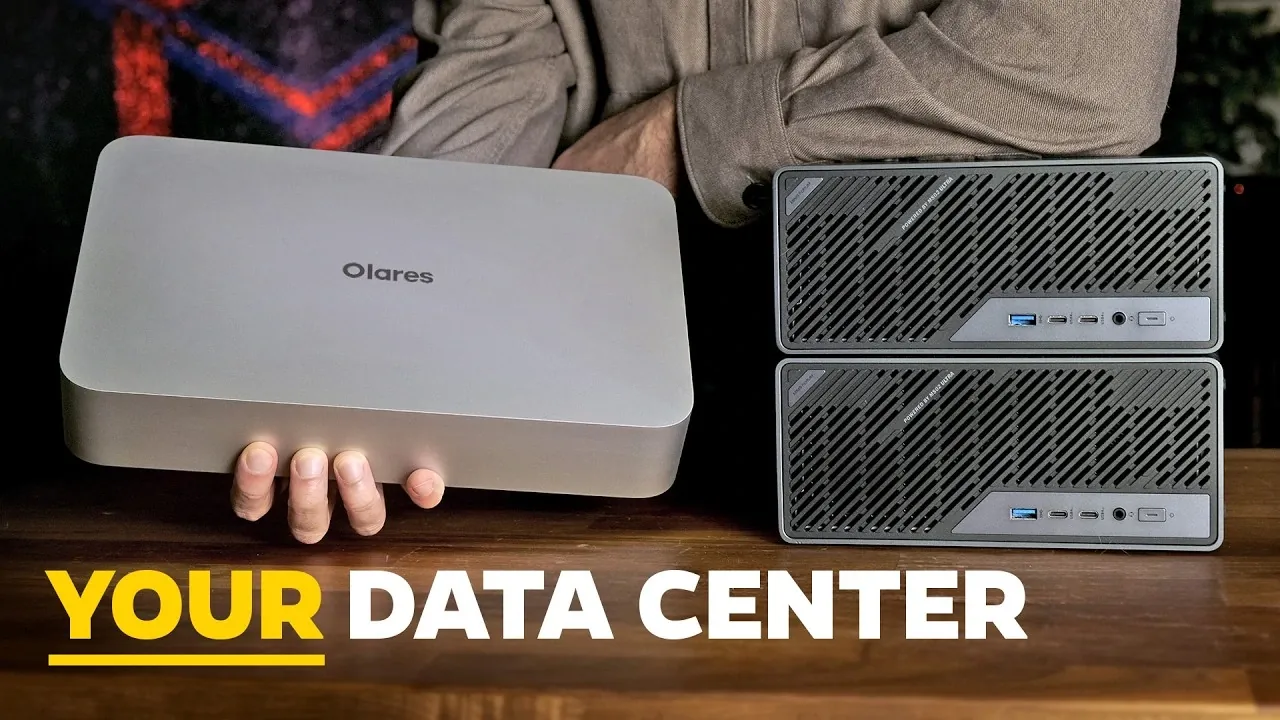
Building AI apps without relying on cloud AI services is possible with the Olares One. Its local AI agent spent 13 hours and 22 minutes coding a dashboard to monitor three computers. The device provides the local computing capacity for an agent that can build apps and manage files and settings. You can activate it from a phone, although creating a cluster currently requires command-line work. Coreteks found that another custom app produced English and Japanese subtitles for a film. See how the setup works and what it takes to put the cluster to use.
Olares One Coordinates a Local AI Cluster
TL;DR Key Takeaways :
- Olares One coordinates two MINISFORUM MS-02 Ultra workers connected to each other through 25Gbps interfaces.
- The Lares agent used Qwen 3.8 for local reasoning and coded apps without cloud AI services.
- The agent spent 13 hours and 22 minutes coding a dashboard to monitor resources across all three machines.
- Subtitle Pilot found 177 videos on a drive attached to worker 2 and processed subtitles locally.
- Jellyfin streamed 4K movies from worker 2 over 5GHz Wi-Fi without visible image degradation.
In this build, the Olares One acts as the master node of a local AI cluster, coordinating two MINISFORUM MS-02 Ultra mini PCs as workers. The cluster divides work between the connected computers rather than relying on one machine. Olares provided the Olares One for the project.
Olares One runs Olares OS, an open source personal cloud operating system based on Kubernetes. Its RTX 5090 Mobile has 24GB of VRAM for local AI work; the device also has 96GB of system memory, a high-end Intel processor and Wi-Fi 7 support. The GPU is the power-efficient RTX 5090 Mobile, not the desktop card.
Activate the Master Before Adding Workers
Olares One is a headless device, so you do not need a monitor, keyboard or mouse for its initial configuration. Use the LarePass app on an iOS or Android phone connected to the same local network. You will also need an internet connection for activation.
During setup, create an Olares ID and preserve the 12-word recovery phrase for the LarePass account. Once activated, Olares One can operate offline on the local network, while LarePass VPN supports remote access to locally hosted apps.
Olares OS currently requires command-line operations to create a multi-device cluster. Olares One does not support remote KVM or IPMI management, and its HDMI output shows an Ubuntu shell or Steam Headless output rather than a conventional desktop.

Check out more relevant guides from our extensive collection on Olares One and MINISFORUM MS2 Ultra that you might find useful.
- Olares One : All-in-One AI Mini PC Specifically Designed to Run Local AI Models
- Minisforum MS02 Ultra Fits an NVIDIA RTX 4060 in 4.8L
Connect the Worker Nodes and Shared Storage
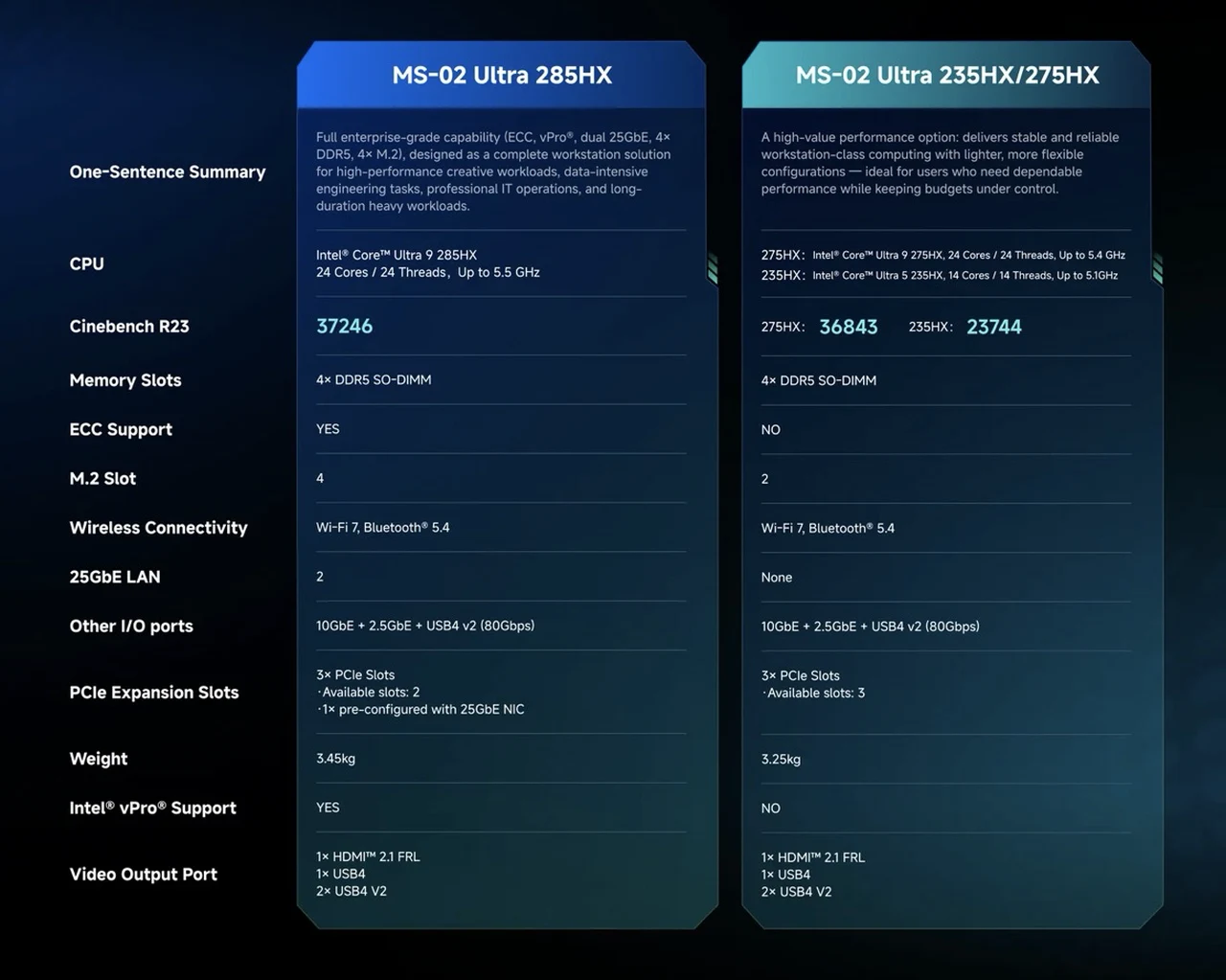
The build used two MINISFORUM MS-02 Ultra machines, MINISFORUM’s current Intel-based flagship, as workers. Both joined the local network over Wi-Fi and connected to each other through 25Gbps network interfaces, while Olares One also connected to the network over Wi-Fi.
To reproduce the setup, follow Olares’s multi-node cluster guide in this order:
- Install Ubuntu Desktop LTS on each worker using the default installation.
- Connect both workers to the master’s wired or wireless network, update them and reboot.
- Use SSH to access the master and install JuiceFS for file sharing between nodes.
- Run the guide’s cluster commands to connect each worker to the master.
Connecting each worker was straightforward, although activating JuiceFS may take a long time. Once connected, you can use the phone app to see the cluster’s devices and the resources available on each.
The project also supplies commands for worker machines. To prevent sleep and hibernation, use:
systemctl mask sleep.target suspend.target hibernate.target hybrid-sleep.target
To disable screen blanking and screen lock:
gsettings set org.gnome.desktop.session idle-delay 0
To disable system suspend on the GNOME desktop:
systemctl mask suspend.target
Use Qwen and the Agent to Create Apps
The Olares router app connects installed resources, while the Lares agent, recently added to Olares OS, carries out tasks using them. You can ask the agent in plain language to manage files, apps and system settings, or to build an app for the worker nodes. Olares also supports Hermes and OpenClaw; Hermes can provide a personal assistant through Discord.
For the build, the agent downloaded the free Qwen 3.8 model to handle reasoning locally. The app coding did not use cloud AI services, although an app can still use the internet for tasks such as searching for subtitles.
Coreteks recommends placing some of the reasoning model in system RAM to avoid running out of tokens during a job; most of the model ran in the GPU’s VRAM. Olares Market supplies local models and apps tailored to the headless cloud environment, and Olares One supports inference engines including llama.cpp, Ollama, vLLM and SGLang. SearXNG and Firecrawl are recommended for search and research.
Watch Cluster Resources With a Custom Dashboard
A monitoring app gives the master node a browser-accessible view of work across all three machines. The requested dashboard shows real-time CPU, RAM, VRAM and disk usage, as well as the pods and workloads consuming resources on each node.
The agent spent 13 hours and 22 minutes coding the app across different sessions and iterations. It got most of the app right on the first attempt; after issues were described, Olares tested and fixed them.
During the later subtitle workload, the dashboard showed worker 2 at 17% usage and the orchestrator at 4.1%. Worker 2’s CPU usage changed while the other resources stayed stable, leaving them available for other tasks.
Run Subtitle Processing on a Worker
The second custom app, Subtitle Pilot, scans a media drive and can check existing sidecar files, search online, translate subtitles or generate them with a local speech-recognition model. Scanning the drive can take a long time. The app’s full pipeline runs those actions together and provides a processing log that remains viewable after you close the processing window.
The agent spent roughly 15 hours and 23 minutes coding the app, again across separate sessions and iterations. In use, the app found 177 videos on a drive attached to worker 2.
For one film that had French but no English subtitles, the completed pipeline produced Japanese and English subtitle files. The work ran on worker 2 while Olares One coordinated the cluster.
Serve the Processed Library From the Cluster
The agent was also asked to install Jellyfin on worker 2 and make it available to devices on the home network. Remote media-library access through Tailscale was also planned. In use, 4K movies streamed from that worker without visible image degradation over 5GHz Wi-Fi. Performance over slower Wi-Fi was uncertain, and wired Ethernet is an option.
Worker nodes can continue running their assigned services even if Olares One is switched off. Coreteks recommends the One for people building a powerful local AI cloud, with the GPU supplying the reasoning capacity used in this project. An Olares One is not essential as the master, though: you can also install Olares OS on another machine.
We think this might be a great solution for installing local AI in a home office, depending on your requirements, especially if you are happy with Ubuntu installs, SSH and long waits, and have a niche problem to solve. It is a poor fit for anyone wanting a simple, finished local AI system straight out of the box.
Custom apps give you a way to shape the cluster around the work you want done at home, rather than relying only on prebuilt software. If you want to bring your own machines together for local AI work, an Olares One cluster is well worth building.
Media Credit: Coreteks
Disclosure: Some of our articles include affiliate links. If you buy something through one of these links, Geeky Gadgets may earn an affiliate commission. Learn about our Disclosure Policy.
