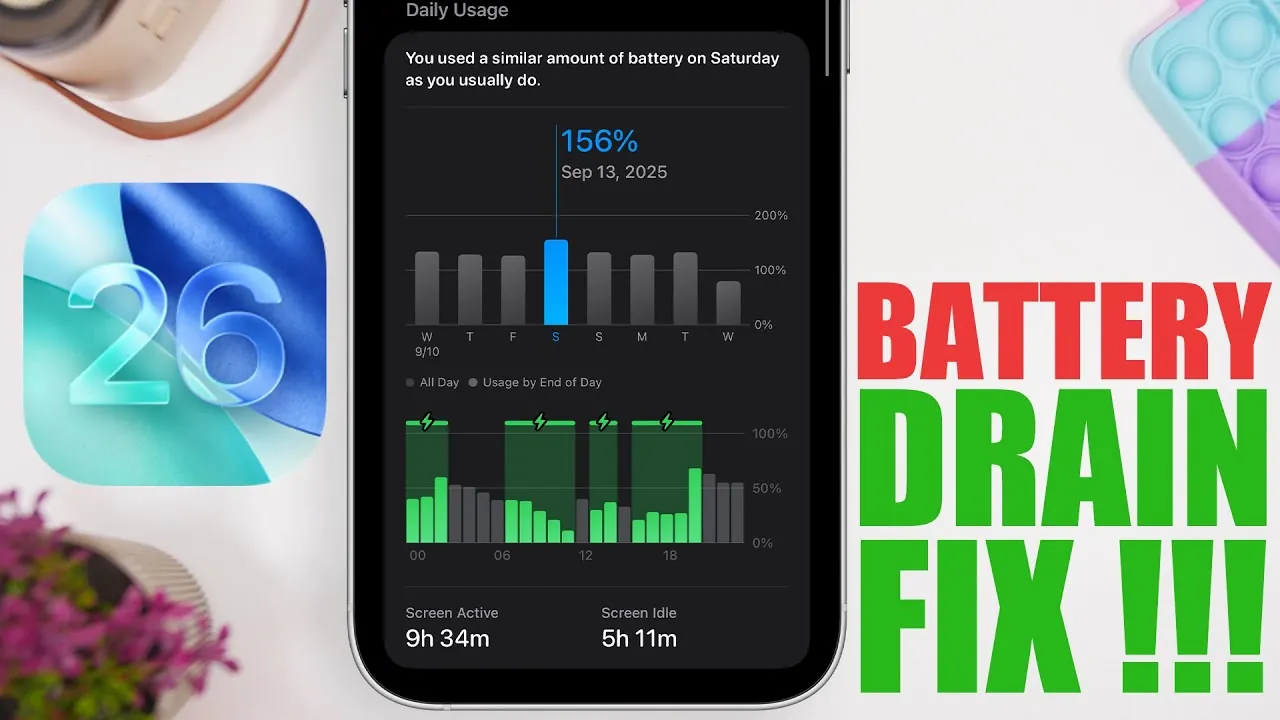
The release of iOS 26 has introduced a range of exciting features and enhancements, but many users have reported increased battery drain since upgrading. If your device is losing power faster than expected, you’re not alone. Fortunately, there are practical steps you can take to optimize your battery life. By adjusting settings, managing apps, and disabling unnecessary features, you can ensure your device operates efficiently while maintaining its functionality. The video below from iReviews shows us how to fix battery drain on the iPhone.
1. Keep Your Software Updated
Making sure your device is running the latest software is critical for maintaining battery performance. Apple frequently releases updates to address bugs and improve system efficiency. To check for updates, navigate to your device’s settings and ensure you’re using the latest stable version of iOS 26. Avoid beta updates, as they may contain unresolved issues that can exacerbate battery drain. Keeping your software current is a straightforward way to resolve many battery-related problems.
2. Adjust Visual Features to Conserve Power
Some of iOS 26’s visual enhancements, while appealing, can significantly impact battery life. For instance, the new “Spatial Scenes” 3D lock screen feature is visually stunning but consumes more power than static images. Switching to a static lock screen background can help conserve energy, especially if you frequently unlock your device. Similarly, animated iMessage backgrounds, while fun, can drain your battery. Opt for still images or plain colors in your message threads to reduce power usage without compromising your messaging experience.
3. Enable Adaptive Power Mode
iOS 26 introduces Adaptive Power Mode, a feature designed to optimize performance while extending battery life. This mode dynamically adjusts system processes based on your usage patterns, making sure efficient power consumption without sacrificing functionality. You can activate Adaptive Power Mode in the battery settings of your device. This feature is particularly useful for users who rely heavily on their devices throughout the day.
4. Manage Apps Effectively
Apps are one of the primary contributors to battery drain. Taking a proactive approach to app management can significantly improve your device’s battery life.
- Update your apps: Ensure all apps are updated to their latest versions to maintain compatibility with iOS 26. Outdated apps often consume more power due to inefficiencies.
- Uninstall unused apps: Identify and remove apps you rarely use, particularly those known for high battery consumption. This frees up resources and reduces background activity.
5. Optimize Background Activity
Background processes can quietly drain your battery, even when you’re not actively using your device. Adjusting these settings can make a noticeable difference:
- Background App Refresh: Disable this feature for apps that don’t require constant updates, such as games or utilities you use infrequently. This reduces unnecessary background activity.
- Location Services: Turn off location tracking when it’s not needed, and set app-specific permissions to “While Using the App” instead of “Always.” This ensures location data is only used when necessary.
6. Refine Display and Connectivity Settings
The display and connectivity features of your device are significant factors in battery consumption. Making small adjustments can lead to substantial savings:
- Auto-Brightness: Enable auto-brightness in your settings to allow your device to adjust screen brightness based on ambient light conditions. This balances visibility with power efficiency.
- Wi-Fi over Cellular Data: Whenever possible, connect to Wi-Fi instead of using cellular data. 5G networks, while faster, consume more power than Wi-Fi or 4G/LTE. In areas with poor 5G coverage, switching to 4G/LTE can further reduce battery consumption.
7. Disable Unnecessary Features
Many features in iOS 26, while convenient, can drain your battery if left enabled unnecessarily. Consider the following adjustments:
- AirDrop: Turn off AirDrop when it’s not in use. Features like “Bringing Devices Together” and always-on receiving can consume power even when idle.
- Siri and Apple Intelligence: Features like proactive suggestions and voice recognition run in the background and consume power. Disable these if you don’t use them regularly.
- Accessibility Features: Features such as sound recognition, name recognition, and music haptics can run in the background. Turn these off if they’re not essential to your daily use.
8. Streamline Notifications and Widgets
Unnecessary notifications and widgets can also contribute to battery drain. Limiting these can help conserve power:
- Notifications: Restrict alerts to essential apps and disable notifications for non-critical applications. This not only saves battery but also reduces distractions.
- Widgets: Remove battery-intensive widgets, such as those that frequently update (e.g., weather or news), from your home and lock screens. Replace them with static widgets to reduce power usage.
9. Enable Dark Mode
Dark Mode is a practical feature for devices with OLED screens. Black pixels on OLED displays are turned off, reducing power consumption. Allowing Dark Mode can extend battery life, particularly during prolonged screen usage. This setting is both aesthetically pleasing and energy-efficient.
10. Modify Siri Settings
The “Always Listen for Siri” feature keeps your device continuously listening for voice commands, which can drain your battery. If you don’t use Siri frequently, disable this feature and activate Siri manually when needed. This adjustment can significantly reduce background activity.
Maximizing Battery Efficiency
By implementing these strategies, you can effectively reduce battery drain on your iOS 26 device. From managing app behavior to disabling unnecessary features, these adjustments ensure your device operates efficiently while maintaining the functionality you need. With these optimizations, you’ll enjoy a longer-lasting battery and a smoother overall experience.
Uncover more insights about iOS 26 battery optimization in previous articles we have written.
- iOS 26 Settings You Should Change for Maximum Performance
- iOS 26 Battery Intelligence: Features, Benefits, and Compatibility
- Save iPhone Battery with Adaptive Power (iOS 26 Public Beta)
- How to Optimize Your iPhone After Installing iOS 26
- Top Tips for Navigating the iOS 26 Beta Like a Pro
Source & Image Credit: iReviews
Disclosure: Some of our articles include affiliate links. If you buy something through one of these links, Geeky Gadgets may earn an affiliate commission. Learn about our Disclosure Policy.
