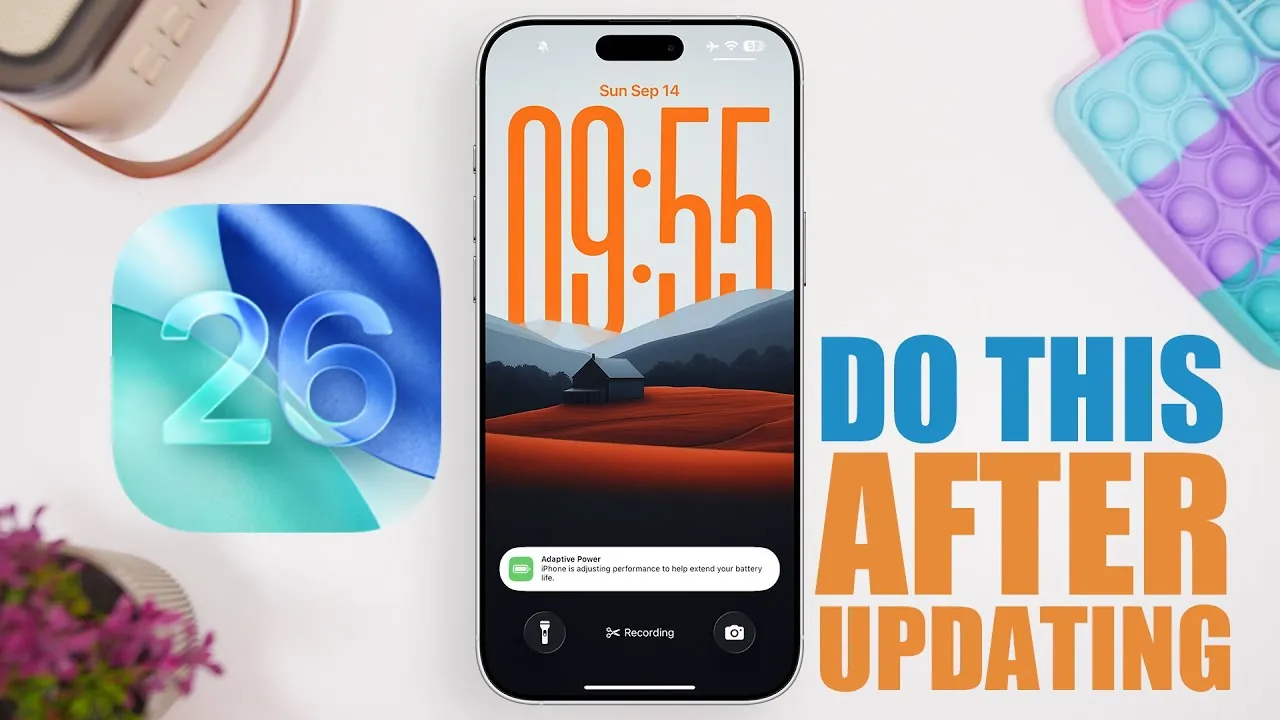
The release of iOS 26 brings a host of new features and improvements designed to enhance your device’s functionality, security, and overall user experience. However, simply installing the update is not enough to fully unlock its potential. To make the most of iOS 26, it’s important to take a few proactive steps. The video below from iReviews outlines the key actions you should take to optimize your device and ensure a seamless transition to the latest operating system.

Manage Software Updates
Once you’ve installed iOS 26, it’s essential to review your software update settings to maintain stability and security. If you participated in the beta program, you’ll want to disable beta updates to avoid receiving experimental versions. Here’s how to manage your update settings effectively:
- Navigate to Settings > General > Software Update.
- Turn off beta updates if they are enabled.
- Enable automatic updates to ensure your device stays current with future releases.
By taking these steps, you’ll ensure your device remains compatible with the latest software improvements and security patches.
Check for Carrier Updates
Carrier updates are often overlooked but play a critical role in maintaining optimal network performance. These updates can improve call quality, enhance data speeds, and ensure reliable connectivity. To check for carrier updates:
- Open Settings and go to General > About.
- If an update is available, a prompt will appear to install it.
Regularly checking for carrier updates ensures that your device operates smoothly on your network, providing a better overall experience.
Update Your Apps
App compatibility is crucial after a major iOS update. Outdated apps may not function properly or could experience glitches. To update your apps:
- Open the App Store and tap your profile icon in the top-right corner.
- Select Update All to ensure all your apps are optimized for iOS 26.
For added convenience, enable automatic app updates in the App Store settings. This will keep your apps secure and functional without requiring manual intervention.
Optimize Battery Health
iOS 26 introduces new tools to help you monitor and improve your device’s battery performance. After updating, take the following steps to ensure your battery remains in top condition:
- Go to Settings > Battery > Battery Health to check your battery’s maximum capacity and performance metrics.
- Enable the new Adaptive Power feature, which adjusts power usage based on your habits and provides notifications for optimization opportunities.
These features are designed to extend your battery life and improve overall efficiency, making sure your device performs reliably throughout the day.
Customize Your Home Screen
iOS 26 offers enhanced customization options for your home screen, allowing you to create a more personalized and visually appealing interface. New features include:
- The ability to resize app icons for improved visibility and accessibility.
- Customizable tinted backgrounds to match your aesthetic preferences.
- Clearer icon designs for a cleaner and more modern look.
These tools make it easier than ever to tailor your home screen to your unique style and needs.
Explore Photos App Enhancements
The Photos app has received significant upgrades in iOS 26, making it easier to manage and edit your photo library. Key enhancements include:
- Pinned Albums: Keep your most frequently used albums at the top of your library for quick access.
- Streamlined Editing Tools: Enjoy a more intuitive layout for editing and organizing your photos.
These updates save time and improve the overall experience of navigating and managing your photo collection.
Try Out New Apps
iOS 26 introduces two new apps that expand your device’s functionality and versatility:
- Games App: A centralized hub for discovering, managing, and playing games on your device. This app simplifies the gaming experience by organizing all your games in one place.
- Preview App: A powerful tool for editing and managing documents, including PDFs, directly on your device. This app enhances productivity by offering advanced document management features.
These additions make your device more capable, whether you’re looking for entertainment or tools to boost your productivity.
Review Privacy Settings
Privacy remains a top priority in iOS 26, with new features that give you even greater control over your data. After updating, take a moment to review and adjust your privacy settings:
- Go to Settings > Privacy & Security to review app permissions for sensitive data such as location, microphone, and camera access.
- Adjust permissions to align with your privacy preferences and ensure that apps only access the data they truly need.
These enhanced controls empower you to maintain full oversight of how your personal information is used, providing peace of mind and greater security.
Maximize Your iOS 26 Experience
Updating to iOS 26 is more than just a routine software upgrade—it’s an opportunity to explore new features, optimize your device, and enhance your overall experience. By managing updates, keeping your apps current, optimizing battery health, customizing your home screen, and reviewing privacy settings, you can unlock the full potential of iOS 26. These steps will help you enjoy a smoother, more personalized, and secure experience with your device.
Take a look at other insightful guides from our broad collection that might capture your interest in iOS 26 features.
- iOS 26 Beta 6 Features: What’s New and Improved
- iOS 26 Release: Key Features and Updates for Apple Users
- Apple iOS 26 Beta 9 Explained: Features, Fixes, and More
- iOS 26 Features and Updates: Everything You Need to Know
- Hidden Features in iOS 26 You Need to Know About
Source & Image Credit: iReviews
Disclosure: Some of our articles include affiliate links. If you buy something through one of these links, Geeky Gadgets may earn an affiliate commission. Learn about our Disclosure Policy.
