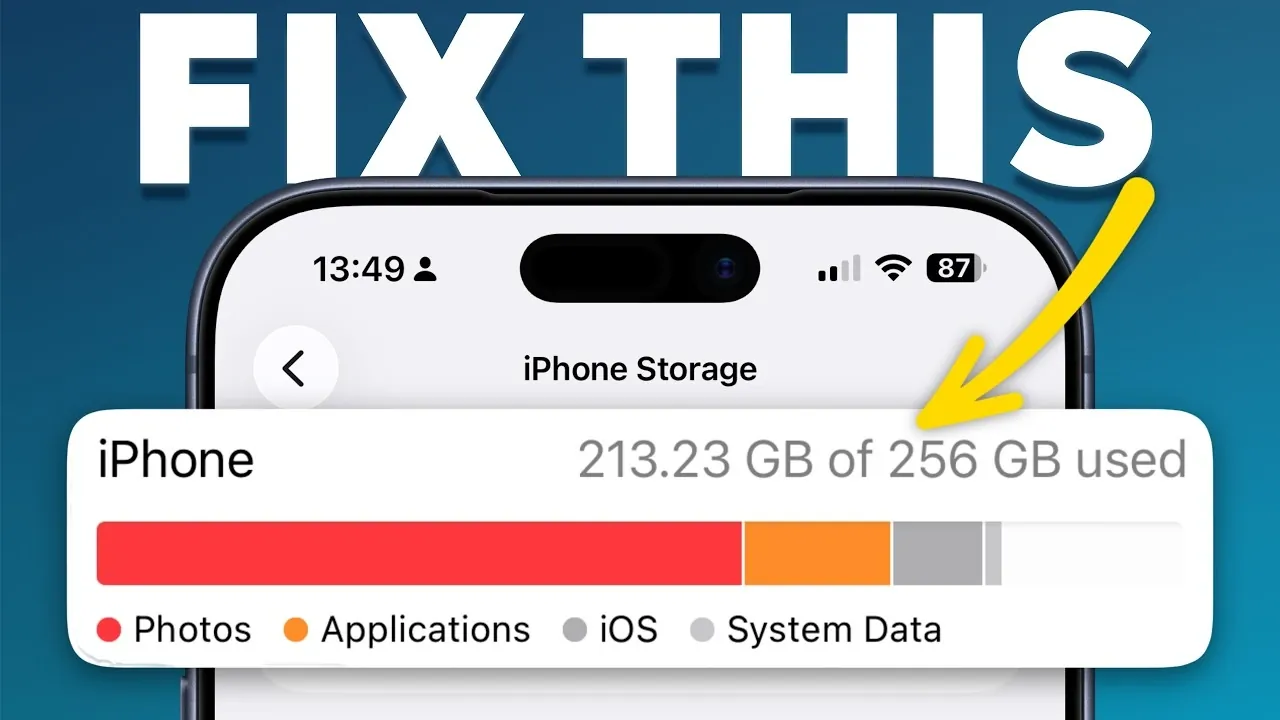
Running out of storage on your iPhone can be a common and frustrating issue, but it’s one that can be resolved with the right approach. Over time, your device accumulates photos, apps, messages, and cached data, leaving little room for new files or updates. By understanding how your storage is being used and taking proactive steps, you can ensure your iPhone runs efficiently while keeping your important data intact. The video below from Proper Honest Tech gives us more details.

Why iPhone Storage Fills Up
Your iPhone’s storage fills up gradually, often without you realizing it. The primary contributors include photos, videos, apps, and cached data from various applications. To get a clear picture of what’s consuming your storage, navigate to Settings > General > iPhone Storage. This section provides a detailed breakdown of your storage usage, categorized by apps, media, and system files. By analyzing this data, you can identify the areas that need attention and prioritize your cleanup efforts.
Effective Ways to Free Up Space
Once you’ve identified the main storage culprits, you can take targeted actions to reclaim space. Here are some practical steps:
- Optimize Photo Storage: Activate the “Optimize iPhone Storage” feature in iCloud Photos. This stores full-resolution images in iCloud while keeping smaller, optimized versions on your device, saving significant space.
- Offload Unused Apps: Enable the “Offload Unused Apps” feature in your settings. This removes apps you rarely use while retaining their data, allowing you to reinstall them later without losing progress or settings.
- Delete Unnecessary Files: Regularly review and delete old screenshots, duplicate photos, and large message attachments. Use the “Review Large Attachments” tool in Messages to identify and remove space-hogging files.
These actions can help you free up substantial storage while making sure your essential data remains intact.
Managing Media and App Storage
Media files and apps are often the largest contributors to storage usage. Managing these effectively can make a significant difference:
- Review Media Downloads: Streaming apps like Apple Music, Netflix, and Spotify allow you to manage offline content directly in their settings. Periodically delete downloaded files you no longer need to reclaim space.
- Evaluate App Usage: In the iPhone Storage section, check the storage usage of individual apps. For apps with large footprints, decide whether to offload or delete them entirely. Retain only the apps you use frequently to maximize available space.
By regularly managing your media and apps, you can prevent unnecessary storage consumption and keep your device running smoothly.
Using iCloud for Storage Optimization
iCloud is a valuable tool for managing your iPhone’s storage, but it’s essential to use it strategically. Unlike a traditional backup, iCloud syncs data across devices, so careful management is key. To optimize your iCloud usage:
- Delete Redundant Backups: Review your iCloud backups and remove outdated or unnecessary ones to free up cloud storage.
- Adjust Sync Settings: Customize your iCloud settings to sync only the data you need. Be cautious when disabling sync options to avoid accidental data loss.
Using iCloud effectively can help you free up both device and cloud storage, providing greater flexibility and convenience.
Common Mistakes to Avoid
When clearing storage, it’s important to avoid these pitfalls:
- Panic Deleting: Hastily deleting files without proper review can lead to the loss of important data. Take the time to carefully assess what you’re removing.
- Relying on Third-Party Cleaner Apps: These apps often offer minimal benefits and can pose security risks or consume additional storage. Stick to Apple’s built-in tools for a safer and more effective cleanup process.
Avoiding these mistakes ensures a smoother and more secure storage management experience.
Long-Term Storage Maintenance Tips
To prevent storage issues from recurring, adopt these long-term habits:
- Enable Automatic Optimization: Features like “Optimize iPhone Storage” and “Offload Unused Apps” can help manage storage automatically, reducing the need for manual intervention.
- Monitor Storage Regularly: Periodically check your storage usage in Settings to identify potential issues early and address them before they become problematic.
- Clear Recently Deleted Items: Regularly empty the “Recently Deleted” folder in Photos to ensure deleted files don’t continue to occupy space unnecessarily.
By incorporating these practices into your routine, you can maintain optimal storage levels and avoid the frustration of running out of space.
Take Control of Your iPhone Storage
Managing your iPhone’s storage doesn’t have to be a daunting task. By following these steps, you can free up space, enhance your device’s performance and avoid the inconvenience of storage limitations. With regular maintenance and smart use of tools like iCloud and app offloading, you can keep your iPhone running efficiently without the need for costly upgrades. Start taking control of your storage today to enjoy a smoother, more reliable mobile experience.
Enhance your knowledge on iPhone storage management by exploring a selection of articles and guides on the subject.
- Apple Just Released iOS 26.5, Here’s Everything New for Your iPhone
- iOS 26 Guide: How to Safely Clear iPhone System Data (2026)
- “iOS 26: How to Clear System Data & Free Up iPhone Storage
- iOS 26 Storage HACK: 7 Settings to FREE UP Space INSTANTLY
- iPhone Storage: How Much Does Apple Intelligence Use in iOS 18
Source & Image Credit: Proper Honest Tech
Disclosure: Some of our articles include affiliate links. If you buy something through one of these links, Geeky Gadgets may earn an affiliate commission. Learn about our Disclosure Policy.
