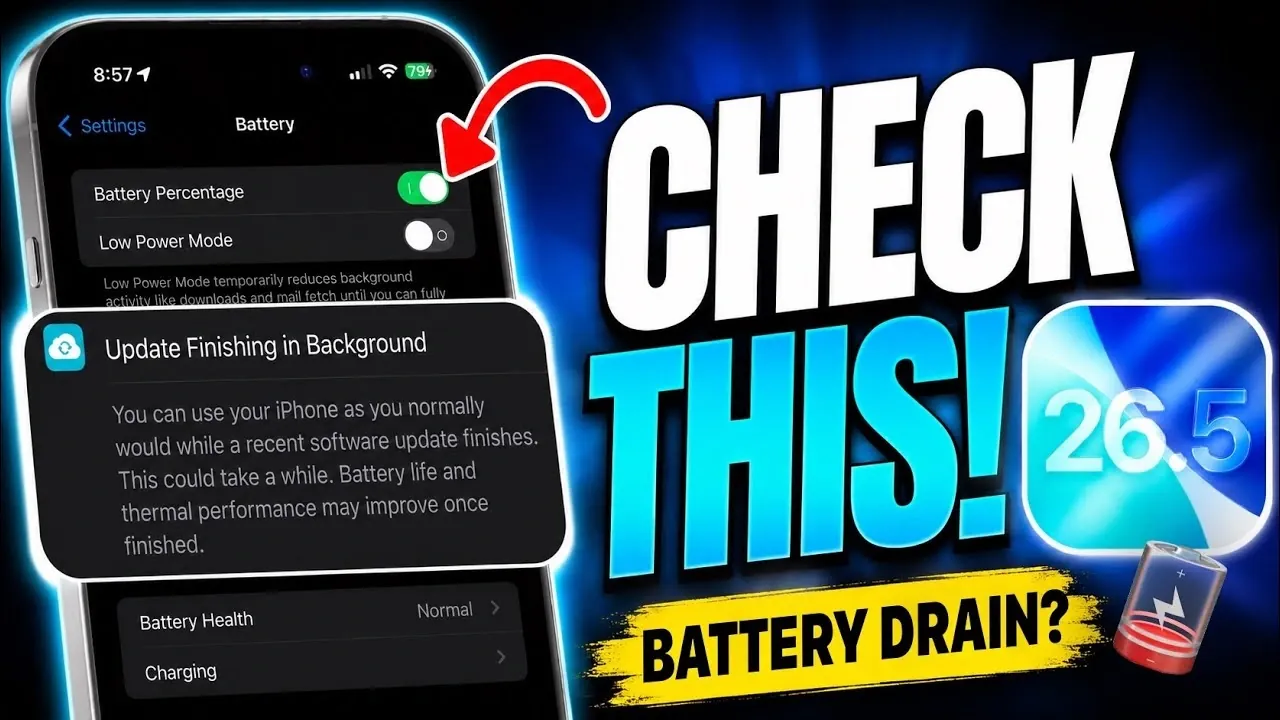
The release of iOS 26.5 introduces a host of new features and improvements, but some users have reported experiencing excessive battery drain, particularly on older devices or during the transition from previous iOS versions. If you’ve noticed a significant drop in battery life, there are effective steps you can take to address the issue. By optimizing your settings and managing background processes, you can restore your device’s battery performance and extend its daily usability. The video below from iDeviceHelp gives us more details.
Understanding Battery Drain After an Update
When you update to iOS 26.5, your iPhone may perform several resource-intensive background tasks. These include indexing files, syncing data, and downloading updates for apps and system components. While these processes are temporary, they can cause a noticeable increase in battery consumption immediately after the update.
To identify which apps or activities are consuming the most power, navigate to Settings > Battery. Here, you’ll find a detailed breakdown of battery usage by app, allowing you to pinpoint potential culprits.
To reduce unnecessary battery drain during this period:
- Enable Auto-Lock to ensure your screen turns off after a set period of inactivity.
- Activate Auto-Brightness to automatically adjust your screen’s brightness based on ambient light, reducing energy usage.
These small adjustments can help conserve battery life while your device completes its post-update processes.
Optimizing Background App Activity
The Background App Refresh feature allows apps to update their content even when you’re not actively using them. While this can improve app functionality, it can also be a significant drain on your battery. To manage this feature effectively:
- Go to Settings > General > Background App Refresh.
- Choose to disable the feature entirely or selectively turn it off for apps that don’t require constant updates.
For example, if a social media app you rarely use is consuming a disproportionate amount of battery, disabling its background refresh can lead to noticeable improvements. Importantly, notifications will still function, but the app won’t update unnecessarily in the background.
Using Adaptive Power Mode
For users with newer iPhone models, Adaptive Power Mode is a valuable tool for optimizing battery performance. This feature, available in Settings > Battery, dynamically adjusts background activity based on your usage patterns. By throttling non-essential processes and prioritizing essential functions, Adaptive Power Mode helps extend battery life without compromising usability.
For instance, if your iPhone detects that certain apps are rarely used, it will limit their background activity. This ensures that your battery lasts longer throughout the day, especially during periods of light usage.
Insights from the iOS 26.5 User Community
Feedback from the iOS 26.5 user community highlights varying experiences with battery performance:
- 37% of users reported excellent battery life after updating.
- 51% find battery performance acceptable, but note room for improvement.
- 11% experience significant battery drain, often linked to unoptimized settings or excessive background activity.
These statistics emphasize the importance of proactive battery management. While many users find the update satisfactory, those encountering issues can benefit from targeted adjustments to their device settings.
Maximizing Battery Life on iOS 26.5
On average, iPhones running iOS 26.5 deliver 7 to 9 hours of on-screen time, depending on individual usage patterns. This performance is consistent with previous updates and overall system reliability remains strong. However, if you’re experiencing faster-than-usual battery depletion, there are practical steps you can take to optimize your device:
- Regularly monitor battery usage in Settings > Battery to identify and address power-hungry apps.
- Adjust energy-saving settings such as Auto-Lock and Auto-Brightness to reduce unnecessary power consumption.
- Disable Background App Refresh for apps that don’t require constant updates or frequent background activity.
- Enable Adaptive Power Mode on newer devices to dynamically manage battery usage based on your habits.
By implementing these strategies, you can mitigate battery drain issues and enjoy a more efficient and reliable experience with iOS 26.5. Whether you’re using an older device or the latest iPhone model, these adjustments will help you get the most out of your battery and ensure your device performs at its best.
Learn more about iOS 26.5 battery drain with other articles and guides we have written below.
- iOS 26.5 Killing Your Battery? Hidden Settings to Stop the Drain Instantly
- Don’t install iOS 26.5 Beta 2 yet, unless you want to carry a charger for the first time this year
- Apple’s iOS 26.5 Update is Imminent — Is Your iPhone Ready?
- iOS 26.4.2 vs. 26.5 RC: Should You Update Now or Wait for Next Week’s Release?
- iOS 26.4 Alert: How to Fix iOS Battery Drain on Your iPhone Today
Source & Image Credit: iDeviceHelp
Disclosure: Some of our articles include affiliate links. If you buy something through one of these links, Geeky Gadgets may earn an affiliate commission. Learn about our Disclosure Policy.
