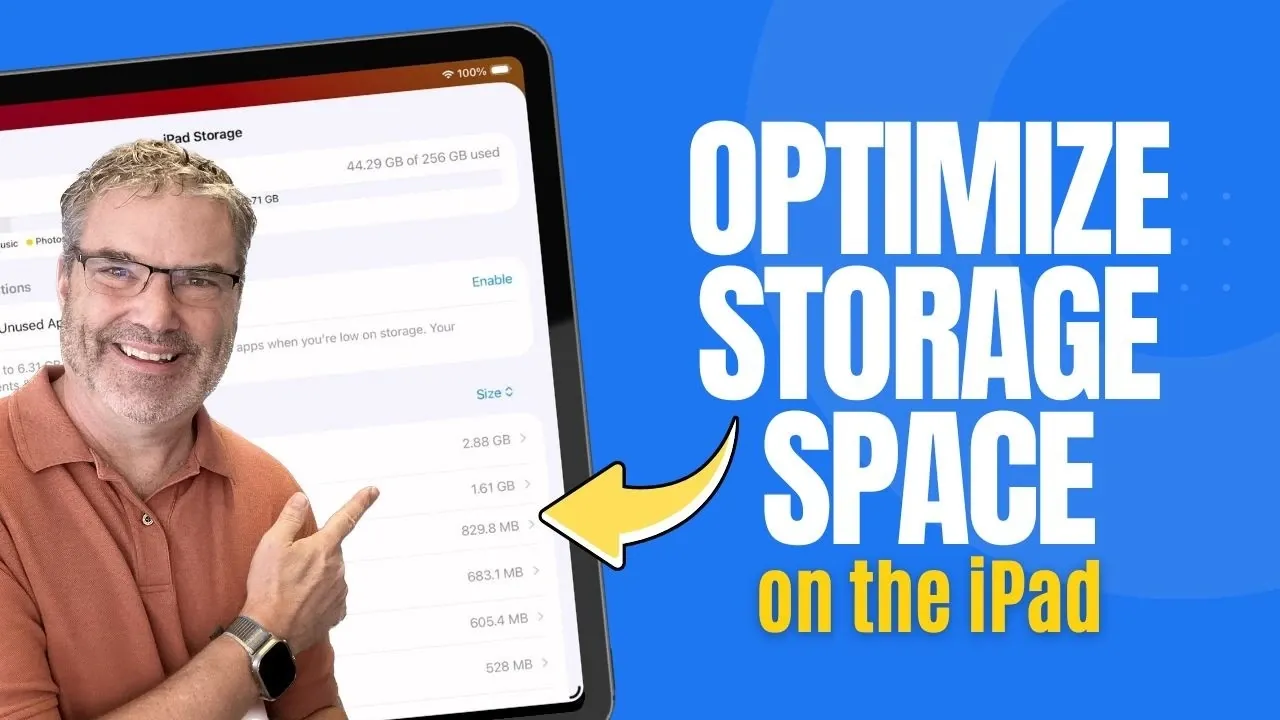
Efficiently managing your iPad’s storage is essential for maintaining its performance and avoiding frustrating slowdowns. With iPadOS 26, Apple provides a detailed breakdown of storage usage through the iPad Storage menu, where categories like apps, photos and system files are clearly displayed. Dan’s Tutorials explains how keeping at least 10-20% of your storage free can prevent app crashes and system instability, making sure your device runs smoothly. By understanding how your iPad allocates space, you can take proactive steps to optimize storage and extend your device’s lifespan.
Explore actionable strategies to reclaim space, such as offloading unused apps while preserving their data, deleting large attachments in Messages and using Apple’s personalized storage recommendations. You’ll also learn how to manually review storage details to identify and manage apps with significant data footprints. These practical tips will help you maintain a responsive iPad and ensure you have room for the apps and files that matter most.
Why Free Storage Matters
TL;DR Key Takeaways :
- Maintaining at least 10-20% free storage on your iPad is crucial for optimal performance, preventing slowdowns, app crashes and system instability.
- iPadOS 26 offers detailed storage insights and personalized recommendations, such as offloading unused apps and deleting large attachments, to help manage space efficiently.
- Offloading unused apps allows you to free up storage while preserving app data, making it easy to reinstall and resume usage later.
- Manually reviewing storage usage in the iPad Storage menu helps identify and manage large apps or files, allowing targeted optimization.
- Apple’s tools and strategies in iPadOS 26 ensure a seamless and productive user experience by simplifying storage management and maximizing device performance.
Keeping at least 10-20% of your iPad’s storage free is critical for smooth operation. When storage becomes too limited, your device may slow down, apps can crash and system processes may become unstable. These issues can disrupt your workflow or entertainment, making regular storage checks a necessary habit. By clearing unnecessary files and managing your data effectively, you can ensure your iPad remains reliable and responsive.
How to Check and Understand Your iPad’s Storage
To gain insight into how your iPad’s storage is being used, follow these steps:
1. Open the Settings app.
2. Navigate to General > iPad Storage.
Here, you’ll find a detailed breakdown of your storage usage. Categories such as apps, photos, music and system files are displayed alongside the amount of space they occupy. This overview helps you identify which areas are consuming the most storage, allowing you to target them for optimization.
Key Benefits:
– Quickly identify storage-heavy apps or files.
– Understand how your iPad allocates space.
– Make informed decisions about what to keep or remove.

Gain further expertise in Apple iPads by checking out these recommendations.
- Apple iPad 12th Gen 2026: Features, Specs, and Pricing
- iPad Mini 8: Everything We Know About the New OLED Display
- iPad 12 Release Date, Specs and More
- M4 iPad Air Release Date, Features, and Pricing Explained
- 2026 iPad 12th Gen Release Date, Specs, and Rumors
- iPad 12th Generation 2026: Specs, Features, and Pricing
- Apple iPad 12 Delay: How MacBook Neo Changed Everything
- Apple M4 iPad Air: Everything You Need to Know
- M4 iPad Air: What to Expect in Apple’s 2026 Model
- Apple 2026 iPad Lineup: Features, Specs, and Pricing
Using Apple’s Storage Recommendations
iPadOS 26 includes personalized storage recommendations designed to help you free up space efficiently. These suggestions, accessible in the iPad Storage menu, are tailored to your usage patterns and can save you time by highlighting areas where storage can be reclaimed. Examples of these recommendations include:
- Offloading unused apps to retain app data while removing the app itself.
- Deleting large attachments in Messages to clear unnecessary clutter.
- Removing cached files that accumulate over time.
By following these recommendations, you can reclaim valuable storage space without the need for extensive manual effort.
Offloading Unused Apps: A Smart Solution
Offloading unused apps is an effective way to free up storage while preserving important data. This feature removes the app but keeps its associated data intact, allowing you to reinstall it later without losing progress or settings. It’s particularly useful for large apps you rarely use, such as games or creative tools like GarageBand.
To enable automatic offloading:
1. Open Settings > App Store.
2. Toggle on Offload Unused Apps.
Alternatively, you can manually offload specific apps by visiting the iPad Storage menu, selecting an app and tapping Offload App. This approach gives you control over which apps to prioritize for offloading.
Why It’s Useful:
– Frees up significant storage without deleting app data.
– Ideal for apps you use infrequently but don’t want to lose entirely.
Deleting Apps and Managing Data
If offloading doesn’t provide enough space, you may need to delete apps and their associated data entirely. Certain apps, such as video editing tools or music libraries, can consume substantial storage. Removing these apps can create room for more essential files or applications.
To delete an app:
1. Open the iPad Storage menu.
2. Select the app you wish to remove.
3. Tap Delete App.
For apps like Photos or Messages, you can manage specific files or attachments to free up space without removing the app itself. This targeted approach allows you to optimize storage while retaining access to frequently used apps.
Reinstalling Offloaded Apps
Reinstalling an offloaded app is straightforward. The app icon remains on your home screen or app library with a small cloud symbol, indicating it has been offloaded. Simply tap the icon and the app will download along with its preserved data. This seamless process ensures you can access your apps when needed without losing any progress or settings.
Advantages:
– Restores apps quickly and easily.
– Retains all previous data, eliminating the need to start over.
Taking Control with Manual Storage Optimization
For users seeking greater control, manually reviewing and managing storage is a practical option. In the iPad Storage menu, apps are listed in descending order of size, making it easy to identify the largest storage consumers. By tapping on an app, you can view its storage details, including the app size and associated data. This information allows you to make informed decisions about which apps to keep, offload, or delete.
Steps to Optimize:
- Review storage details for each app.
- Identify apps with large data footprints.
- Decide whether to offload, delete, or retain each app.
This hands-on approach ensures that your iPad’s storage is used efficiently, tailored to your specific needs and preferences.
Maximizing Your iPad’s Performance
Managing your iPad’s storage doesn’t have to be a daunting task. With the tools and recommendations provided by iPadOS 26, you can easily identify storage-heavy apps and files, then take action to free up space. Whether you’re offloading unused apps, deleting unnecessary data, or following Apple’s tailored suggestions, these strategies will help you maintain a fast, efficient and reliable device. Take charge of your iPad’s storage today and enjoy a smoother, more productive experience.
Media Credit: Dan’s Tutorials
Disclosure: Some of our articles include affiliate links. If you buy something through one of these links, Geeky Gadgets may earn an affiliate commission. Learn about our Disclosure Policy.
