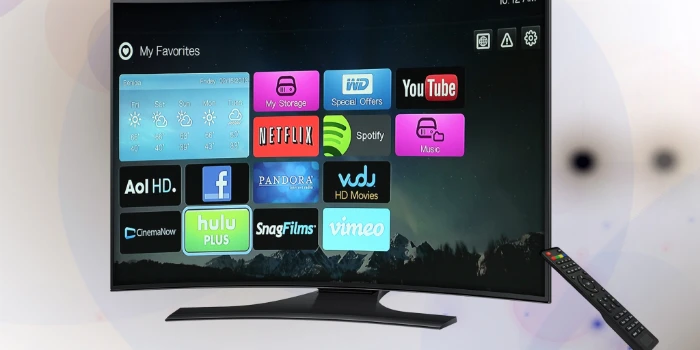
By providing a portable and affordable streaming gadget that turns any television into a smart TV, the Amazon Fire Stick has revolutionized the way we enjoy entertainment. The Fire Stick offers a limitless amount of hours for streaming material, ranging from well-liked TV episodes to blockbuster movies, thanks to its wide selection of applications and services. However, much like any electronic item, the Fire Stick is sometimes prone to faults and frequent problems that could annoy users.
In this article, we’ll examine some of the most frequent problems Amazon Fire Stick users run into and offer workable strategies to troubleshoot and fix these issues. We have you covered if you’re experiencing connectivity troubles, frozen screens, buffering problems, or audio/video synchronization issues.
Let’s look at the methods that will enable you to get beyond these typical obstacles and get the most out of your Firestick experience.
8 common issues with Amazon Fire stick and how to fix them
Here eight very common problems are mentioned below:
Connectivity Challenges:
Connectivity issues are among the most prevalent issues faced by Amazon Fire Stick users. Make sure there are no physical obstacles interfering with the signal and that your Fire Stick is positioned inside the Wi-Fi router’s range.
Disconnect your router and Fire Stick from the power supply for a brief period of time, and then re-connect them to restart both devices. To delete the current Wi-Fi network, open the Fire Stick settings menu and select “Network”. After that, reenter the password to reconnect to the network.
Frozen Screens:
Frozen Screens is one of the common problems with Amazon fire sticks and here is the solution for that. Press and hold the Home button on the remote control for around 10 seconds to force your Fire Stick to restart. If the Fire Stick still doesn’t work, unplug it from the power supply, wait a little while, then plug it back in. Find the problematic software under Settings > Applications > Manage Installed Applications and choose “Clear cache” or “Clear data.” This will clear the app’s cache and data and help you out with these frozen screens.
Limited Storage Space:
Consider using lightweight builds to solve problems that Fire Stick users frequently encounter. These specialized software solutions provide a streamlined and effective user interface, reducing resource consumption and improving overall efficiency. Users can increase connectivity, reduce buffering issues, and maximize their Fire Stick’s storage capacity by installing a lightweight build. These builds frequently have pre-installed add-ons and apps that are designed especially for low-end gadgets like the Fire Stick.
The “Apps from Unknown Sources” feature on the Fire Stick must be enabled before consumers may install a lightweight build from a reputable third-party app store. Users of Fire Sticks can fix common problems and get a smoother streaming environment by choosing lightweight builds for Amazon Firestick.
Buffering Problems:
Problems with buffering might be annoying and prevent you from enjoying your watching. Make sure a robust Wi-Fi signal is accessible to your Fire Stick. By stopping or closing any other devices or applications that might be using a lot of bandwidth, you can reduce network congestion. The streaming app’s cache can be cleared by selecting it, going to Settings > Applications > Manage Installed Applications, and selecting “Clear cache.”
Fire Stick App Crashes:
The frequent app crashes on your Amazon Fire Stick can make watching less enjoyable. To try clearing the cache and data for the affected app, click it in Settings > Applications > Manage Installed Applications and select “Clear cache” or “Clear data.”
Download the app again from the Amazon Appstore if it doesn’t solve the issue. You can avoid app crashes by keeping your Fire Stick’s firmware up to date and by having a reliable internet connection.
Fire TV Stick Not Connecting:
Despite being a well-liked streaming device, the Amazon Fire TV Stick occasionally has connectivity problems. First, verify your Wi-Fi network on other devices to make sure it is operating correctly.Try restarting both your Fire TV Stick and your Wi-Fi router if the problem still exists. Occasionally, merely disconnecting and replugging the Fire TV Stick will cure the issue.
If none of these suggestions work, you might need to restore the factory settings on your Fire TV Stick or get in touch with Amazon customer care for more help.
Firestick Showing a Blank Screen:
A number of frequent problems may be the root of your Amazon Firestick’s blank screen. First, confirm that the HDMI cable is securely connected to both the Firestick and the TV. To make sure they are in place, check the input source settings on the TV after that. Try unplugging the Firestick, waiting a short while, and then plugging it back in to restart it if none of the previously suggested alternatives work. Try doing a factory reset by choosing Settings > My Fire TV > Reset to Factory Defaults if the problem continues. Before performing a factory reset, don’t forget to back up your data.
Fixing Screen Mirroring Issues:
If your Amazon Fire Stick is having trouble reflecting your screen. First, make sure your Fire Stick is linked to the same Wi-Fi network as the mirrored device (such as a smartphone or tablet). Restart both devices after that, then try again. If the problem continues, look for and install any pending software updates on your Fire Stick. Also, make sure the mirroring app on your device is up to time. And you can also attempt restoring your Fire Stick to its factory default settings and customizing it from scratch if none of the other different work.
Conclusion
Although it provides a simple streaming experience, the Amazon Fire Stick is not impervious to common problems. Users may get the most out of their Fire Stick by comprehending these issues and knowing how to resolve them. There are straightforward fixes for a variety of problems, including how to fix a frozen screen, deal with buffering or network problems, or handle program crashes. Users may easily get their Fire Stick back on track and resume uninterrupted viewing of their favorite shows and movies by being patient and taking the suggested actions.
Disclosure: Some of our articles include affiliate links. If you buy something through one of these links, Geeky Gadgets may earn an affiliate commission. Learn about our Disclosure Policy.
