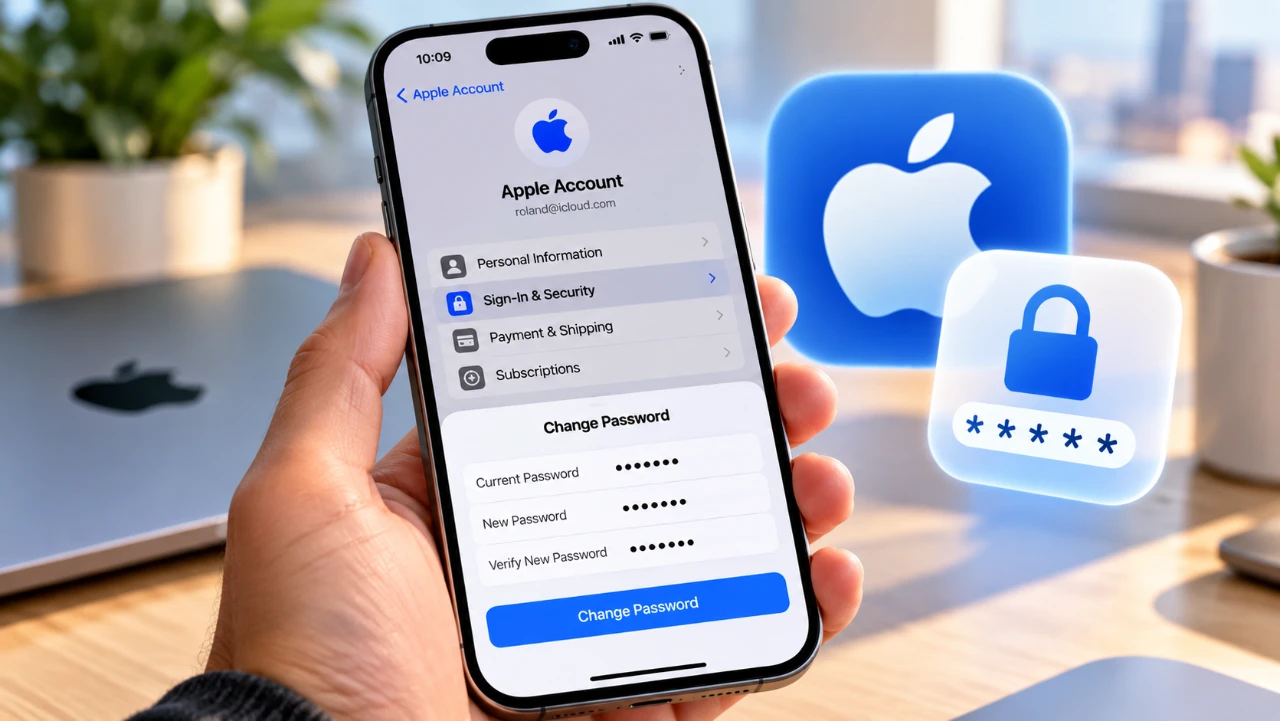
Making sure the security of your Apple account is crucial for protecting your personal data and maintaining control over your devices. A secure password not only safeguards sensitive information but also prevents unauthorized access to your Apple ID. The video below from Apple provides a detailed, step-by-step process for changing your Apple account password directly on your iPhone, empowering you to enhance your account security with ease.

1: Open the Settings App
Begin by opening the Settings app on your iPhone. At the top of the screen, you’ll see your name displayed, tap it to access your Apple ID settings. This section serves as the central hub for managing your account details, including password updates, payment methods and security features. Navigating to this area is the first step in taking control of your account security.
2: Navigate to Sign In and Security
Within the Apple ID settings, locate and select the Sign In and Security option. This menu is specifically designed to help you manage your account’s authentication methods and security preferences. Once inside, tap Change Password to proceed. This option allows you to update your password and strengthen your account’s defenses against potential threats.
3: Verify Your Identity
Apple prioritizes security by requiring identity verification before making any changes to your account. Depending on your device’s configuration, you’ll need to authenticate using Face ID, Touch ID, or your device’s passcode. This step ensures that only you, as the account owner, can make modifications. By completing this verification, you add an extra layer of protection to your account.
4: Understand Stolen Device Protection
If Stolen Device Protection is enabled on your iPhone, you may encounter a waiting period of up to one hour before proceeding with the password change. This feature is designed to prevent unauthorized users from making immediate changes to your account if your device is lost or stolen. While this delay may seem inconvenient, it is a critical security measure that protects your account from potential misuse. Be patient and allow the waiting period to pass before continuing.
5: Create a Strong New Password
Once your identity is verified, you’ll be prompted to create a new password. Choose a password that is both strong and unique, meeting Apple’s security requirements. A strong password typically includes a combination of uppercase and lowercase letters, numbers, and special characters. Avoid using easily guessable information, such as birthdays or common words. After entering your new password, re-enter it to confirm accuracy, then tap Continue to finalize the change. This step is essential for making sure your account remains secure.
6: Review and Manage Signed-In Devices
After updating your password, Apple provides the option to review devices currently signed in with your Apple ID. This feature allows you to monitor and manage access to your account. If you suspect unauthorized access, select Remove Other Devices to sign out of all devices except the one you’re using. Alternatively, if you’re confident that your account is secure, you can choose Keep All Devices Signed In to maintain access across all trusted devices. Regularly reviewing signed-in devices is a proactive way to safeguard your account.
7: Finalize the Process
To complete the process, tap Done. Your Apple account password is now updated and any changes to your device management preferences will take effect immediately. Be sure to remember your new password, as you’ll need it to sign in to your Apple ID on other devices or services. This final step ensures that your account is fully secured and ready for continued use.
Why Regular Password Updates Matter
Updating your Apple account password regularly is a simple yet effective way to enhance your account security. It protects sensitive information, such as photos, emails and payment details, from unauthorized access. Additionally, managing signed-in devices ensures that only trusted devices have access to your Apple ID. By adopting these practices, you can safeguard your digital life and maintain peace of mind in an increasingly connected world.
Key Steps to Remember
- Open the Settings app and tap your name to access Apple ID settings.
- Select Sign In and Security, then tap Change Password.
- Authenticate using Face ID, Touch ID, or your passcode.
- Wait for any required delay if Stolen Device Protection is active.
- Create a strong, unique password and confirm it.
- Review and manage signed-in devices to ensure account security.
- Tap Done to finalize the process.
By following these steps, you can maintain the security of your Apple account and protect your devices from unauthorized access. Regular password updates and vigilant device management are essential practices for safeguarding your personal information and making sure a secure digital experience.
Browse through more resources below from our in-depth content covering more areas on iPhone.
- iPhone 18 Pro Leaks Reveal Apple’s Move to an Ultra-Efficient 2Nm Chip
- iPhone Ultra Fold Launch Date Reportedly Confirmed by Leak
- Apple May Keep the iPhone 18’S Best New Feature Exclusive to the Pro Max
- iPhone Air 2 Leaks: Apple Reportedly Solves the Biggest Battery Flaw
- Why the iPhone Air 2 Might Actually Be Worth Buying This Time
- Early iPhone 18 Reports Point to Major Unconfirmed Shifts
Source: Apple Support
Disclosure: Some of our articles include affiliate links. If you buy something through one of these links, Geeky Gadgets may earn an affiliate commission. Learn about our Disclosure Policy.
