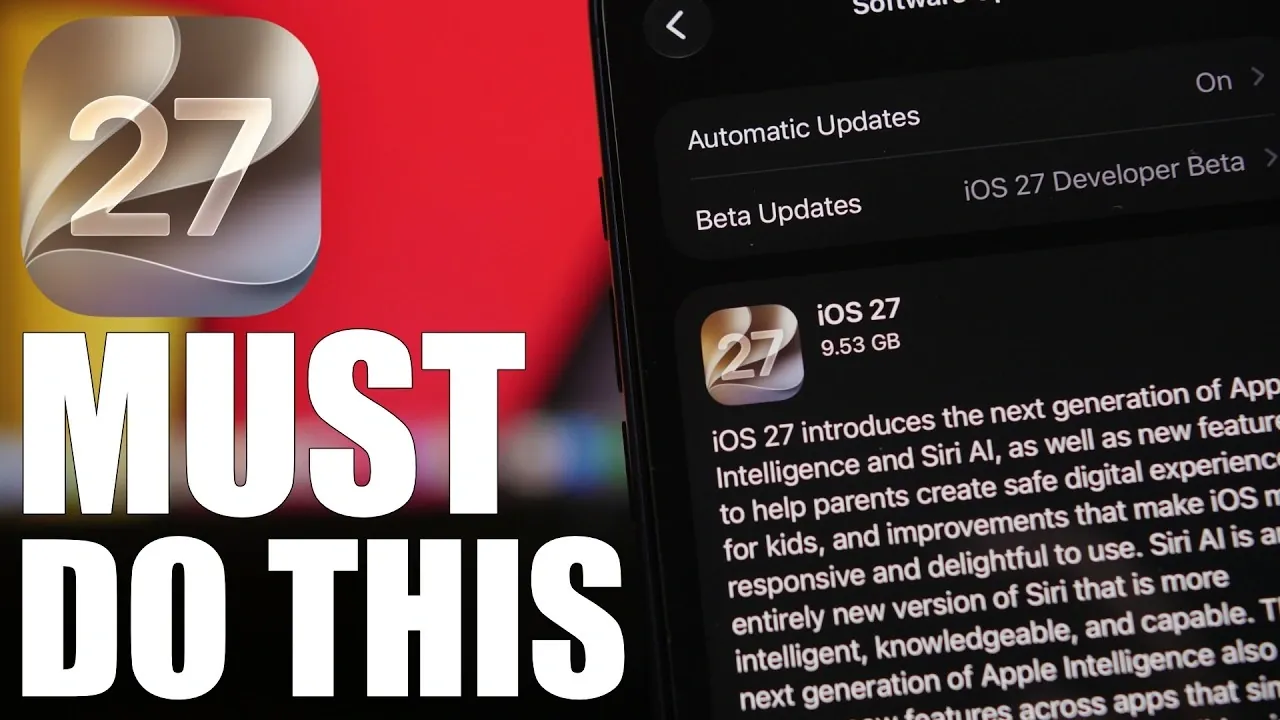
The release of iOS 27 marks a significant milestone, introducing a faster and more stable operating system alongside innovative features like enhanced liquid glass technology. While the update promises to elevate your iPhone experience, proper preparation is essential to avoid potential issues during the upgrade process. By following these key steps, you can ensure a smooth and trouble-free transition to iOS 27.

Verify App Compatibility
One of the most important steps before upgrading to iOS 27 is making sure that your essential apps are compatible with the new operating system. Apps that are not updated to support the latest iOS version may malfunction, disrupting your daily activities or limiting access to critical services. To prevent these issues:
- Open the App Store and check for updates to all installed apps.
- Install the latest versions, as developers typically release updates to align with new iOS versions.
By taking this precaution, you can maintain uninterrupted functionality of your apps and avoid unnecessary frustrations after the update.
Back Up Your iPhone
Backing up your iPhone is a crucial step to safeguard your data before any major software update. Installation errors or unexpected glitches during the process could lead to data loss, making a backup an essential safety net. To back up your device:
- Use iCloud by navigating to Settings > [Your Name] > iCloud > iCloud Backup and selecting “Back Up Now.”
- Alternatively, connect your iPhone to a computer and create a local backup using Finder (macOS) or iTunes (Windows).
Having a recent backup ensures that your photos, documents and other important files can be restored if anything goes wrong during the update.
Free Up Storage Space
Installing iOS 27 requires approximately 9.5 GB of free space, but it’s advisable to have at least 20 GB available to avoid interruptions during the process. Running out of storage mid-update can cause errors or delays. To free up space:
- Delete unused apps that are taking up unnecessary storage.
- Clear cache files and temporary data from your device.
- Transfer large media files, such as videos and photos, to external storage or cloud services.
To check your available storage, go to Settings > General > iPhone Storage. Making sure adequate space will help the update proceed smoothly and without complications.
Charge Your Device
A well-charged battery is essential for a successful update. Your iPhone should have at least 50% battery life before starting the installation. For added security, keep your device connected to a power source throughout the process.
To manually update your device:
- Go to Settings > General > Software Update and select “Download and Install.”
Alternatively, you can enable automatic updates for convenience by toggling the option in the same menu. This ensures your device stays up to date without requiring manual intervention.
Disable Beta Updates
If you’ve participated in the iOS beta testing program, it’s important to disable beta updates before installing iOS 27. Leaving beta updates enabled may result in receiving pre-release versions instead of the official stable release. To turn off beta updates:
- Navigate to Settings > General > Software Update > Beta Updates and toggle the feature off.
This step ensures that you’ll only receive stable updates moving forward, including any refinements or bug fixes in subsequent versions like iOS 27.1.
Enable Automatic Security Updates
Keeping your device secure is a priority and allowing automatic security updates ensures that your iPhone receives critical patches without delay. To activate this feature:
- Go to Settings > Privacy & Security > Automatic Updates and toggle the setting on.
This proactive measure helps protect your device from vulnerabilities and ensures it remains secure over time.
Anticipated Improvements in iOS 27
iOS 27 brings a host of enhancements designed to improve the overall user experience. Users can expect:
- Faster app launches, reducing wait times and improving efficiency.
- Smoother multitasking, allowing you to switch between apps seamlessly.
- Enhanced battery optimization, extending usage time between charges.
These performance and stability upgrades make the update a worthwhile investment, provided you’ve taken the necessary steps to prepare your device.
Final Preparations for a Smooth Transition
Taking the time to prepare your iPhone for the iOS 27 update is essential to fully enjoy its benefits. By verifying app compatibility, backing up your data, freeing up storage, and allowing security updates, you can minimize risks and ensure a seamless transition. With these steps completed, you’ll be ready to experience the speed, stability, and advanced features that iOS 27 has to offer.
Enhance your knowledge of the iOS 27 Update by exploring a selection of articles and guides on the subject.
- 10 Cool Things Your iPhone Can Do After Updating to iOS 27
- iOS 27 RC Released: the Final Update Brings One Big Surprise
- Should You Update to iOS 27 on Day One?
- The Biggest Surprise Hidden Inside the iOS 27 Update
- iOS 27 Launch Date Revealed: When Apple Will Roll Out Its Next Major iPhone Update
Source & Image Credit: iReviews
Disclosure: Some of our articles include affiliate links. If you buy something through one of these links, Geeky Gadgets may earn an affiliate commission. Learn about our Disclosure Policy.
