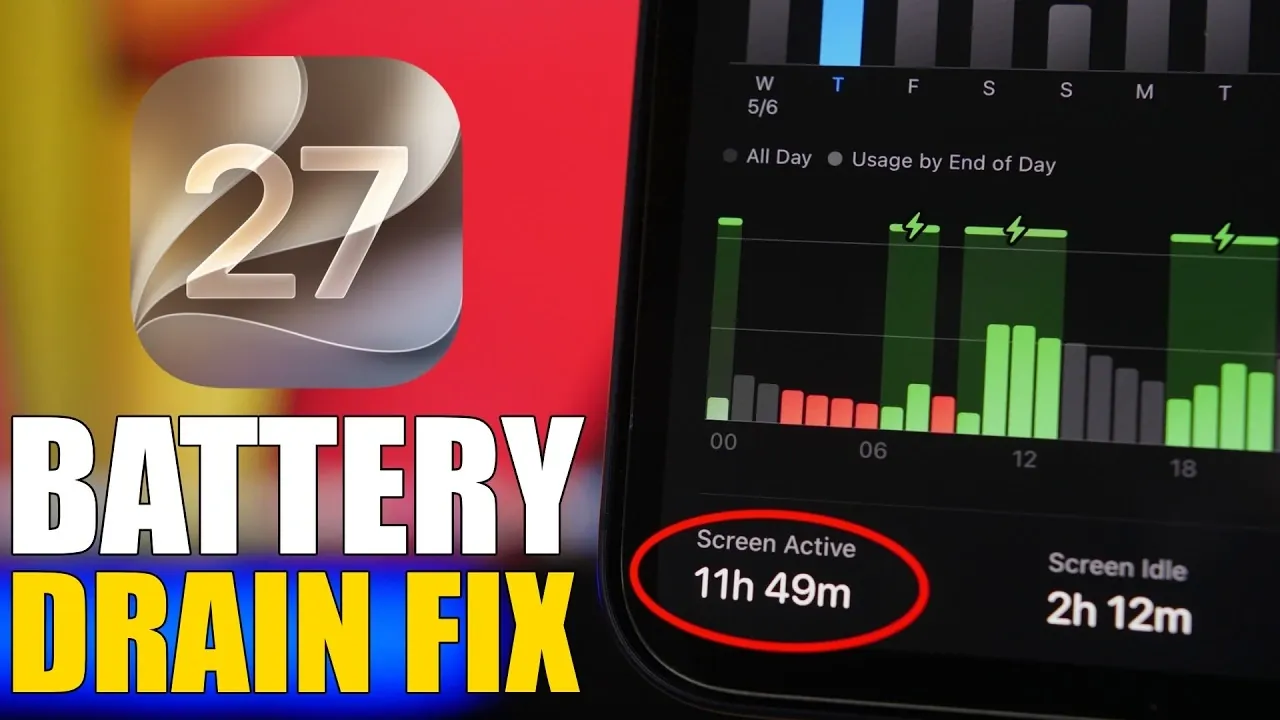
The release of iOS 27 brings a range of new features and enhancements to your iPhone, offering improved functionality and user experience. However, some users may notice increased battery drain, particularly in the days immediately following the update. This guide outlines practical steps to address battery performance issues, making sure your device operates efficiently while maximizing battery life.

Why Battery Drain Happens After Updating
Battery drain after updating to iOS 27 is a common occurrence and is usually temporary. This is primarily caused by background processes such as system indexing, app re-optimization, and iCloud syncing. These processes are essential for integrating the new software and typically stabilize within a few days. During this adjustment period, it is important to monitor your battery usage and avoid running unnecessary tasks that could further strain your device. Understanding this temporary behavior can help you manage expectations and focus on optimizing your iPhone’s settings.
Keep Your Software and Apps Updated
Making sure your iPhone is running the latest software is crucial for maintaining optimal performance and battery efficiency. Apple frequently releases minor updates to address bugs and improve system stability. To keep your device up to date:
- Navigate to Settings > General > Software Update and install any available updates. These updates often include fixes for battery-related issues.
- Update your apps by visiting App Store > Updates. Outdated apps may not be optimized for iOS 27, leading to higher battery consumption.
By keeping both your operating system and apps current, you can reduce unnecessary battery drain caused by compatibility issues.
Identify and Manage Battery-Draining Apps
Certain apps can significantly impact your iPhone’s battery life, especially those that run in the background or are poorly optimized. To identify and manage these apps:
- Go to Settings > Battery to view a detailed breakdown of battery usage by app. Apps consuming excessive power should be reviewed and, if necessary, uninstalled or replaced with alternatives.
- Enable automatic app updates under Settings > App Store to ensure your apps remain optimized for iOS 27.
Taking control of app-related battery usage can lead to noticeable improvements in overall device performance.
Disable Unnecessary Features
iOS 27 includes several features that, while useful, can drain your battery if left enabled unnecessarily. Adjusting these settings can help conserve power:
- Turn off Siri and Apple Intelligence features if you don’t use them regularly. These services continuously process data, which can contribute to battery drain.
- Disable Background App Refresh for non-essential apps by navigating to Settings > General > Background App Refresh. This prevents apps from updating content in the background.
By disabling features you rarely use, you can extend your iPhone’s battery life without compromising functionality.
Optimize Location Services
Location services are another common source of battery drain, as they rely on GPS and other technologies to track your device’s position. To reduce their impact:
- Restrict location access for apps that don’t require it. Go to Settings > Privacy & Security > Location Services and adjust permissions for individual apps to “While Using the App” or “Never.”
- Disable “Significant Locations” under Settings > Privacy & Security > Location Services > System Services. This feature tracks your frequently visited locations and can be a significant drain on battery life.
Fine-tuning location settings can save battery while also enhancing your privacy.
Adjust Display Settings
Your iPhone’s display is one of the most power-intensive components. Making small adjustments to your display settings can lead to noticeable battery savings:
- Enable auto-brightness under Settings > Accessibility > Display & Text Size. This feature adjusts your screen’s brightness based on ambient lighting conditions, reducing unnecessary power usage.
- Activate Dark Mode, especially if your iPhone has an OLED display. Dark Mode can be enabled under Settings > Display & Brightness and helps conserve energy by reducing the amount of light emitted by the screen.
Optimizing your display settings is a simple yet effective way to extend battery life.
Manage Network Connectivity
Network connectivity settings can also influence battery performance, particularly in areas with poor signal strength. To optimize these settings:
- Switch to 4G/LTE in areas with weak 5G coverage. You can adjust this setting under Settings > Cellular > Voice & Data. Using a stable network connection reduces the energy your device expends searching for a signal.
- Turn off AirDrop when not in use. This feature continuously scans for nearby devices, which can drain your battery. Disable it through the Control Center for convenience.
Adjusting network settings can help your iPhone maintain efficient battery usage, especially in challenging signal environments.
Streamline Notifications and Widgets
Notifications and widgets, while convenient, can contribute to battery drain if not managed carefully. To minimize their impact:
- Limit notifications to essential apps by configuring them under Settings > Notifications. You can also enable scheduled summaries to reduce interruptions and save power.
- Remove unnecessary widgets from your home and lock screens. Widgets that frequently update, such as weather or news, can consume significant battery resources.
Streamlining these features ensures your iPhone remains efficient without sacrificing usability.
Practical Steps for Long-Term Battery Health
Beyond immediate adjustments, maintaining long-term battery health is essential for optimal device performance. Consider these additional tips:
- Avoid exposing your iPhone to extreme temperatures, as both heat and cold can degrade battery performance over time.
- Use Apple-certified chargers and cables to ensure safe and efficient charging.
- Enable Low Power Mode under Settings > Battery when your battery is running low. This feature reduces background activity and extends usage time.
By adopting these habits, you can preserve your iPhone’s battery health and enjoy consistent performance over its lifespan.
Maximizing Your iPhone’s Potential
By implementing these strategies, you can effectively address battery drain issues on iOS 27 and enjoy a more efficient device. While some battery drain is expected immediately after updating, proactive management of background processes, app usage, and system settings will help you maintain a longer-lasting and more reliable iPhone. With these adjustments, you can fully embrace the new features of iOS 27 without compromising your device’s battery life.
Find more information on iOS 27 by browsing our extensive range of articles, guides, and tutorials.
- Apple Delaying iOS 27 Beta 5? Here’s When to Expect the Next Update
- New iOS 27 Beta 5 Release Arrives with a Big Shift Coming
- iOS 27 Beta 5 Is Late: What’s Holding Up Apple’s Next Release?
- The iOS 27 Beta 5 Release Imminent with More New Features
- Apple’s iOS 27 Beta 3 Is Just Days Away: Here’s When It Drops
- Apple iOS 27 Beta 5 Preview: a Look at the Next Release
Source & Image Credit: iReviews
Disclosure: Some of our articles include affiliate links. If you buy something through one of these links, Geeky Gadgets may earn an affiliate commission. Learn about our Disclosure Policy.
