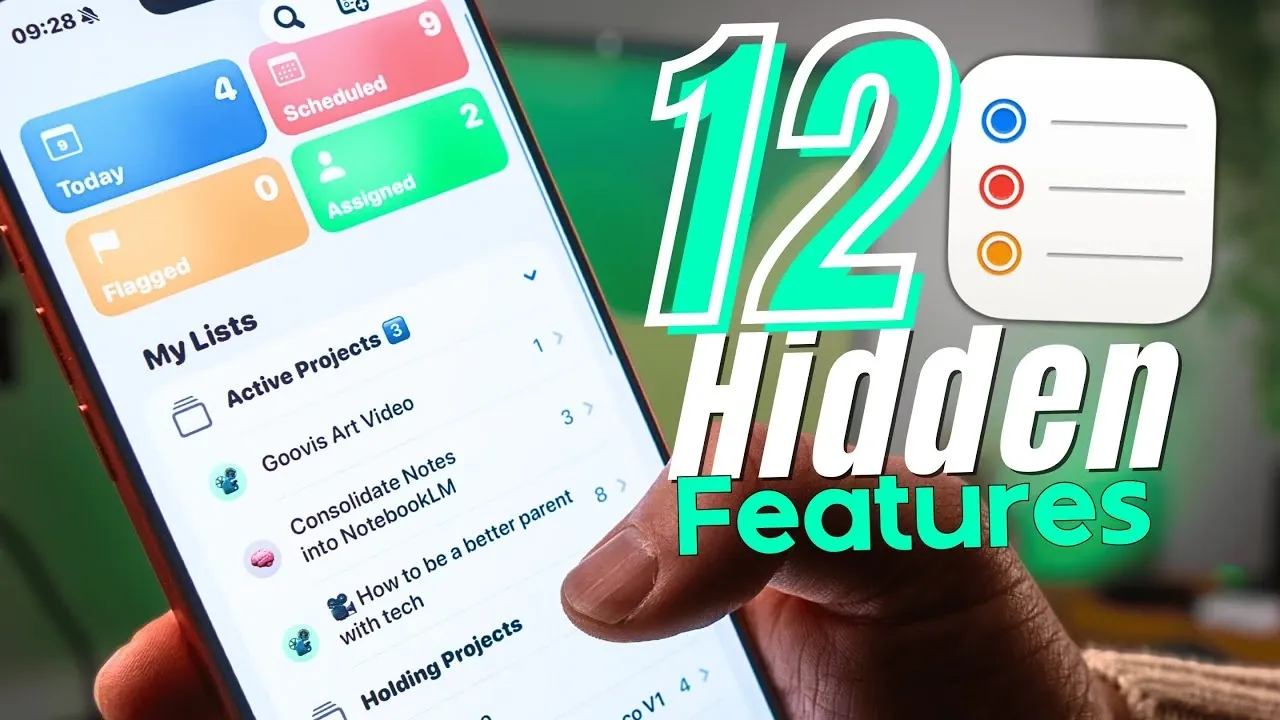
What if the key to unlocking your most productive self was already sitting in your pocket? Apple Reminders, often overlooked as just another basic task manager, has quietly evolved into a powerhouse of features that rival even the most premium productivity apps. In this overview, Feel Productive explores how Apple Reminders can transform the way you organize your life, from automating task categorization to integrating seamlessly across the Apple ecosystem. Imagine an app that not only keeps track of your to-dos but also anticipates your needs, simplifies your workflow, and adapts to your unique schedule. It’s a bold claim, but Apple Reminders might just be the productivity upgrade you didn’t know you needed.
This guide walks you through the app’s most impactful features, including machine learning-powered organization, kanban-style task views, and intelligent notifications that keep you on track no matter where you are. You’ll discover how to streamline your daily routines, manage complex projects, and even collaborate effortlessly with shared lists. Whether you’re juggling work deadlines, personal errands, or a mix of both, this guide will show you how to make Apple Reminders work smarter for you. The possibilities are endless, but the real question is: how will you use it to reshape your productivity?
Apple Reminders Productivity Features
TL;DR Key Takeaways :
- Apple Reminders now uses machine learning to automatically categorize tasks, simplifying organization and improving workflow efficiency.
- The app offers seamless integration with the Apple ecosystem, allowing users to create reminders directly from apps like Calendar, Safari, Mail, and Phone.
- New features like Siri-enabled voice input, Quick Add, and time zone support make task input and notifications more intuitive and context-aware.
- Visual organization is enhanced with a kanban-style column view, allowing users to track progress and manage tasks effectively for projects.
- Collaboration is streamlined with shared lists, while Smart Lists, task recovery, and reusable templates help prioritize and manage tasks efficiently.
Enhanced Task Management with Machine Learning
Apple Reminders uses machine learning to simplify task organization. The app automatically categorizes tasks into predefined sections such as Work, Personal, or Shopping based on keywords and context. This intelligent sorting eliminates the need for manual organization, making sure your to-do list remains structured and easy to navigate. For example, if you add a task like “Buy groceries,” it will automatically be placed in the Shopping category. By reducing the time spent on organizing tasks, you can focus more on completing them, making your workflow more efficient.
Seamless Integration Across the Apple Ecosystem
One of the most powerful features of Apple Reminders is its seamless integration with other Apple applications, including Calendar, Safari, Mail, and Phone. This interconnectedness allows you to create reminders directly from these apps, streamlining task management. For instance:
- Save a task linked to a webpage while browsing in Safari.
- Create a reminder from an email in the Mail app.
- Set callback reminders for missed calls in the Phone app.
Additionally, reminders can appear alongside calendar events, providing a unified view of your schedule and tasks. This integration ensures that all your tasks and appointments are centralized, reducing the need to switch between apps and improving overall productivity.
Apple Reminders Tips: Smart Lists, Columns View & Templates
Below are more guides on Apple Reminders from our extensive range of articles.
- Apple Reminders Tips & Tricks for Smarter Task Management
- How to Use Apple Reminders to Organize Your Life Effectively
- iOS 26 What’s New in Apple Reminders
- How to Use Apple Reminders in iOS 26: A Complete Guide
- 7 Apple Notes & Reminders Features for iOS 26 You Must Use
- 10 Apple Reminders Features You Need to Know for Productivity
- Is Apple Reminders Enough for Power Users? One Month Verdict
- Apple Reminders 2026 Guide : Remember Everything With Projects
- 10 Apple Reminders Features You’re Not Using (But Should Be
- iOS 26 Notes and Reminders: New Features and Updates
Effortless Task Input with Voice and Quick Add Features
Adding tasks is now faster and more intuitive, thanks to Siri-enabled voice input and Quick Add options. You can simply ask Siri to create a reminder while driving, cooking, or multitasking, making sure you never forget an important task. Alternatively, tasks can be added directly from the lock screen or control center, allowing you to capture ideas or to-dos instantly. This ease of input makes Apple Reminders a practical tool for busy individuals who need to stay organized on the go.
Time Zone Support and Intelligent Notifications
For those who frequently travel or work across time zones, Apple Reminders offers time zone support to ensure notifications are triggered at the most relevant times. You can set reminders to align with specific time zones, making it easier to manage international meetings, deadlines, or travel schedules. Combined with smart notifications, which provide timely alerts based on location or context, this feature ensures you stay on top of your commitments no matter where you are.
Visual Organization with Kanban-Style Column View
Apple Reminders now includes a kanban-style column view, allowing you to organize tasks visually. You can divide tasks into sections such as “To Do,” “In Progress,” and “Completed,” and move them between columns as you make progress. This visual approach is particularly useful for project management, as it provides a clear overview of your workflow and helps you track progress at a glance. By adopting this method, you can stay focused on your goals and ensure that no task is overlooked.
Streamlined Collaboration with Shared Lists
Collaboration is made simple with Apple Reminders’ shared lists feature. You can invite others to contribute to a list, assign tasks, and monitor progress. Notifications for completed tasks keep all participants informed and accountable, fostering effective teamwork. Whether you’re coordinating a team project, planning a family event, or organizing a group trip, shared lists ensure smooth communication and efficient task management, making collaboration more productive.
Prioritization Made Easy with Smart Lists
The Smart Lists feature allows you to filter tasks based on criteria such as priority, due dates, or tags. This functionality helps you focus on high-priority items while keeping less urgent tasks visible for later. Subtasks are also prominently displayed within Smart Lists, providing a clear hierarchy and making sure that no detail is missed. This feature is particularly valuable for managing complex projects or balancing multiple priorities, as it enables you to stay organized and maintain control over your workload.
Task Recovery and Reusable Templates
Apple Reminders offers a Recently Deleted section, allowing you to recover accidentally deleted tasks within 30 days. This feature provides peace of mind, especially when managing critical projects or important deadlines. Additionally, the app supports task templates, which are ideal for recurring activities such as weekly overviews, event planning, or travel preparation. By creating reusable templates, you can save time and maintain consistency in your workflows, making repetitive tasks more manageable and efficient.
Maximizing Productivity with Apple Reminders
Apple Reminders has transformed into a versatile productivity tool that combines simplicity with advanced features. From machine learning-based categorization to seamless app integration and kanban-style organization, it offers a wide range of functionalities to streamline your task management. Whether you’re an individual user or part of a team, Apple Reminders provides the tools needed to stay organized, prioritize effectively, and collaborate efficiently. By using its features, you can customize Apple Reminders to suit your unique needs, turning it into an indispensable tool for managing both personal and professional responsibilities.
Media Credit: Feel Productive
Disclosure: Some of our articles include affiliate links. If you buy something through one of these links, Geeky Gadgets may earn an affiliate commission. Learn about our Disclosure Policy.
