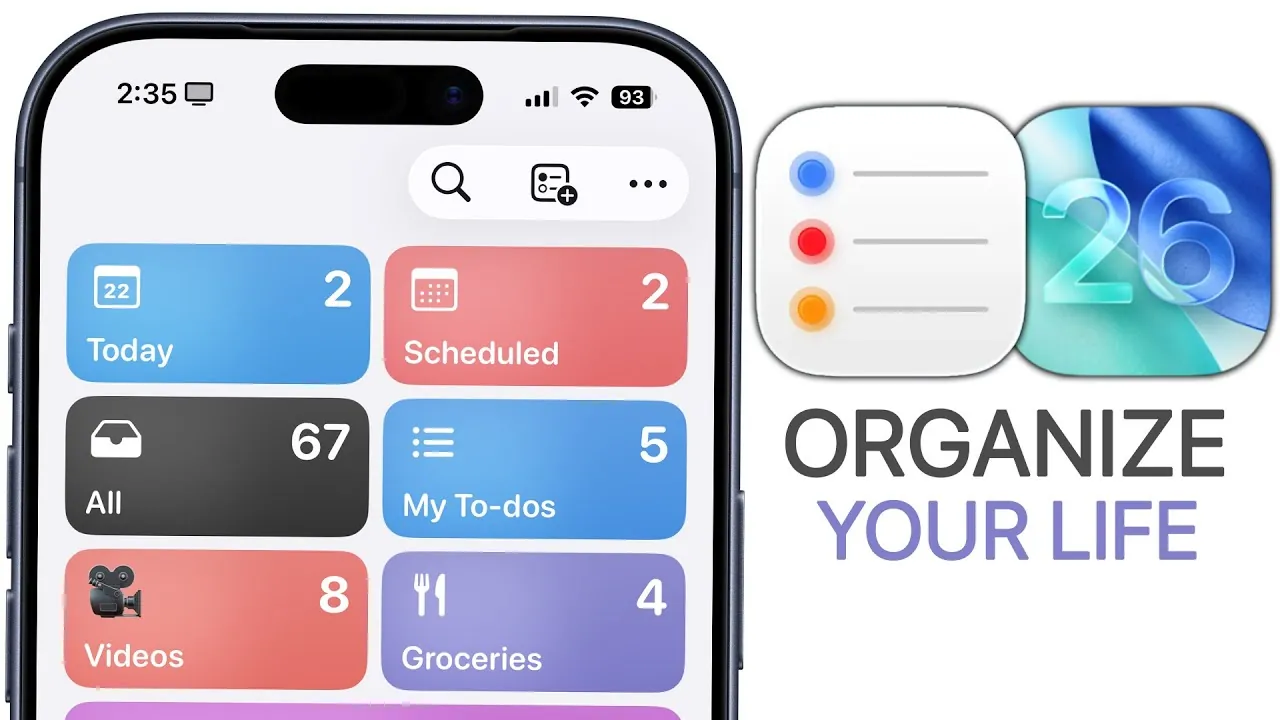
Apple Reminders has evolved significantly with the release of iOS 26, introducing a suite of new features designed to enhance task management and improve productivity. Whether you’re managing personal errands, professional projects, or a combination of both, this guide will help you unlock the full potential of the app. With tools ranging from intelligent automation to advanced workflows, Apple Reminders has become a versatile and indispensable tool for staying organized. The video below from Brandon Butch gives us more details.
Key Features in iOS 26
The latest version of iOS brings a variety of enhancements to Apple Reminders, making it more intuitive, efficient, and user-friendly. Here are the standout features that redefine how you manage tasks:
- Urgent Tab: A dedicated section for high-priority tasks, complete with customizable alarms to ensure you never miss critical deadlines.
- Action Button Integration: Quickly create reminders directly from the Control Center or Action Button, allowing seamless task entry while on the move.
- Auto-Categorization: Apple’s AI automatically organizes tasks into predefined categories such as errands, follow-ups, or household chores, reducing manual effort.
- Callback Reminders: Link reminders to missed calls or important conversations directly from the Phone app, making sure timely follow-ups.
- Time Zone Settings: Adjust reminder times manually to accommodate travel or work across different time zones.
These updates streamline task management, allowing you to focus on what matters most without being bogged down by unnecessary complexity.
Customizing and Organizing Your Tasks
Apple Reminders now offers extensive customization options, empowering you to tailor the app to your specific needs. These tools make it easier to organize tasks and stay on top of your responsibilities:
- Pinning Lists: Keep your most frequently used lists at the top of the app for quick and convenient access.
- Grocery List Auto-Categorization: Automatically sort shopping items into categories like produce, dairy, or beverages, making your grocery trips more efficient.
- List Sharing: Collaborate with family, friends, or colleagues by sharing lists, allowing coordinated task management for group projects or shared responsibilities.
- Reusable Templates: Save time by creating templates for recurring projects, workflows, or events, making sure consistency and efficiency.
- Completed Tasks View: Review finished tasks to track progress, revisit past activities, or reflect on accomplishments.
These features ensure that your tasks are not only well-organized but also easily accessible, helping you stay productive and in control.
Advanced Features for Power Users
For users seeking advanced capabilities, Apple Reminders in iOS 26 offers powerful tools to manage complex projects and detailed workflows. These features go beyond basic task management:
- Smart Lists: Automatically group tasks using tags and filters based on criteria such as deadlines, priorities, or categories.
- Folders: Organize multiple lists into folders for a cleaner, more structured interface, especially useful for managing large projects.
- Recurring Reminders: Set reminders for tasks that repeat daily, weekly, monthly, or at custom intervals to stay consistent with routine activities.
- Subtasks: Break down complex tasks into smaller, manageable steps, making it easier to focus on incremental progress.
- Location-Based and Contact-Based Reminders: Trigger reminders when you arrive at a specific location or interact with a particular contact, making sure timely actions.
- Email Integration: Create reminders directly from the Mail app to follow up on important emails, streamlining communication and task tracking.
These advanced features are particularly valuable for professionals, students, or anyone managing detailed projects with multiple moving parts.
Kanban Board Workflow
One of the most notable additions in iOS 26 is the ability to transform your lists into a Kanban-style workflow. This feature is ideal for visualizing progress and managing tasks in stages, offering a new level of flexibility:
- Column Views: Convert lists into columns representing different stages of a project, such as “To Do,” “In Progress,” and “Completed.”
- Drag-and-Drop: Move tasks between columns with ease to reflect their current status or progress.
- Customizable Columns: Rename and reorder columns to align with your specific workflow or project requirements.
- Workflow Templates: Save column setups as templates for future projects, making sure consistency and efficiency in task management.
This functionality makes Apple Reminders a powerful tool for both personal and professional use, allowing users to manage tasks visually and efficiently.
Seamless Integration and Accessibility
Apple Reminders integrates seamlessly with other Apple services, creating a cohesive experience across devices and platforms. These integrations enhance usability and accessibility:
- Interactive Widgets: Mark tasks as complete directly from your home screen, eliminating the need to open the app for quick updates.
- Siri Integration: Use voice commands to create reminders hands-free, making task management more convenient while multitasking.
- Calendar Sync: Sync reminders with your calendar to view tasks alongside scheduled events, making sure better time management.
- Device Syncing: Access your reminders across all Apple devices, providing uninterrupted task management whether you’re on your iPhone, iPad, or Mac.
These integrations ensure that your reminders are always accessible, no matter where you are or which device you’re using.
Tips for Maximizing Apple Reminders
To fully harness the potential of Apple Reminders, consider implementing these practical tips into your daily routine:
- Quick Reminder Creation: Use Siri or the Action Button to set reminders instantly, even while on the go.
- Use Widgets: Complete tasks directly from your home screen for added convenience and efficiency.
- Enable iCloud Sync: Keep your reminders updated across all devices by allowing iCloud syncing, making sure seamless task management.
By adopting these strategies, you can streamline your workflow and make the most of the app’s robust features, enhancing both productivity and organization.
Dive deeper into Apple Reminders iOS 26 with other articles and guides we have written below.
- iOS 26 What’s New in Apple Reminders
- 7 Apple Notes & Reminders Features for iOS 26 You Must Use
- iOS 26 Notes and Reminders: New Features and Updates
- Apple Reminders Inbox System : Tags, Flags & Priorities Guide iOS 26
- How iOS 26 Lock Screen Reminders Simplify Task Management
Source & Image Credit: Brandon Butch
Disclosure: Some of our articles include affiliate links. If you buy something through one of these links, Geeky Gadgets may earn an affiliate commission. Learn about our Disclosure Policy.
