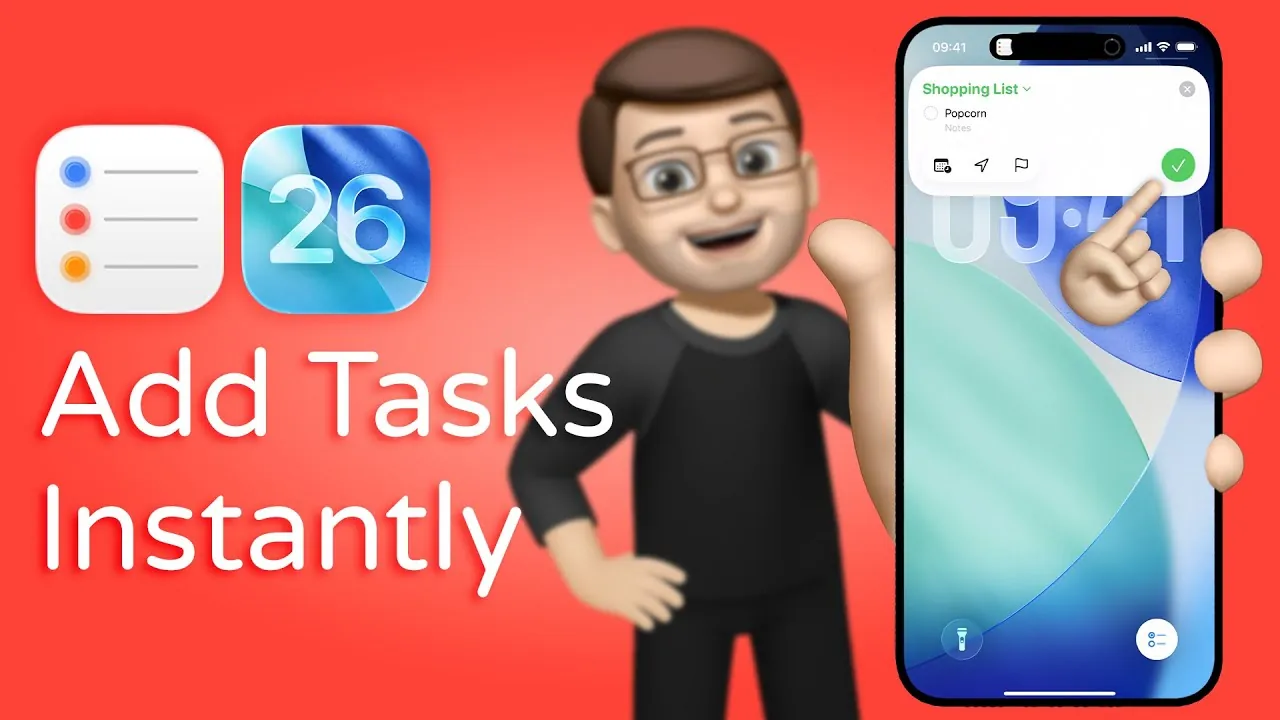
Apple’s iOS 26 introduces a fantastic feature that allows you to create reminders directly from your Lock Screen or through the Action Button on compatible devices. This update eliminates the need to open the Reminders app, streamlining task management and improving efficiency. With customizable toggles, a user-friendly pop-up interface, and seamless integration into the Control Center, iOS 26 is designed to make staying organized more intuitive and accessible. The video below from Jacob’s QuickTips gives us more details.

Personalizing Your Lock Screen for Seamless Access
One of the standout features in iOS 26 is the ability to customize your Lock Screen toggles. Previously, options like the Camera or Flashlight were fixed, but now you can replace them with new functionalities, including a dedicated Reminders shortcut. This level of personalization allows you to align your Lock Screen with your specific needs and daily workflow.
By allowing the Reminders toggle, you can create tasks without unlocking your device or navigating through multiple menus. This feature is particularly useful for quick task entries, making sure that your to-do list is always just a tap away. Whether you’re managing work deadlines or personal errands, this customization enhances convenience and saves time.
Effortless Task Creation from the Lock Screen
Adding reminders has never been more straightforward. With iOS 26, you can long-press the Reminders toggle on your Lock Screen to access a pop-up interface. This intuitive tool allows you to quickly create tasks, assign them to specific lists, and set details such as due dates, times, or even location-based triggers.
For example, if you need to remember to pick up groceries after work, you can set a location-based reminder in just a few seconds. Additionally, you can mark tasks as important, making sure that critical items are easily identifiable in your list. This streamlined process makes it easier to stay on top of your responsibilities without interrupting your workflow.
Action Button Integration for Enhanced Convenience
For users of the iPhone 15 and newer models, the Action Button adds another layer of convenience to task management. This hardware feature can now be configured to open the Reminders interface directly. By accessing the Settings menu, you can assign the Action Button to launch Reminders, allowing one-touch task creation.
This functionality is particularly beneficial for individuals who rely heavily on reminders throughout their day. Whether you’re managing a busy work schedule or keeping track of personal commitments, the Action Button reduces the steps needed to stay organized. Its integration with the Reminders app ensures that your tasks are always just a button press away.
Control Center Integration for Quick Access
iOS 26 further enhances accessibility by integrating the Reminders shortcut into the Control Center. This feature provides yet another quick-access option, allowing you to create or edit tasks from virtually anywhere on your device. Whether you’re in an app, on the Home Screen, or multitasking, you can swipe down to open the Control Center and tap the Reminders icon.
This integration ensures that your reminders are always within reach, no matter how you’re using your device. It’s a simple yet powerful addition that keeps task management efficient and accessible, helping you stay organized without disrupting your workflow.
Redefining Productivity for Everyday Life
The new Reminders features in iOS 26 are designed to simplify how you manage tasks, making productivity a seamless part of your daily routine. Whether you’re customizing your Lock Screen, using the Action Button, or using the Control Center, these tools provide practical solutions for staying organized.
By reducing the need to open the Reminders app, iOS 26 saves you time and ensures that your tasks are always accessible when you need them. These updates reflect Apple’s commitment to improving usability and efficiency, offering tools that adapt to your lifestyle and help you focus on what matters most.
Enhance your knowledge of iOS 26 by exploring a selection of articles and guides on the subject.
- iOS 26 Features and Updates: Everything You Need to Know
- Top 20 iOS 26 Features You Need to Know About
- iOS 26 Beta 3 Features, Updates, and Bug Fixes Explained
- iOS 26 Public Beta: 100+ NEW Features You NEED to See!
- iOS 26 vs. iOS 18: Deep Dive into the New Features and
Source & Image Credit: Jacob’s QuickTips for iPhone
Disclosure: Some of our articles include affiliate links. If you buy something through one of these links, Geeky Gadgets may earn an affiliate commission. Learn about our Disclosure Policy.
