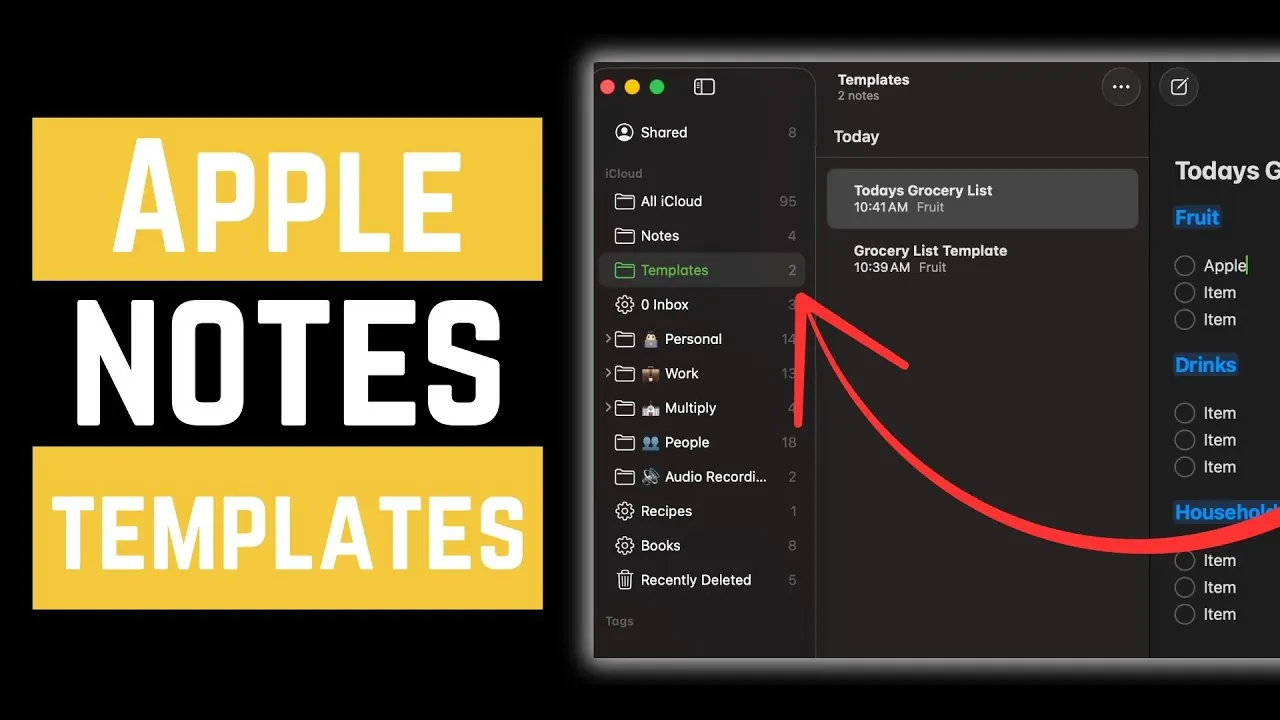
Have you ever found yourself rewriting the same grocery list, meeting agenda, or weekly schedule over and over again? It’s a small but persistent drain on your time and energy, time that could be spent on more meaningful tasks. Here’s the good news: Apple Notes, a tool you likely already use, has the potential to transform your workflow with one simple feature, reusable templates. By creating structured, ready-to-use formats, you can eliminate repetitive work, stay organized, and focus on what truly matters. Imagine opening your notes app and instantly pulling up a perfectly formatted checklist or project plan, ready to go. It’s not just about saving time; it’s about reclaiming mental bandwidth for the things that inspire you.
In this guide, Think Tutorial takes you through the process of how to design and implement reusable templates in Apple Notes to streamline your daily routines and long-term projects. You’ll learn how to create a dedicated folder for templates, craft layouts tailored to your needs, and duplicate them effortlessly across devices. Whether you’re managing recurring tasks like weekly planning or tackling complex projects, these templates will bring consistency and efficiency to your note-taking process. By the end, you’ll not only have a practical system in place but also a deeper appreciation for how small changes in organization can lead to big improvements in productivity. Ready to rethink how you use Apple Notes?
Apple Notes Templates Guide
TL;DR Key Takeaways :
- Reusable templates in Apple Notes streamline recurring tasks like weekly planning, project tracking, and meeting agendas, making sure consistency and saving time.
- Organize templates in a dedicated folder within Apple Notes for quick access and better organization, avoiding the use of smart folders.
- Design templates tailored to specific needs, such as grocery lists, project plans, or meeting notes, with structured layouts for easy customization.
- Duplicate templates on Mac or iOS devices to create editable copies while preserving the original for future use.
- Using templates enhances productivity by saving time, making sure consistency, improving efficiency, and reducing the risk of missing important details.
Why Use Templates in Apple Notes?
Templates in Apple Notes are a practical tool for handling repetitive tasks efficiently. Instead of starting from scratch each time, you can rely on pre-designed formats tailored to your specific needs. This approach is particularly beneficial for activities such as:
- Weekly Planning: Maintain consistent layouts for schedules and to-do lists.
- Task Management: Structure your notes to organize tasks systematically.
- Recurring Lists: Create reusable formats for grocery shopping, packing, or inventory tracking.
By using templates, you can save time, ensure consistency, and reduce the likelihood of overlooking important details.
1: Create a Dedicated Folder for Templates
The first step in building reusable templates is to organize them in a dedicated folder within Apple Notes. Follow these steps:
- Open Apple Notes and create a new folder.
- Give the folder a clear and descriptive name, such as “Templates,” for easy identification.
- Avoid using smart folders for this purpose, as they automatically populate and limit manual organization.
This folder will act as a centralized hub for all your templates, keeping them separate from your regular notes and making sure quick access whenever needed.
How to Make Reusable Templates in Apple Notes 2025

Browse through more resources below from our in-depth content covering more areas on Apple Notes.
- How to Use Apple Notes as a Vertical Kanban Board for Tasks
- How to Use Apple Notes for Organization, Collaboration and More
- Apple Notes vs Goodnotes 6: Which Note-Taking App is Best for You
- How to Sync Apple Notes to Notion : 2025 Guide
- Use the Zettelkasten Method in Apple Notes for Better Organization
- New Apple Notes iOS 26 Features : Markdown, 3D Graphs & More
- Discover the New Tools in Apple Notes iOS 18.3 Update
- How to Use Apple Notes for Quick and Efficient Note-Taking
- How Apple Notes AI Features Transform Digital Note-Taking
- Using ChatGPT in Apple Notes: A Complete Guide for Mac Users
2: Design a Template That Fits Your Needs
Designing a template involves creating a note that serves as a reusable framework. The structure of your template should align with the type of task you want to streamline. Here are some examples:
- Grocery Lists: Divide items into categories such as “Produce,” “Dairy,” and “Pantry,” and include checkboxes for easy tracking.
- Project Plans: Add sections for objectives, deadlines, and task assignments to maintain clarity and focus.
- Meeting Notes: Include placeholders for the agenda, attendees, discussion points, and action items to ensure consistency.
The goal is to create a format that is both functional and flexible, allowing for easy customization while maintaining a structured layout.
3: Store and Duplicate Your Templates
Once your template is ready, move it into the dedicated “Templates” folder. This ensures all your templates are stored in one location for quick and convenient access. To use a template, follow these steps:
- On a Mac: Right-click the note and select “Duplicate” to create a copy.
- On an iPhone or iPad: Swipe left on the note and tap the duplicate option.
Duplicating a template creates an exact copy, leaving the original intact for future use. This method ensures that your templates remain reusable while allowing you to adapt them for specific tasks.
4: Customize the Duplicated Notes
After duplicating a template, you can modify the new note to suit your current needs. This step involves tailoring the content while preserving the original structure. For example:
- Rename the note to reflect its purpose, such as “Grocery List – October 15” or “Team Meeting Agenda.”
- Edit the details to include task-specific information, such as updated deadlines, new items, or additional notes.
This customization process ensures that each note is relevant to its intended purpose while maintaining the efficiency of using a pre-designed template.
Benefits of Using Templates in Apple Notes
Incorporating templates into your Apple Notes workflow offers several advantages that can improve both personal and professional productivity:
- Time Savings: Avoid the need to recreate similar notes repeatedly, freeing up time for other tasks.
- Consistency: Ensure uniform formatting and organization across all your notes.
- Efficiency: Quickly access pre-designed layouts, making note-taking faster and more streamlined.
- Accuracy: Reduce the risk of missing important details by using structured and comprehensive templates.
By using these benefits, you can simplify your workflow and focus more on the content of your notes rather than their layout.
Maximizing Productivity with Templates
Reusable templates in Apple Notes are a powerful tool for enhancing your organizational capabilities. By creating a dedicated folder, designing structured formats, and duplicating templates as needed, you can streamline your workflow and maintain a high level of efficiency. Whether you’re managing personal tasks or professional projects, this approach ensures that your notes remain organized, consistent, and tailored to your specific needs. Start building your template library today to experience the advantages of a more structured and productive note-taking system.
Media Credit: Think Tutorial
Disclosure: Some of our articles include affiliate links. If you buy something through one of these links, Geeky Gadgets may earn an affiliate commission. Learn about our Disclosure Policy.
