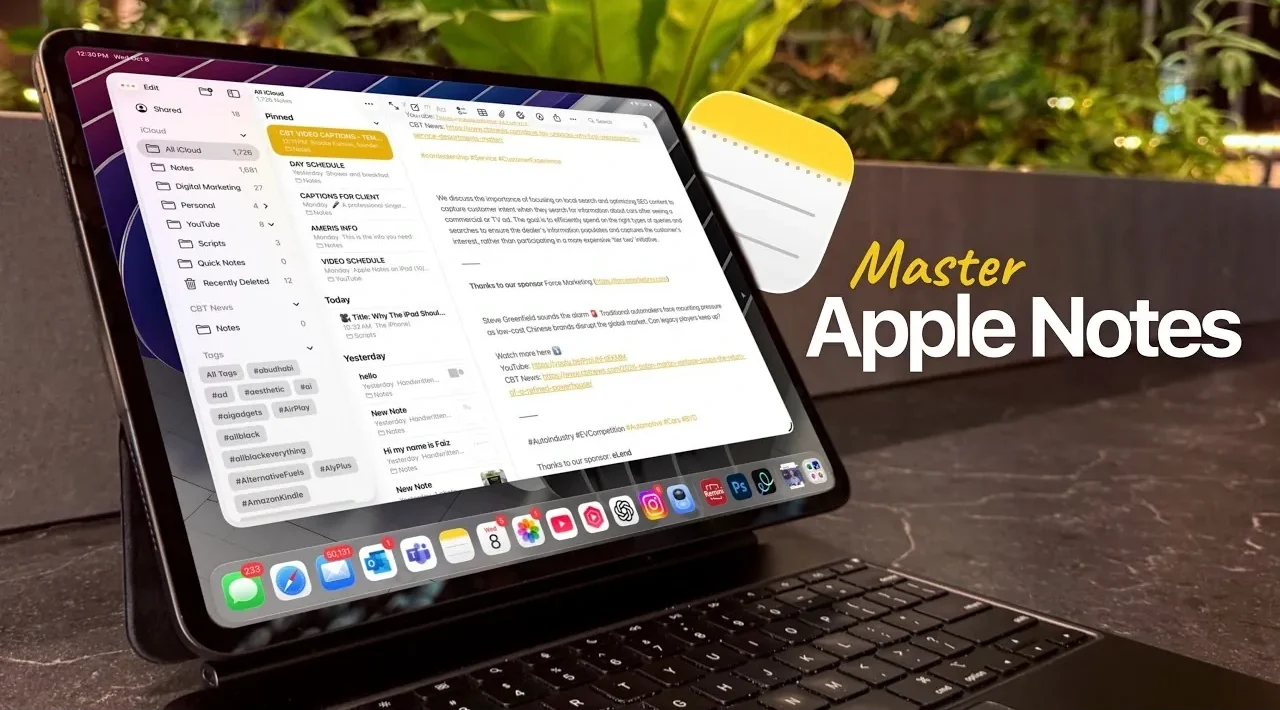
Have you ever felt like your digital notes are more chaos than clarity? With so many tools promising to organize your life, it’s easy to overlook the one already built into your iPad. Apple Notes has quietly evolved from a basic jotting app into a powerful productivity hub that rivals even the most sophisticated note-taking platforms. Whether you’re brainstorming a project, managing a team, or simply trying to keep track of life’s endless to-dos, mastering Apple Notes can transform how you work and think. The best part? You don’t need to be a tech wizard to unlock its potential, just a willingness to explore its hidden gems.
In this breakdown, Faiz Aly takes you through 14 innovative tips that will help you take full advantage of Apple Notes on your iPad. From instant note-capturing with QuickNotes to automating your organization with Smart Folders, these strategies are designed to save you time, reduce stress, and keep your ideas flowing. You’ll also discover how to enhance your notes with media, collaborate seamlessly with others, and even protect sensitive information with advanced security features. Whether you’re a casual note-taker or a productivity enthusiast, these insights will show you how to turn Apple Notes into your ultimate digital assistant. After all, the tools we use every day should work as hard as we do.
Apple Notes Productivity Hacks
TL;DR Key Takeaways :
- QuickNotes for Instant Note-Taking: Capture ideas or tasks instantly from any app using QuickNotes, making sure seamless organization and focus.
- Advanced Organization with Folders and Smart Folders: Use folders, subfolders, and automated Smart Folders to categorize and manage notes efficiently.
- Real-Time Collaboration: Share notes or folders with others, allowing instant updates and teamwork with customizable permissions.
- Enhanced Features with Media and AI Tools: Add images, PDFs, and audio, and use AI tools for summarizing, rewriting, or refining notes.
- Offline Access and Security: Work without internet connectivity and protect sensitive notes with Face ID, Touch ID, or password protection.
QuickNotes: Capture Ideas Without Delay
QuickNotes allows you to create notes instantly, regardless of the app you’re using. By swiping from the corner of your iPad screen or using a keyboard shortcut, you can jot down ideas or tasks without interrupting your workflow. This feature ensures you never lose a thought, making it ideal for capturing inspiration or important details on the go. Quick access to note-taking can significantly improve your ability to stay organized and focused.
Organize Notes with Folders and Subfolders
Apple Notes provides a robust organizational system using folders and subfolders. You can drag and drop notes into categories based on projects, topics, or priorities. This hierarchical structure ensures your notes remain logically arranged and easy to access, even as your collection grows. Organized content not only saves time but also enhances your ability to retrieve information efficiently.
Smart Folders: Automate Your Organization
Smart Folders take organization to the next level by automating the sorting process. By tagging notes with keywords such as “work,” “personal,” or “urgent,” you can create dynamic folders that update automatically. This eliminates the need for manual sorting and ensures your notes are always categorized correctly. Automated organization streamlines your workflow and reduces the effort required to manage large volumes of notes.
Collaborate in Real Time
Collaboration is a standout feature of Apple Notes, allowing you to share individual notes or entire folders with others. You can grant editing or view-only permissions, making it ideal for group projects, team planning, or sharing information with family members. Changes made by collaborators sync instantly, making sure everyone stays updated. Real-time collaboration fosters teamwork and simplifies shared tasks.
14 Apple Notes Tips & Tricks

Dive deeper into Apple Notes with other articles and guides we have written below.
- How to Use Apple Notes for Organization, Collaboration and More
- How to Use Apple Notes as a Vertical Kanban Board for Tasks
- How to Sync Apple Notes to Notion : 2025 Guide
- Apple Notes vs Goodnotes 6: Which Note-Taking App is Best for You
- Use the Zettelkasten Method in Apple Notes for Better Organization
- How to Use Apple Notes for Quick and Efficient Note-Taking
- My Notes AI Pro Plan: Lifetime Subscription
- New Apple Notes iOS 26 Features : Markdown, 3D Graphs & More
- Discover the New Tools in Apple Notes iOS 18.3 Update
- How Apple Notes AI Features Transform Digital Note-Taking
Enhance Notes with Media and AI Tools
Apple Notes supports a variety of media types, including images, PDFs, audio files, and scanned documents. Additionally, AI tools integrated into the app can help you rewrite, summarize, or refine text directly within your notes. For instance, you can quickly summarize meeting notes or polish a draft, saving time and effort. Enhanced note customization allows you to create richer, more detailed content.
Scan Documents and Extract Text
The built-in document scanner in Apple Notes lets you digitize physical documents or images and extract text directly into your notes. Whether you’re working with receipts, contracts, or handwritten notes, the extracted text is editable and easy to integrate into your projects. Digitizing documents simplifies record-keeping and ensures important information is always accessible.
Find Content Fast with Advanced Search
Apple Notes features advanced search capabilities that make locating specific content effortless. You can search for handwritten notes, scanned text, or even image-based content using keywords or phrases. This feature is particularly useful when managing a large collection of notes. Efficient search functionality saves time and ensures you can quickly retrieve the information you need.
Apple Pencil: Unlock Creativity and Precision
For users with an Apple Pencil, Apple Notes offers features like handwriting-to-text conversion, shape recognition, and gesture-based shortcuts. These tools are perfect for sketching diagrams, annotating documents, or converting handwritten notes into editable text. Enhanced creativity and precision make Apple Pencil an invaluable tool for both artistic and professional tasks.
Share Folders for Group Projects
Folder sharing in Apple Notes allows you to collaborate on entire collections of notes. You can assign editing or view-only permissions to team members, making it easy to manage group projects or coordinate tasks across multiple contributors. Shared folders simplify teamwork and ensure everyone has access to the latest updates.
Secure Your Notes
Apple Notes prioritizes privacy with features like Face ID, Touch ID, or password protection for sensitive notes. Whether you’re storing personal information or confidential work details, these security measures ensure your data remains protected. Enhanced security provides peace of mind, especially when handling sensitive information.
Work Anywhere with Offline Access
Apple Notes supports offline access, allowing you to view and edit notes without an internet connection. Any changes made offline will sync automatically once you’re back online. This ensures uninterrupted productivity, whether you’re traveling or working in areas with limited connectivity. Offline functionality ensures your workflow remains seamless.
Math Solver for Instant Calculations
Apple Notes includes a built-in math solver that processes equations in real time. Whether you’re handling financial calculations or solving academic problems, this feature provides instant results. Integrated calculation tools simplify complex tasks and save time.
Pin Important Notes for Quick Access
Pinning notes to the top of your list ensures frequently used notes are always within reach. This is particularly helpful for ongoing projects, to-do lists, or reference materials you need to access regularly. Pinned notes improve efficiency by keeping essential information readily available.
Maximize Productivity with Apple Notes
Apple Notes has evolved into a versatile tool that combines simplicity with advanced features. From organizing your notes with smart folders to collaborating in real time and using AI tools, it offers a comprehensive solution for managing tasks and ideas. By applying these 14 tips, you can enhance your productivity and fully use the capabilities of Apple Notes on your iPad.
Media Credit: Faiz Aly
Disclosure: Some of our articles include affiliate links. If you buy something through one of these links, Geeky Gadgets may earn an affiliate commission. Learn about our Disclosure Policy.
