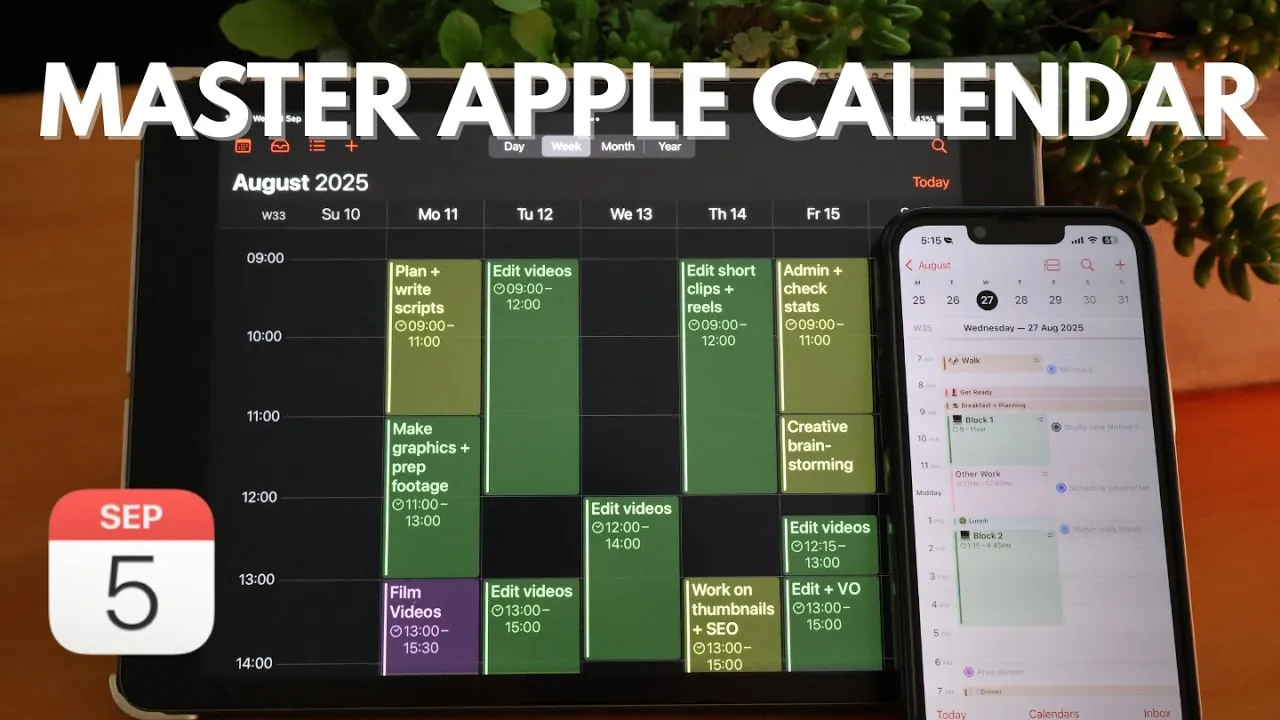
Have you ever felt like your schedule is running you, rather than the other way around? In a world where time is our most precious resource, finding the right tools to manage it can feel like a fantastic option, or a headache. Enter Apple Calendar, a deceptively simple app that’s packed with powerful features designed to help you regain control over your day. Whether you’re juggling back-to-back meetings, syncing family plans, or carving out time for personal goals, this tool offers more than just a place to log events. With its seamless integration across devices and intuitive design, Apple Calendar transforms the chaos of daily life into a streamlined, manageable flow. And the best part? You don’t need to be a tech wizard to unlock its potential.
Happy Habits Planners explain how Apple Calendar can become your ultimate productivity ally. From customizing your schedule for clarity to using smart features like Siri integration and location-based reminders, you’ll discover practical tips to make the app work harder for you. Curious about how to merge multiple calendars into one cohesive view or how to use widgets for instant updates? We’ve got you covered. Whether you’re a seasoned planner or someone looking to finally get organized, this guide will show you how to make every minute count. After all, mastering your calendar isn’t just about managing time, it’s about reclaiming it.
Apple Calendar Overview
TL;DR Key Takeaways :
- Apple Calendar offers seamless setup and integration, allowing synchronization with platforms like Google Calendar, Outlook, and iCloud for unified scheduling across devices.
- Extensive customization options enable users to create multiple calendars, assign unique colors, and toggle views for better organization and clarity.
- Smart features like Siri integration, time zone support, and Apple Maps integration enhance scheduling efficiency and streamline event management.
- Collaboration tools allow calendar sharing with customizable permissions, fostering teamwork and improving communication for both personal and professional use.
- Advanced functionalities, including widgets, notifications, split view multitasking, and PDF exporting, make Apple Calendar a versatile tool for productivity and time management.
Getting Started: Seamless Setup and Integration
Setting up Apple Calendar is a straightforward process that unlocks its full potential when properly synchronized. By linking it with platforms such as Google Calendar, Outlook, or other email-based calendars, you can consolidate all your schedules into one unified view. Allowing iCloud Calendar ensures that your events automatically sync across all your Apple devices in real time, eliminating the need for manual updates and making sure consistency.
For professionals managing multiple accounts, Apple Calendar supports integration with corporate systems. For instance, syncing with Outlook allows you to view work meetings alongside personal appointments in a single calendar. This feature is particularly beneficial for individuals balancing overlapping responsibilities, as it reduces the risk of scheduling conflicts and enhances overall efficiency.
Customizing Your Calendar for Clarity
Apple Calendar provides extensive customization options to help you tailor your schedule to your specific needs. You can create multiple calendars, assign unique names, and use distinct colors to differentiate between personal, work, and shared schedules. Adjusting the calendar view, whether by day, week, month, or year, allows you to visualize your time in the format that best suits your planning style.
To maintain an organized interface, you can toggle specific calendars on or off. For example, you might add public holiday calendars to enrich your planning or hide less relevant ones to declutter your view. These customization options ensure that your calendar remains both functional and visually streamlined, making it easier to focus on what matters most.
Apple Calendar Tips to Boost Productivity and Save Time

Discover other guides from our vast content that could be of interest on Apple Calendar tips.
- Top Apple Calendar Tips and Tricks for iOS 18 Users
- How to Use Apple Calendar for Better Time Management
- How to Use Apple Calendar to Organize Your Life Effectively
- How to Use Apple Calendar to Save Time and Boost Productivity
- Apple Reminders Tips: Transform Your Task Management Today
- How to Use Apple Calendar and Reminders to Stay Organized
- How to Use Apple Notes, Reminders, and Calendars Together
- Apple Productivity Workflow: Tips for a More Organized Life
- 10 Apple Reminders Features You Need to Know for Productivity
- Using Apple Notes, Reminders & Calendar for Maximum
Streamlining Event Management
Managing events in Apple Calendar is intuitive and efficient. You can easily create, edit, duplicate, or delete events with just a few clicks. For recurring commitments, such as weekly meetings or monthly reminders, the repeating event feature automates the process, saving you time and effort.
Apple Maps integration enhances location-based events by calculating travel time directly within the event details. This feature helps you allocate sufficient time for commutes, reducing the likelihood of delays. Additionally, you can set multiple alerts to remind you of upcoming commitments, making sure you stay on track and prepared for your day.
Integrating Reminders for Holistic Planning
Apple Calendar seamlessly integrates with the Reminders app, offering a comprehensive view of your schedule. Tasks and deadlines appear alongside your events, making sure that no detail is overlooked. You can assign reminders to specific lists, mark them as complete, or drag and drop tasks into your calendar for better organization.
For example, if you are working on a project with a tight deadline, you can create a reminder to submit the work and link it to the corresponding calendar event. This integration bridges the gap between task management and scheduling, enhancing your overall productivity and making sure that all aspects of your workflow are accounted for.
Smart Features and Automations
Apple Calendar includes a range of smart features designed to simplify scheduling and save time. Time zone support is particularly useful for coordinating international meetings, while Siri integration allows you to create events or set reminders using voice commands, making the process hands-free and efficient.
Another valuable feature is the ability to drag and drop emails, notes, or other items directly into your calendar to create events or reminders. This functionality consolidates information from various sources into a single, actionable plan, streamlining your workflow and reducing the need to switch between apps.
Collaboration Made Easy
Collaboration is a key strength of Apple Calendar, thanks to its sharing features. You can share your calendar with colleagues, friends, or family members and control permissions to determine who can view or edit events. Public calendars are also an option, allowing you to share read-only schedules with a wider audience.
For example, a project manager can share a team calendar that includes deadlines and milestones, making sure that everyone stays informed and aligned. This fosters transparency, improves communication, and helps teams work more cohesively toward their goals.
Widgets and Notifications for Quick Access
Apple Calendar widgets provide a convenient snapshot of your schedule directly from your home screen. These widgets display upcoming events at a glance, helping you stay informed without needing to open the app. Notifications can also be customized for events, shared calendars, and invitations, making sure that you receive timely updates.
For instance, you can set notifications to alert you of changes to a shared calendar, such as a rescheduled meeting. These alerts keep you informed and reduce the need for constant manual checks, allowing you to focus on your priorities.
Advanced Features for Enhanced Usability
Apple Calendar includes advanced features that cater to a variety of user needs. Dark mode enhances visibility in low-light conditions, reducing eye strain during nighttime use. Adding emojis to events or calendar names provides a quick and visually engaging way to identify specific entries, for example, using for birthdays or for meetings.
Exporting calendars as PDFs is another useful feature, allowing for offline access or sharing with individuals who may not use digital calendars. Additionally, keyboard shortcuts on Mac enable faster navigation, saving time for power users. These features enhance the overall usability of Apple Calendar, making it a versatile tool for both personal and professional scenarios.
Multitasking with Split View
For those who frequently multitask, Apple Calendar supports split view on iPads, allowing you to use the calendar alongside other apps. This is particularly helpful when referencing emails or documents while scheduling events. On Mac, you can view multiple events side-by-side or open them in separate windows for detailed planning.
For example, while organizing a conference, you can use split view to reference an agenda in one window while updating the calendar in another. This functionality boosts efficiency, ensures accuracy, and simplifies complex scheduling tasks.
Unlocking the Full Potential of Apple Calendar
Apple Calendar strikes a balance between simplicity and functionality, making it an indispensable tool for managing both personal and professional schedules. By using its synchronization capabilities, customization options, and advanced features, you can streamline your planning process and maximize productivity. Whether you are managing daily tasks, coordinating team projects, or planning long-term goals, Apple Calendar equips you with the tools you need to stay organized, focused, and in control of your time.
Media Credit: Happy Habits Planners
Disclosure: Some of our articles include affiliate links. If you buy something through one of these links, Geeky Gadgets may earn an affiliate commission. Learn about our Disclosure Policy.
