Have you ever felt like your schedule is running you, rather than the other way around? With so many commitments pulling us in different directions, staying organized can feel like an uphill battle. That’s where Apple Calendar comes in, a tool that’s not just about marking dates but about reclaiming control over your time. Whether you’re a busy professional juggling meetings or a student balancing classes and social events, this app offers a blend of simplicity and power to keep your life on track. In this learning tool, created by Howfinity, we’ll explore how Apple Calendar can transform the way you manage your days, helping you move from chaos to clarity with just a few taps.
By the end of this guide by Howfinity, you’ll uncover how to make the most of Apple Calendar’s robust features, from creating events and setting reminders to syncing multiple schedules for a unified view. You’ll learn how to harness tools like travel time and contextual event creation to not only stay punctual but also reduce the mental load of planning. Along the way, we’ll share tips for customizing your calendar to fit your unique needs, making sure it becomes a seamless part of your daily routine. Whether you’re new to digital scheduling or simply looking to optimize your workflow, this tutorial will empower you to take charge of your time in ways you didn’t think possible. After all, isn’t time the most valuable resource we have?
Apple Calendar Overview
TL;DR Key Takeaways :
- Apple Calendar offers versatile views (day, week, month, year) and navigation tools like the “Today” button and list view for efficient schedule management.
- Event management is user-friendly, with options for recurring events, customizable notifications, and easy editing or deletion of events.
- The app integrates seamlessly with Reminders and supports syncing multiple calendars, allowing for unified scheduling across personal, work, and external calendars.
- Advanced features like travel time allocation, contextual event creation, and invitation management enhance productivity and streamline planning.
- Apple Calendar provides seamless integration across the Apple ecosystem, with iCloud syncing, Siri support, and compatibility with devices like iPhone, iPad, Mac, and Apple Watch.
Core Features and Navigation
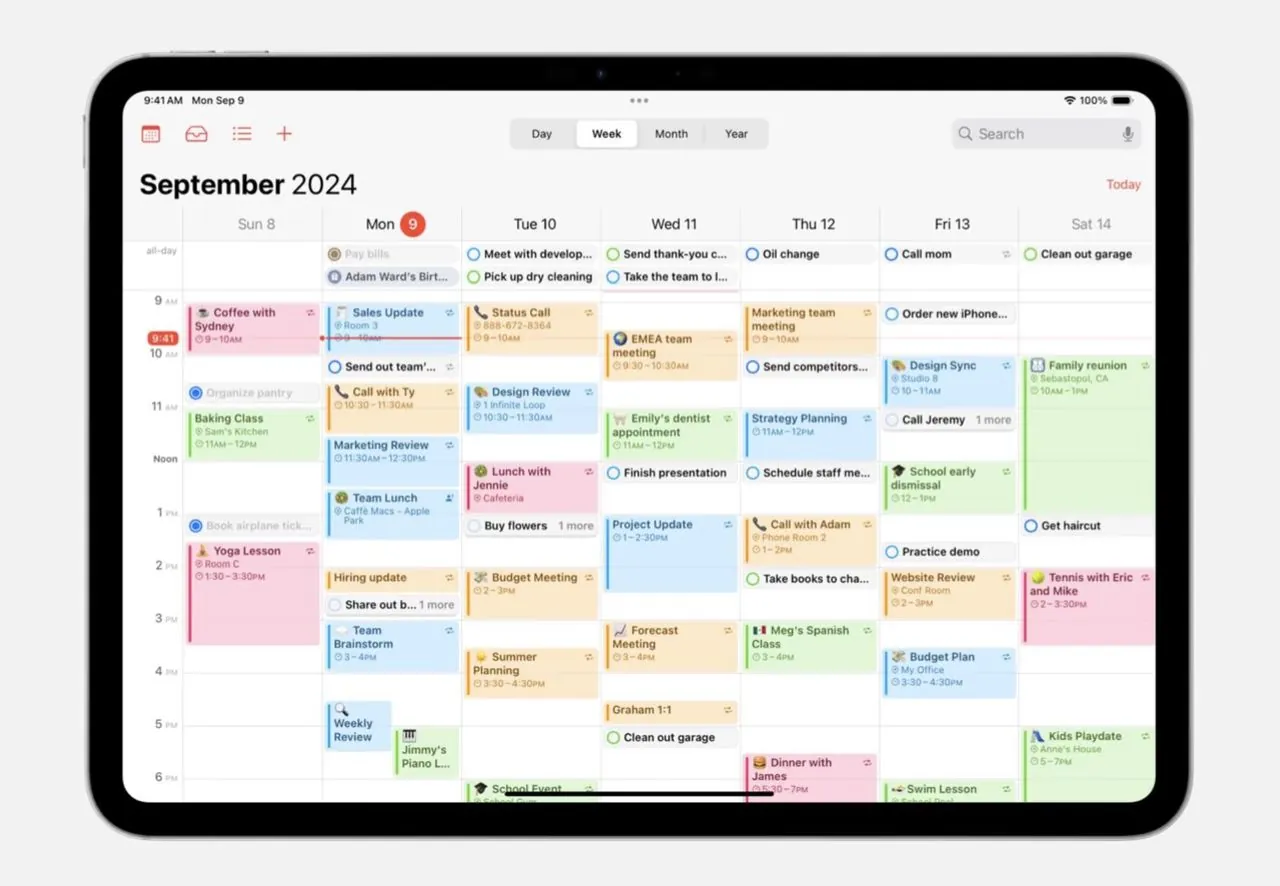
Apple Calendar offers a variety of views to suit different scheduling preferences. You can switch between day, week, month, and year views to gain a clear perspective on your commitments. The “Today” button allows you to quickly return to the current date, making sure you stay oriented in your schedule. For a more streamlined approach, the list view displays upcoming events in a concise format, making it easier to plan ahead. These navigation options are designed to help you efficiently access and manage your calendar, regardless of your planning style.
Effortless Event Management
Creating and managing events in Apple Calendar is straightforward and user-friendly. You can add events by specifying essential details such as the time, location, and alerts. For recurring commitments, the app provides flexible options to set up repeating events, whether they occur daily, weekly, monthly, or at custom intervals. Notifications can be tailored to remind you at the most convenient moments, making sure you never miss an important appointment. Additionally, editing or deleting events is simple, whether you need to update a single occurrence or modify an entire series. These intuitive features make event management both efficient and adaptable to your needs.
Apple Calendar Tips for Busy Professionals & Students

Unlock more potential in Apple Calendar tutorial by reading previous articles we have written.
- How to Master Apple Calendar: The Ultimate Guide
- How to Use Apple Notes, Reminders, and Calendars Together
- Using Use Apple Notes, Reminders and Calendar Together in iOS
- Organize Your Day with Apple’s Notes, Reminders, Calendar
- Top Apple Calendar Tips and Tricks for iOS 18 Users
- How Apple Core Apps Can Boost Productivity and Simplify Life
- How to Use Perplexity iOS Voice Assistant : Tips & Tricks Tutorial
- How to Use Apple Calendar for Better Time Management
- Time Blocking Tips: Master Your Schedule and Boost Productivity
- Why Apple Skipped iOS 19 and Went Straight to iOS 26
Using Reminders for Task Management
Apple Calendar integrates seamlessly with the Reminders app, offering a practical way to manage tasks alongside your schedule. Unlike events, reminders do not block time on your calendar but serve as helpful prompts for specific activities. You can create recurring reminders for tasks that repeat at regular intervals, such as daily chores or weekly meetings. This integration ensures that no task is overlooked, providing a comprehensive approach to both time and task management.
Syncing and Calendar Integration
One of the standout features of Apple Calendar is its ability to sync multiple calendars into a unified view. This allows you to combine personal, work, and holiday schedules, making it easier to manage your time without switching between different platforms. To reduce visual clutter, you can toggle individual calendars on or off as needed, making sure a clear and focused view of your priorities. Additionally, subscribing to external calendars, such as public holidays, sports schedules, or community events, keeps you informed without requiring manual updates. This synchronization capability enhances the app’s utility, making it a central hub for all your scheduling needs.
Advanced Features for Enhanced Productivity
Apple Calendar includes advanced tools that go beyond basic scheduling, allowing you to streamline your planning process and boost productivity. Key features include:
- Travel Time: Allocate travel time to events, making sure you have enough time to reach your destination without rushing.
- Contextual Event Creation: Detect dates and times in apps like Notes or Messages and create events directly from those contexts for added convenience.
- Invitation Management: Send, receive, and RSVP to event invitations through the calendar’s inbox, simplifying collaboration and coordination.
These advanced functionalities are designed to make your scheduling experience more efficient and tailored to your specific needs.
Widgets and Customization
Apple Calendar widgets provide quick and convenient access to your schedule directly from your home screen. You can customize these widgets to display specific views, such as a daily agenda or a list of upcoming events, making sure you stay informed at a glance. This feature eliminates the need to open the app frequently, allowing you to check your schedule with minimal effort. By tailoring the widgets to your preferences, you can create a personalized and efficient planning experience.
Seamless Integration Across the Apple Ecosystem
Apple Calendar is designed to work effortlessly across all Apple devices, including iPhone, iPad, Mac, and Apple Watch. Thanks to iCloud syncing, any changes you make on one device are instantly reflected on others, making sure consistency and accessibility. The app also integrates with other Apple services, such as Siri and Maps. For example, you can use Siri to create events or ask for reminders, while Maps can estimate travel time for appointments. This seamless integration enhances the app’s functionality, making it a central component of the Apple ecosystem and a reliable tool for managing your time.
Maximizing Your Time with Apple Calendar
Apple Calendar is more than just a scheduling app, it is a comprehensive time management solution. From its intuitive event creation and customizable reminders to its advanced features like travel time estimation and external calendar subscriptions, it offers everything you need to stay organized. By using its customizable views, seamless syncing, and integration with the Apple ecosystem, you can streamline your schedule and enhance your productivity. Whether you are managing personal tasks or professional responsibilities, Apple Calendar serves as a dependable companion for achieving your goals and staying on top of your commitments.
Media Credit: Howfinity
Disclosure: Some of our articles include affiliate links. If you buy something through one of these links, Geeky Gadgets may earn an affiliate commission. Learn about our Disclosure Policy.
