When it comes to smartphones, practicality often takes precedence over flashy features. Apple’s iPhone is packed with capabilities, but not all of them are equally useful in everyday scenarios. The video from iDB highlights 11 iPhone features that stand out for their ability to improve efficiency, accessibility, and customization. These tools are designed to help you get the most out of your device, whether you’re a casual user or a tech-savvy professional.

Photo Markup Tools: Edit Images Effortlessly
The iPhone’s built-in photo markup tools make editing and annotating images straightforward and accessible. You can add text, draw shapes, or highlight specific areas directly within the Photos app. For instance, if you need to emphasize a detail in a screenshot, you can quickly circle it or insert a text box—no third-party apps required. This feature is particularly useful for creating clear, annotated visuals to share with colleagues, friends, or family. Whether you’re marking up a document or highlighting a key point in an image, this tool ensures your edits are both professional and easy to execute.
Quick Photo Cropping: Save Time on Edits
Cropping photos is faster than ever with the iPhone’s intuitive zoom-and-crop feature. Instead of navigating through multiple menus, you can simply zoom in on the desired section of a photo and tap the crop button to save it. This streamlined process is perfect for quickly framing an image before sharing it on social media or sending it to a friend. By eliminating unnecessary steps, this feature saves time while maintaining precision and clarity in your edits.
Text Replacement: Automate Repetitive Typing
Text replacement is a productivity booster for anyone who frequently types repetitive phrases. By setting up shortcuts in your keyboard settings, you can expand a few characters into full phrases. For example, typing “@@” could automatically insert your email address, while “brb” could expand to “be right back.” This feature not only speeds up communication but also minimizes errors in repetitive text entries. It’s particularly useful for professionals who need to respond quickly or for anyone who wants to simplify their typing experience.
Smart Typing Suggestions: Context-Aware Assistance
The iPhone’s smart typing suggestions elevate predictive text by offering contextually relevant options. As you type, the device can suggest details like your email address, home address, or frequently used phrases. This is especially helpful when filling out forms, responding to messages, or composing emails. By reducing the effort needed to type out common information, this feature makes your typing experience faster, more accurate, and less tedious.
Customizable Lock Screen Shortcuts: Personalize Your Access
Your lock screen is the first thing you see when you pick up your iPhone, and customizable shortcuts make it even more functional. Instead of sticking with the default flashlight and camera options, you can tailor these shortcuts to your specific needs. For example, you might replace the flashlight with a shortcut to your favorite app, such as a note-taking tool or a music player. This personalization ensures quick access to the tools you use most, making your iPhone experience more efficient and tailored to your lifestyle.
Guided Access: Restrict Device Usage
Guided Access is a powerful tool for controlling how your iPhone is used. It locks the device into a single app, making it ideal for lending your phone to children, colleagues, or students. This feature is particularly useful in educational or professional settings, where focus and security are essential. You can even disable certain screen areas to prevent unintended actions, making sure that the device is used exactly as intended. Whether you’re sharing your phone temporarily or setting boundaries for usage, Guided Access provides a simple yet effective solution.
Close All Safari Tabs Quickly: Declutter in Seconds
Managing a cluttered browser can be overwhelming, but the iPhone simplifies this with a quick way to close all Safari tabs. By pressing and holding the tab button, you can instantly clear all open tabs. This feature is perfect for starting fresh without the hassle of manually closing each tab one by one. It’s especially useful for users who frequently browse the web and want to maintain a clean, organized browsing experience.
Precise Volume Control: Fine-Tune Your Audio
The iPhone offers more than just physical volume buttons for adjusting sound. By using the on-screen volume slider, you can make precise adjustments to audio levels. This is particularly useful when listening to music, watching videos, or using headphones, allowing you to find the perfect balance for your audio needs. Whether you’re fine-tuning the volume for a quiet environment or enhancing sound clarity, this feature ensures you have complete control over your listening experience.
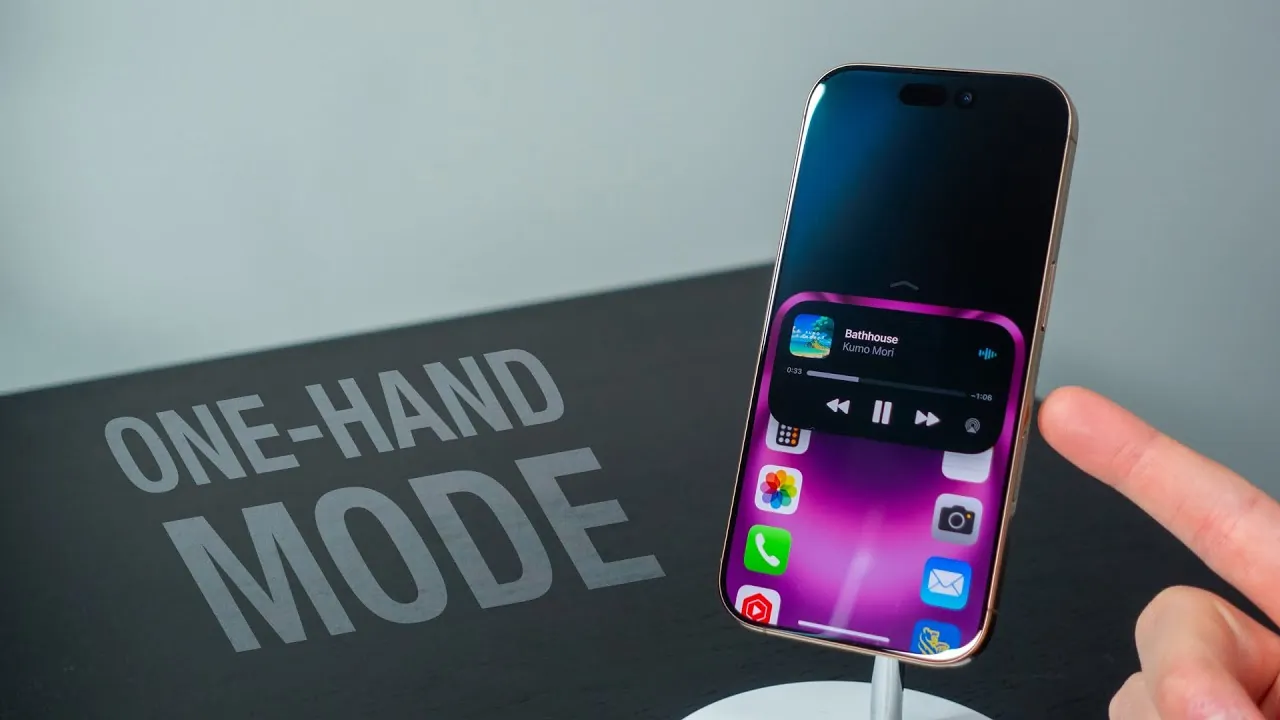
Reachability Mode: One-Handed Convenience
For users of larger iPhone models, Reachability Mode makes one-handed operation much easier. By swiping down on the bottom edge of the screen, you can bring the top half of the display within reach. This feature is especially helpful when navigating apps, accessing notifications, or performing quick tasks without needing both hands. It’s a simple yet effective way to enhance usability, particularly for those who prefer larger screens but still want the convenience of one-handed use.
AI Article Summarization: Read Smarter, Not Longer
Long articles can be daunting, but the iPhone’s AI-powered summarization feature helps you digest information quickly. Using Safari’s Reader Mode, you can condense lengthy web articles into concise summaries. This allows you to grasp the main points without spending excessive time reading. Whether you’re catching up on news or researching a topic, this feature ensures you stay informed while saving time.
Advanced Photo Search: Locate Images Instantly
The Photos app’s advanced search capabilities make finding specific images a breeze. By entering multiple keywords, such as “beach” and “sunset,” you can refine your search results to pinpoint exactly what you’re looking for. This feature is invaluable for organizing and retrieving memories from your photo library with minimal effort. Whether you’re searching for a specific event, location, or person, the advanced search tool ensures you can locate your images quickly and efficiently.
Streamline Your iPhone Experience
These 11 features are designed to make your iPhone more intuitive and efficient. From photo editing and text shortcuts to advanced search and accessibility tools, each feature addresses common challenges and enhances usability. By integrating these tools into your daily routine, you can unlock the full potential of your device and enjoy a more seamless smartphone experience.
Browse through more resources below from our in-depth content covering more areas on iPhone photo editing tools.
- A Guide to Decorating Photos with Stickers & Genmoji in iOS 18
- AI Photo Editing Tools Are Coming To All Google Photos Users
- Apple Intelligence in iOS 18.1 on the iPhone 16 Pro Max
- iOS 18.1 Release Date LEAKED! Apple Intelligence is COMING
- Apple Intelligence vs Samsung Galaxy AI (Video)
Source & Image Credit: iDB
Disclosure: Some of our articles include affiliate links. If you buy something through one of these links, Geeky Gadgets may earn an affiliate commission. Learn about our Disclosure Policy.
