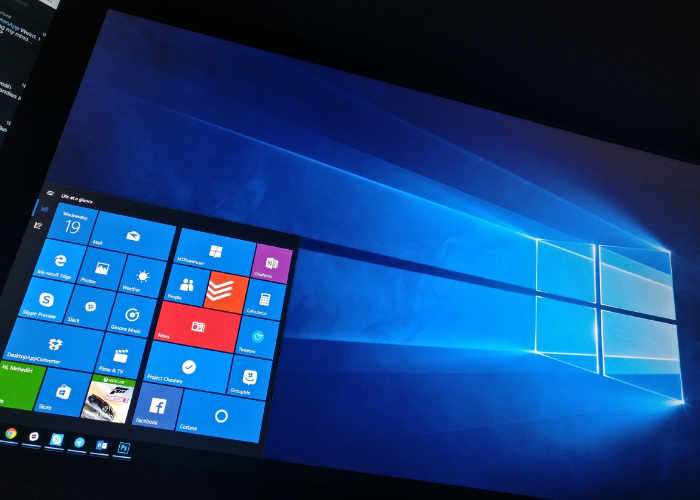
In the latest Windows 10 Insider Preview Microsoft has rolled out a new feature called Power Throttling which has been designed to help save your battery life when running multiple applications at the same time.
Within the latest Insider Preview build (Build 16176) Microsoft has started introducing the new Power Throttling feature which when background work is running, Windows places the CPU in its most energy efficient operating modes.

Microsoft explains a little more about support for the new Windows 10 Power Throttling feature:
Power Throttling is currently available only for processors with Intel’s Speed Shift technology, available in Intel’s 6th-gen (and beyond) Core processors – we’re working on expanding support to other processors as well over the next few months.
How does it work? To give great performance to the apps you’re using, while at the same time power throttling background work, we built a sophisticated detection system into Windows. The OS identifies work that is important to you (apps in the foreground, apps playing music, as well as other categories of important work we infer from the demands of running apps and the apps the user interacts with). While this detection works well for most apps, if you happen to notice an app that is negatively impacted by Power Throttling, we really want to know!! You can do 3 things:
1. Provide feedback! Please run the Feedback Hub and file feedback under the Power and Battery > Throttled Applications category
2. Control power throttling system-wide, using the Power Slider. Windows works hardest to keep the processor in its efficient ranges when you’ve selected “Battery Saver” or “Recommended”, and turns off completely when you’ve selected “Best Performance”.
3. Opt individual apps out from Power Throttling:
• Go to Battery Settings (Settings > System > Battery).
• Click on “Battery Usage by App”.
• Select your app.
• Toggle “Managed by Windows” to “Off”.
• Uncheck the “Reduce work app does when in background” checkbox.
Source: Microsoft
Disclosure: Some of our articles include affiliate links. If you buy something through one of these links, Geeky Gadgets may earn an affiliate commission. Learn about our Disclosure Policy.
