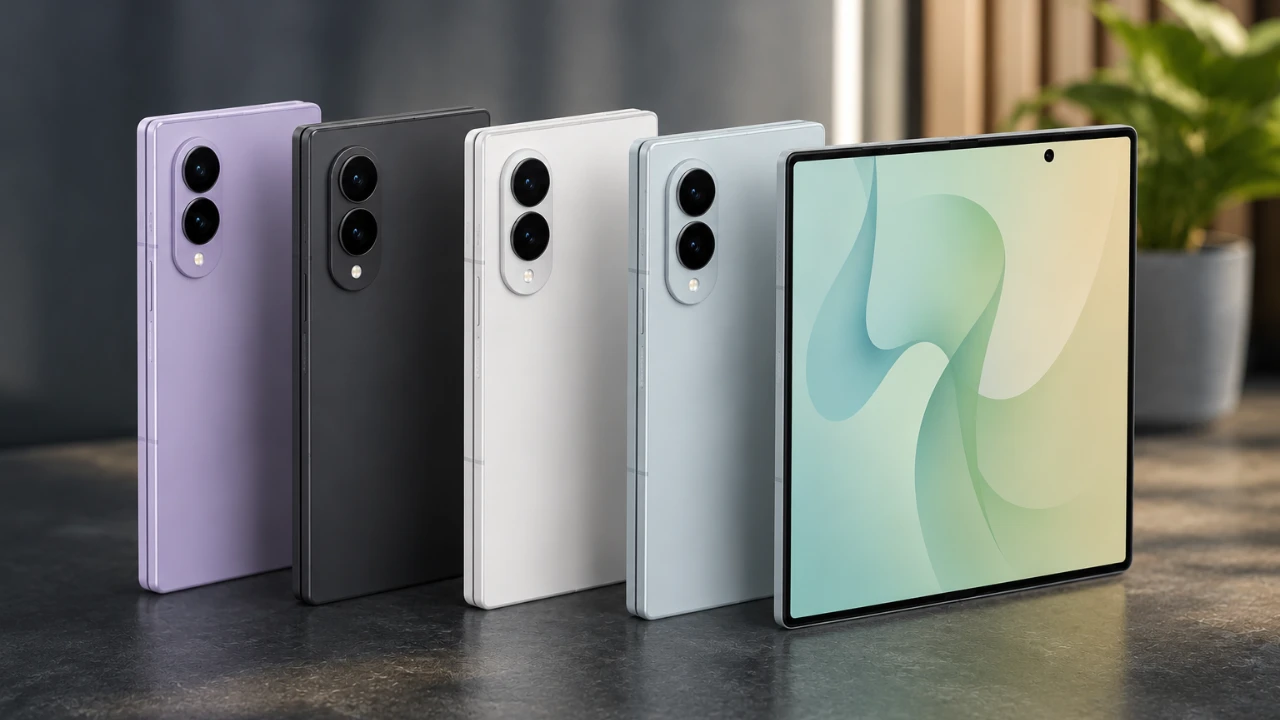
Unboxing your Samsung Galaxy Z Fold 8 is an exciting moment, but properly setting it up is essential to fully harness its capabilities. This guide provides a comprehensive walkthrough of the key steps to personalize, secure and optimize your device. From enhancing the foldable display to fine-tuning multitasking features, these tips will help you unlock the full potential of your Galaxy Z Fold 8 for a seamless and efficient user experience. The video below from Greggles TV gives us more details.

Optimize Your Camera Settings
The Galaxy Z Fold 8 features a powerful and versatile camera system, but proper configuration is necessary to capture high-quality photos and videos. Follow these steps to make the most of your camera:
- Set video resolution to UHD at 30 or 60 frames per second for smoother and more detailed recordings.
- Disable HDR if your videos appear washed out in certain lighting conditions.
- Enable location tags to keep track of where your photos are taken.
- Turn on gridlines to improve photo composition and alignment.
- Activate voice commands for hands-free photo-taking convenience.
- Install the Camera Assistant app to access advanced features like 24MP photo mode and enhanced controls.
Customize the Foldable Display
The foldable display is the centerpiece of the Galaxy Z Fold 8, offering a unique and immersive experience. Personalizing it can greatly enhance usability and comfort:
- Enable dark mode to reduce eye strain, especially in low-light environments.
- Set adaptive brightness to automatically adjust based on your surroundings.
- Switch to “Vivid” color mode for richer and more vibrant visuals.
- Adjust fonts, screen layout, and zoom to suit your preferences and improve readability.
- Activate the “Keep screen on while viewing” feature to prevent interruptions during use.
Personalize Your Home Screen and Navigation
A well-organized home screen and intuitive navigation system can significantly improve your overall experience with the Galaxy Z Fold 8. Here’s how to customize it:
- Choose wallpapers and themes that reflect your personal style.
- Combine notifications and quick toggles into a single swipe-down panel for easier access.
- Sort apps alphabetically or group them into folders for better organization.
- Enable gesture-based navigation for smoother and more modern operation.
Strengthen Security and Privacy
Protecting your device and personal data is a top priority. The Galaxy Z Fold 8 offers robust security features that you should configure immediately:
- Set up facial recognition and fingerprint unlock for quick and secure access.
- Adjust lock screen settings to skip the swipe step after authentication for faster entry.
- Configure emergency contacts and wireless alert preferences for added safety.
- Enable Secure Folder to store sensitive files and apps in a protected environment.
Enable Multitasking and Advanced Features
The Galaxy Z Fold 8 is designed to enhance productivity with its multitasking capabilities. Use these features to streamline your workflow:
- Activate multi-window mode to run multiple apps simultaneously on the large display.
- Enable swipe gestures for quick and easy split-screen multitasking.
- Customize the side button to launch your camera, digital assistant, or other frequently used apps.
- Turn on Now Nudge to manage notifications without interrupting your tasks.
- Use the Taskbar feature to quickly switch between apps or open new ones in a split view.
Manage Notifications and Alerts
Efficient notification management helps you stay informed without unnecessary distractions. Here’s how to fine-tune your notification settings:
- Choose between detailed or brief notification styles based on your preference.
- Enable status bar icons to quickly preview alerts without opening the notification panel.
- Turn off notifications for Wi-Fi networks and data usage to minimize interruptions.
- Use Do Not Disturb mode during meetings or at night for uninterrupted focus or rest.
Fine-Tune Keyboard and Input Settings
A customized keyboard can make typing more comfortable and efficient. Adjust these settings to enhance your input experience:
- Install Gboard or another preferred keyboard app and configure it to suit your needs.
- Enable the number row for quicker access to numerical inputs.
- Disable typing sounds and vibrations for a quieter and more discreet experience.
- Activate predictive text and autocorrect for faster and more accurate typing.
Stay Updated with Software Updates
Keeping your Galaxy Z Fold 8 up to date ensures optimal performance and security. Make it a habit to check for updates regularly:
- Enable automatic updates to ensure your device always has the latest features and security patches.
- Manually check for updates periodically to stay ahead of potential issues.
Maximizing Your Galaxy Z Fold 8 Experience
Taking the time to configure your Samsung Galaxy Z Fold 8 properly will unlock its full potential, providing a more personalized, secure and efficient experience. From optimizing the camera and foldable display to allowing multitasking and strengthening security, these steps ensure your device is ready to meet your needs. By following this guide, you can enjoy a seamless and productive journey with your Galaxy Z Fold 8, making the most of its innovative features and capabilities.
Source & Image Credit: GregglesTV
Disclosure: Some of our articles include affiliate links. If you buy something through one of these links, Geeky Gadgets may earn an affiliate commission. Learn about our Disclosure Policy.
