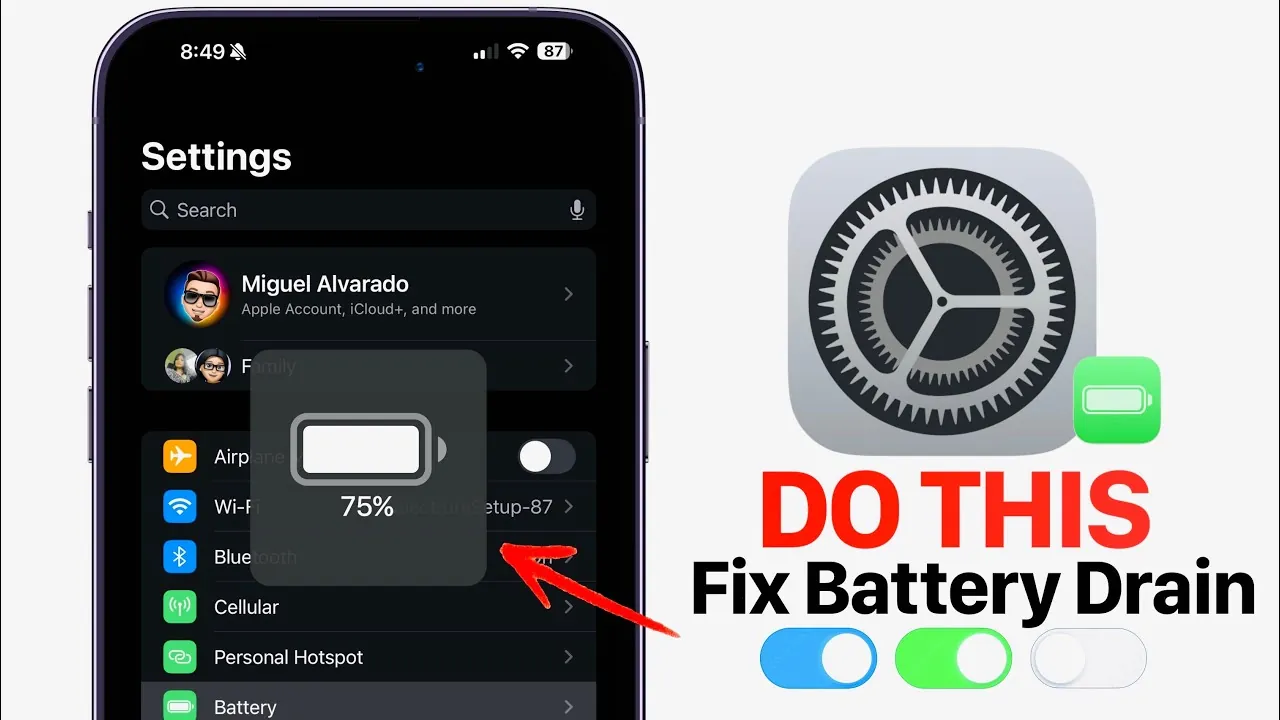
If your iPhone’s battery life has noticeably declined after updating to iOS 18.3.1, you’re not alone. Many users experience faster battery drain following updates, particularly on older devices. However, there are practical steps you can take to optimize your iPhone’s battery performance. The video from iDeviceHelp will walk you through actionable adjustments to key settings, including background activity, app updates, haptic feedback, AirDrop, and the Always-On Display. These changes can help you regain control over your device’s battery life and ensure a smoother experience.

1. Limit Background App Refresh
Background App Refresh in iOS 18.3.1 allows apps to update their content even when you’re not actively using them. While this feature can be convenient, it is also a significant contributor to battery drain.
- Open Settings > General > Background App Refresh.
- Choose to turn it off entirely or selectively disable it for apps that don’t require constant updates, such as social media or shopping apps.
- Rest assured, notifications will still work even if Background App Refresh is disabled.
By reducing unnecessary background activity, you can extend your iPhone’s battery life without compromising essential functionality. This adjustment is particularly effective for users who rely on multiple apps throughout the day.
2. Disable Automatic App Updates
Automatic app updates and downloads often run in the background, consuming both battery power and data. Taking control of this process manually can help conserve energy.
- Go to Settings > App Store.
- Toggle off both “App Updates” and “Automatic Downloads.”
- When needed, manually update apps through the App Store at a time that suits you.
This adjustment ensures that your iPhone isn’t performing energy-intensive tasks without your knowledge. It also gives you greater control over when and how updates are applied, which can be particularly helpful if you’re managing limited battery life.
3. Turn Off Keyboard Haptic Feedback
The subtle vibrations you feel while typing are powered by the Taptic Engine, which can consume battery over time. For frequent typists, disabling this feature can lead to noticeable energy savings.
- Navigate to Settings > Sounds & Haptics > Keyboard Feedback.
- Toggle off the “Haptic” option.
- Disabling this feature can save an estimated 2-4% of your battery life, depending on how often you type.
This small but impactful change is especially beneficial for users who rely heavily on their iPhone’s keyboard for messaging, emails, or other tasks.
4. Manage AirDrop Settings
AirDrop in iOS 18.3.1 is a convenient tool for sharing files, but its constant search for nearby devices can drain your battery unnecessarily. Adjusting these settings can help minimize its impact.
- Go to Settings > General > AirDrop.
- Select “Receiving Off” when you’re not actively using AirDrop.
- Alternatively, enable AirDrop only when needed to prevent unnecessary background activity.
By managing AirDrop settings, you can prevent your iPhone from wasting energy on continuous device detection. This is particularly useful if you rarely use AirDrop or only need it occasionally.
5. Adjust Always-On Display Settings
The Always-On Display feature, available on certain iPhone models, keeps parts of your screen active to display information like the time or notifications. While useful, it can subtly drain your battery over time.
- Open Settings > Display & Brightness > Always-On Display.
- Disable options like wallpaper and notifications to reduce power consumption.
- If you don’t need the feature at all, consider turning it off entirely to save an additional 1-2% of battery life.
Customizing these settings allows you to balance convenience with battery efficiency. This is particularly helpful for users who prioritize battery life over having constant on-screen information.
Take Control of Your Battery Life
Improving your iPhone’s battery performance on iOS 18.3.1 is achievable with a few straightforward adjustments. By limiting background app activity, disabling automatic updates, turning off keyboard haptics, managing AirDrop, and optimizing the Always-On Display, you can significantly extend your device’s battery life. These steps are especially valuable for older devices, where battery capacity may already be diminished. Implementing these changes not only reduces unnecessary power consumption but also enhances your overall user experience. Take charge of your settings today to enjoy a longer-lasting and more reliable iPhone.
Take a look at other insightful guides from our broad collection that might capture your interest in iOS 18.3.1 battery optimization.
- Steps to Optimize Your iPhone After iOS 18.3.1 Update
- Essential Steps to Take After Updating to iOS 18.3.1
- Why Updating to iOS 18.3.1 Is Essential for Your Device’s Security
- iOS 18.3 Features and Updates: Everything You Need to Know
- Does iOS 18.3.1 Boost iPhone Battery Life?
Source & Image Credit: iDeviceHelp
Disclosure: Some of our articles include affiliate links. If you buy something through one of these links, Geeky Gadgets may earn an affiliate commission. Learn about our Disclosure Policy.
