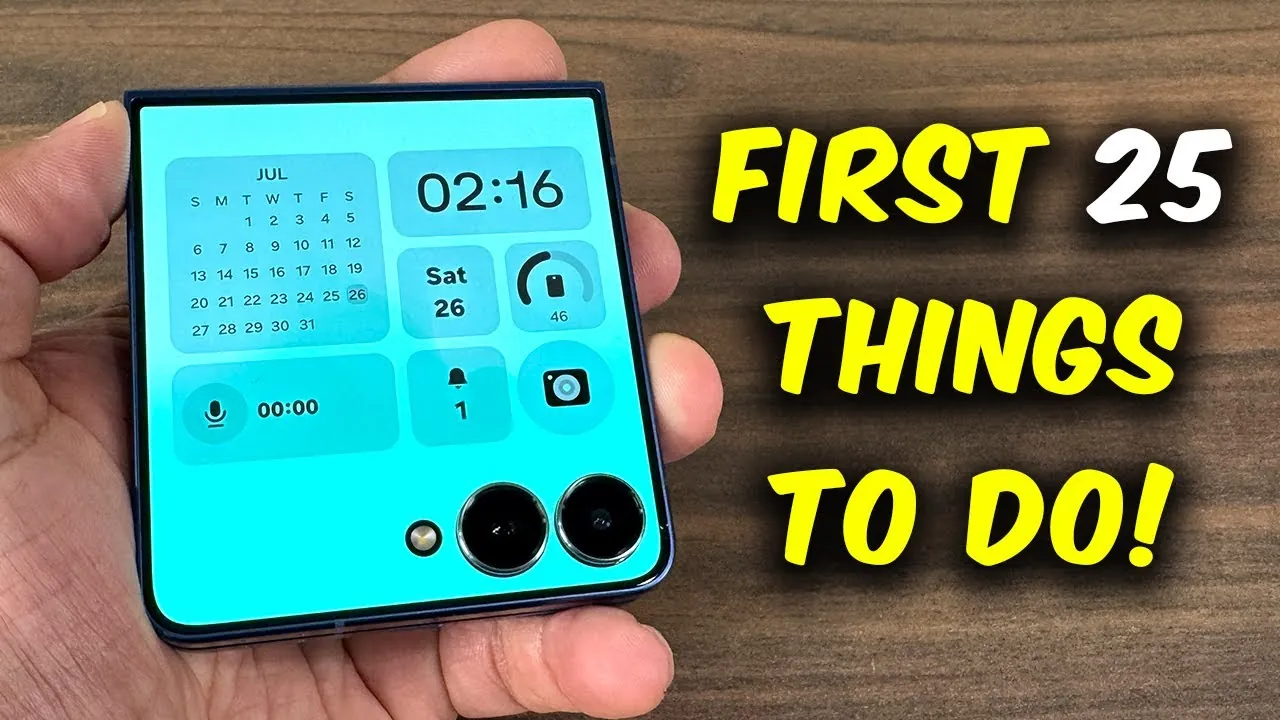
The Samsung Galaxy Z Flip 7 represents a blend of innovative technology and a sleek, foldable design, offering users a unique and versatile experience. This guide outlines 25 essential steps to help you personalize, optimize, and explore the device’s features. Whether you’re new to foldable phones or upgrading from a previous model, these steps will ensure you maximize the potential of your Galaxy Z Flip 7 while maintaining its performance and longevity. The video below from Sakitech showed us a range of tips and tricks for the new Galaxy Z Flip 7.

Personalization: Tailoring the Galaxy Z Flip 7 to Your Style
Customizing your Galaxy Z Flip 7 allows you to make the device truly your own. By personalizing its settings and appearance, you can enhance usability and reflect your personal style:
- Rename Your Device: Assign a unique name to your phone for easy identification when connecting to Bluetooth devices or syncing with other Samsung products. This is especially useful if you own multiple Samsung devices.
- Generative AI Wallpapers: Use the built-in AI wallpaper tool to create custom backgrounds for both the main and outer cover displays. This feature allows you to design visuals that align with your preferences, adding a personal touch to your device.
- Outer Cover Display Customization: Adjust the cover screen by selecting widgets, clock styles, and layouts that suit your needs. This ensures quick access to essential information, such as notifications or music controls, without unfolding the device.
These personalization options not only enhance the aesthetic appeal of your phone but also improve its functionality for everyday use.
Battery Management: Extending Battery Life
Effective battery management is crucial for maintaining the long-term performance of your Galaxy Z Flip 7. The device includes several tools and features to help you optimize battery usage:
- Check Battery Health: Use the Samsung Members app to monitor your battery’s condition. This app provides insights into your battery’s health and offers maintenance tips to extend its lifespan.
- Enable Battery Protection: Activate the Battery Protection feature to limit charging to 85%. This helps prevent overcharging, which can degrade battery health over time.
- Wireless Power Sharing: Charge compatible devices, such as earbuds or smartwatches, by allowing Wireless Power Sharing. Simply place the device on the back of your phone to share power conveniently.
By incorporating these practices, you can ensure your device remains reliable and efficient for longer periods.
Optimizing Display and Sound
The Galaxy Z Flip 7 is equipped with advanced display and audio features designed to enhance your multimedia experience. Here’s how to make the most of these capabilities:
- Adjust Video Brightness: Customize brightness settings for specific apps to ensure optimal visuals when streaming videos or viewing photos. This feature enhances clarity and vibrancy.
- Enable Dolby Atmos: Activate Dolby Atmos for immersive sound quality. Whether you’re gaming, watching movies, or listening to music, this feature provides a richer audio experience.
- Customize Navigation: Choose between traditional button navigation or swipe gestures. Swipe gestures complement the foldable design, offering a modern and seamless interface for navigating your device.
These adjustments allow you to fully enjoy the Galaxy Z Flip 7’s high-quality display and sound capabilities.
Outer Cover Display: Maximizing Convenience
The outer cover display is one of the standout features of the Galaxy Z Flip 7, providing quick access to essential tools and information. Here’s how to make it work for you:
- Enable Apps on the Cover Screen: Select specific apps, such as messaging, music, or weather, to access directly from the cover screen. This eliminates the need to unfold the device for quick tasks.
- Arrange Widgets: Organize widgets like calendar events, notifications, or music controls to prioritize the information you need most. This customization enhances convenience and efficiency.
By using the outer cover display, you can streamline your daily interactions with the device while showcasing its innovative design.
Flex Mode: Redefining Multitasking
Flex Mode takes advantage of the Galaxy Z Flip 7’s foldable design to redefine multitasking. This feature enhances productivity and entertainment by allowing unique usage scenarios:
- Split-Screen Functionality: Partially fold the device to activate a split-screen layout. Use one half of the screen for video calls, media playback, or note-taking, while the other half remains available for additional tasks.
- Control Panel: Access media controls, brightness adjustments, and other functions directly in Flex Mode. This setup is ideal for multitasking, whether you’re working or relaxing.
Flex Mode transforms the way you interact with your device, making it a versatile tool for various activities.
Advanced Features: Unlocking Full Potential
The Galaxy Z Flip 7 includes advanced tools and settings that elevate its functionality. Exploring these features can help you unlock the device’s full potential:
- Labs Menu: Access experimental features and additional cover screen options through the Labs section in settings. This allows you to try out new functionalities and customize your experience further.
- Circle to Search AI Tool: Use this tool to recognize and search for on-screen content effortlessly. It simplifies tasks like identifying objects or retrieving information quickly.
- Schedule Auto-Restarts: Set your device to restart automatically at regular intervals. This clears temporary files and refreshes system processes, making sure smooth performance.
- Enable Auto-Optimization: Automate routine maintenance tasks, such as clearing cache and managing background apps, to keep your phone running efficiently without manual intervention.
These advanced features enhance the Galaxy Z Flip 7’s usability and ensure it remains a powerful companion for both work and leisure.
Device Care: Making sure Long-Term Performance
Regular maintenance is essential for keeping your Galaxy Z Flip 7 in peak condition. The Device Care settings provide tools to help you manage and optimize your phone’s performance:
- Monitor Storage: Check storage usage and free up space by deleting unnecessary files or transferring data to the cloud. This prevents storage-related slowdowns.
- Optimize Memory: Manage memory usage to ensure smooth performance during heavy multitasking. This feature is particularly useful for resource-intensive apps.
- Identify Issues: Use the diagnostic tools in Device Care to detect and resolve potential problems before they impact performance.
Incorporating these maintenance practices into your routine will help your Galaxy Z Flip 7 remain reliable and efficient over time.
Below are more guides on Samsung Galaxy Z Flip 7 from our extensive range of articles.
- Samsung Galaxy Z Flip 7: Release Date, Features, and Price
- Samsung Galaxy Z Flip 7: Features, Specs, and More
- Samsung Galaxy Z Flip 7: Features, Design, and Release Date
- Samsung Galaxy Z Flip 7: The Top 7 Features Revealed
- Samsung Galaxy Z Flip 7: FINAL Leaks Before Launch!
Source & Image Credit: sakitech
Disclosure: Some of our articles include affiliate links. If you buy something through one of these links, Geeky Gadgets may earn an affiliate commission. Learn about our Disclosure Policy.
