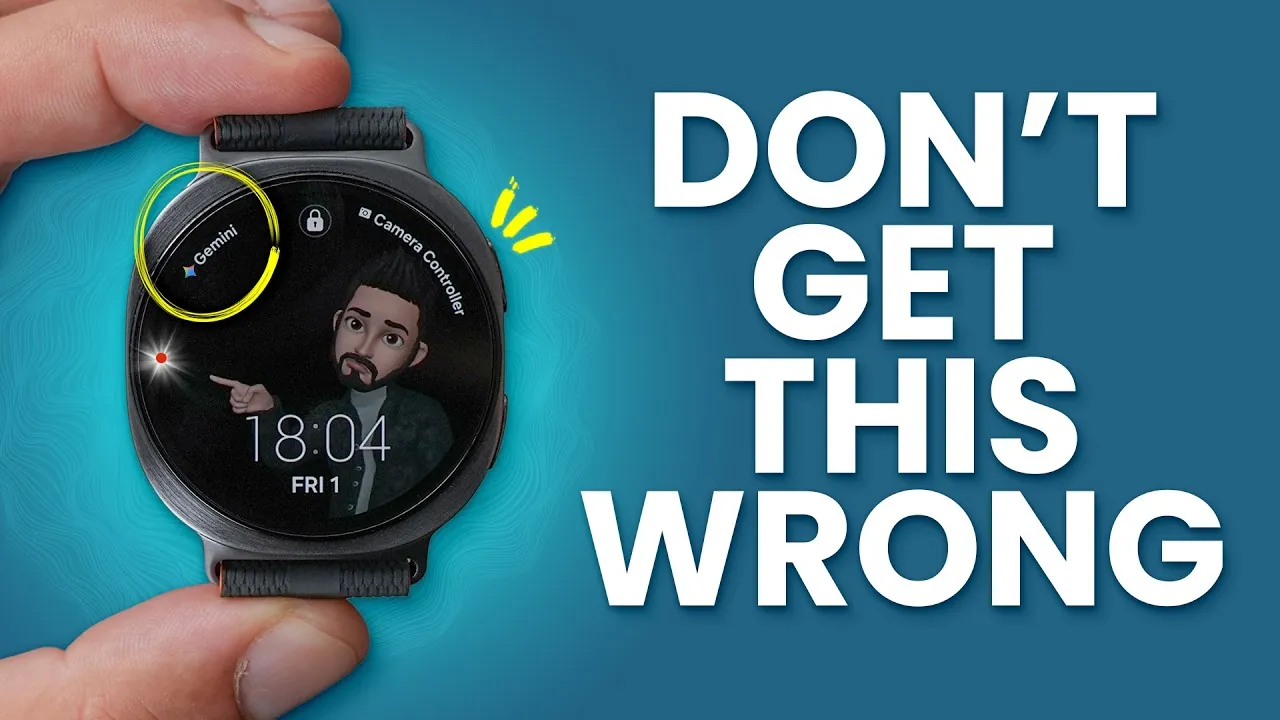
The Galaxy Watch 8, Watch 8 Classic, and Ultra are feature-rich devices designed to enhance your daily life. Whether you’re new to smartwatches or upgrading from an older model, setting up your device properly is essential to unlocking its full potential. The video below from WhatGear provides ten essential tips to help you personalize your watch, improve efficiency, and maximize its advanced capabilities.

1. Personalize Your Watch Face
Your watch face serves as both a display and a functional dashboard. Customizing it ensures quick access to the information you value most. Create multiple watch faces tailored to different scenarios, such as work, fitness, or leisure. Use the Galaxy Wear app or your watch to select, edit, or delete watch faces. Opt for designs that prominently display key metrics like steps, heart rate, or calendar events, keeping important data easily accessible.
2. Set Up Fitness Tracking
Transform your Galaxy Watch 8 into a fitness companion with the Samsung Health app. Configure your favorite exercises, create custom workout routines, and hide activities you don’t use to streamline your options. Add shortcuts for frequently used exercises, allowing you to start workouts with a single tap. This setup ensures your fitness data is always tailored to your routine and readily available.
3. Organize Tiles and Pages
Tiles and pages provide quick access to essential features and data. Rearrange or add tiles for health metrics, fitness shortcuts, or productivity tools. Popular options include weather updates, voice recording, and modes/routines. By organizing your tiles, you can access the information you need with just a swipe, saving time and effort while keeping your smartwatch experience seamless.
4. Manage Apps Efficiently
Expand your watch’s functionality by installing apps from the Google Play Store. Once installed, organize your apps in grid or list view for easy navigation. Create folders to group similar apps, making it easier to locate what you need. This simple organization step enhances the usability of your smartwatch and ensures that your most-used apps are always within reach.
5. Configure Payment Systems
Enable contactless payments directly from your watch by setting up Samsung Wallet or Google Wallet. Customize button gestures for quick access to your wallet, allowing you to make payments effortlessly. This feature is especially convenient for on-the-go transactions, eliminating the need to carry your phone or physical wallet.
6. Use AI Integration
The Galaxy Watch 8 features Gemini AI, a powerful tool for productivity and assistance. Use it to set reminders, answer questions, or manage tasks. Adjust its volume settings independently to ensure it integrates seamlessly into your routine without causing interruptions. This AI assistant helps you stay organized and efficient throughout your day, making it an invaluable feature for busy schedules.
7. Customize Quick Settings
The quick panel is your shortcut to frequently used features. Rearrange settings like “Find My Phone,” “Do Not Disturb,” or “Battery Saver” to match your preferences. By tailoring the quick panel, you ensure that the tools you rely on most are always within easy reach, enhancing the overall convenience of your smartwatch.
8. Enable Offline Music Playback
Enjoy music on the go without needing your phone. Download offline playlists from streaming services or manually transfer tracks to your watch. Pair Bluetooth headphones directly with the device for a seamless listening experience, whether you’re working out, commuting, or relaxing. This feature ensures you always have access to your favorite tunes, even when your phone isn’t nearby.
9. Manage Notifications
Stay focused by controlling which notifications appear on your watch. Disable alerts from non-essential apps and prioritize notifications from messaging or calendar services. This approach reduces distractions while making sure you don’t miss important updates. Managing notifications effectively allows you to stay connected without feeling overwhelmed.
10. Explore Advanced Features
The Galaxy Watch 8 offers advanced tools to enhance your lifestyle. Use the antioxidant index to monitor your dietary habits and make healthier choices. Enable remote camera control to take photos from a distance, ideal for group shots or creative angles. Activate theater mode to minimize distractions in dark environments, such as during movies or presentations. These advanced features demonstrate the versatility of the Galaxy Watch 8 and its ability to adapt to your unique needs.
Maximize Your Galaxy Watch 8 Experience
The Galaxy Watch 8 is a versatile device designed to simplify and enhance your daily routine. By following these ten tips, you can optimize its functionality, save time, and improve your overall experience. From fitness tracking and payment systems to AI integration and advanced health monitoring, this smartwatch is equipped to support your goals and adapt to your lifestyle. Take the time to explore its features and customize it to suit your needs, making sure you get the most out of this powerful device.
Master Galaxy Watch 8 tips with the help of our in-depth articles and helpful guides.
- Hidden Samsung Galaxy Watch Ultra Tips & Tricks
- Samsung Galaxy Watch 8 vs Apple Watch Series 10
- Samsung Galaxy Watch 8 Classic Features, Setup and More
- Samsung Galaxy Watch 8 Classic vs. Ultra: Full Comparison
- Samsung Galaxy Watch 8 Series Unveiled
Source & Image Credit: WhatGear
Disclosure: Some of our articles include affiliate links. If you buy something through one of these links, Geeky Gadgets may earn an affiliate commission. Learn about our Disclosure Policy.
