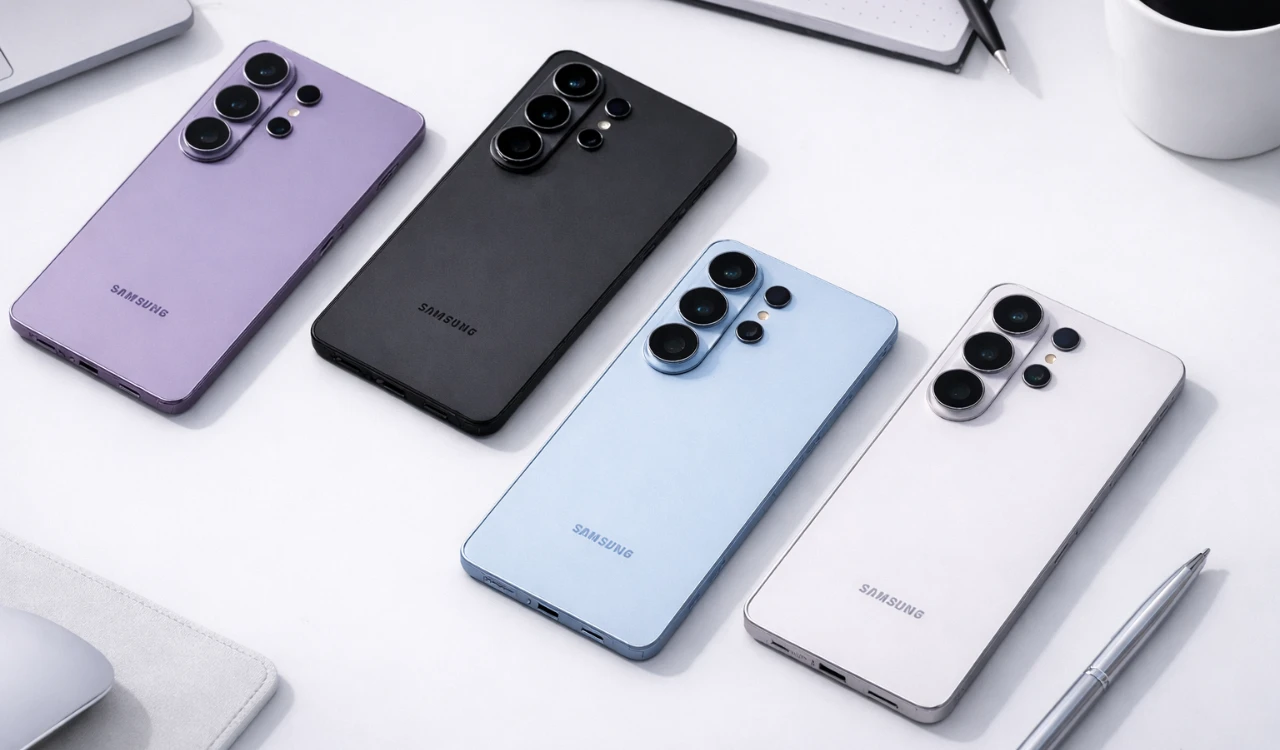
Unboxing your Samsung Galaxy S26 Ultra is an exciting moment, but what you do next is critical to unlocking its full potential. Proper setup ensures optimal performance, enhances privacy, extends battery life, and customizes the device to suit your preferences. The video below from AppX gives us a range of tips to get the most out of your new Samsung Galaxy S26 Ultra. By following these essential steps, you can maximize your experience with this advanced smartphone.

Update Software and Applications
Keeping your Galaxy S26 Ultra updated is essential for maintaining peak performance, making sure security, and accessing the latest features. Begin by updating all Samsung-specific apps through the Galaxy Store. These updates often include device-specific enhancements and bug fixes that improve functionality.
Next, check for system updates by navigating to:
Settings > Software Update.
This ensures your phone is running the latest firmware, which is crucial for compatibility with new features and security patches. Additionally, update the Google Play system by going to:
Settings > Security and Privacy.
This step bolsters your device’s security and ensures seamless integration with Android services. Regular updates are key to keeping your phone secure and performing at its best.
Strengthen Privacy Settings
Your Galaxy S26 Ultra is equipped with advanced privacy tools to safeguard your personal data. Start by allowing the Privacy Display feature for specific apps, such as banking, messaging, or photo galleries. This feature prevents unauthorized access to sensitive content by obscuring it from prying eyes.
It’s important to avoid activating the general Privacy Display toggle, as this may reduce screen brightness and overall display quality. By selectively applying this feature, you can protect your personal information without compromising your viewing experience. Additionally, review app permissions under:
Settings > Apps > Permissions.
Restrict unnecessary access to your location, camera, or microphone to further enhance your privacy.
Customize Your Display
The Galaxy S26 Ultra features a stunning display that delivers vibrant colors and sharp clarity. Customizing the display settings allows you to tailor the visual experience to your preferences. To get started:
- Adjust the screen mode to either “Vivid” for enhanced color saturation or “Natural” for a more realistic tone.
- Set the resolution to Quad HD+ for maximum sharpness and detail, especially when viewing high-resolution content.
- Enable the “Adaptive Brightness” feature to automatically adjust screen brightness based on your environment, making sure optimal visibility while conserving battery life.
These adjustments allow you to fully appreciate the advanced display technology, whether you’re streaming videos, gaming, or browsing photos.
Optimize Battery Health
The Galaxy S26 Ultra includes several features designed to preserve battery health and extend its lifespan. To optimize battery performance:
- Enable “Battery Protection” to limit charging to 85%, reducing long-term wear on the battery.
- Activate “Sleep Time Protection” to optimize overnight charging patterns, preventing overcharging and maintaining battery health.
- Use the “Power Saving Mode” when needed to extend battery life during periods of heavy usage or travel.
These tools ensure consistent battery performance and help you avoid premature degradation, allowing your device to maintain its reliability over time.
Personalize Your Device
Personalizing your Galaxy S26 Ultra enhances its usability and makes it uniquely yours. Start by selecting a wallpaper that reflects your style. The device offers a wide range of options, from dynamic live wallpapers to static images.
Next, customize the home screen layout by arranging widgets and app shortcuts to suit your workflow. You can also explore the Galaxy Themes store to download custom icon packs, themes, and fonts. Personalization not only improves the aesthetic appeal of your phone but also creates a more intuitive and enjoyable user experience.
For added convenience, set up the Edge Panel to access frequently used apps, tools, or contacts with a simple swipe. This feature streamlines navigation and enhances productivity.
Maximize Your Galaxy S26 Ultra Experience
By following these steps, you can unlock the full potential of your Samsung Galaxy S26 Ultra. Updating software ensures smooth performance and robust security, while privacy settings protect your sensitive information. Customizing the display and optimizing battery health enhances usability and longevity, and personalizing your device makes it truly your own.
Take these actions as soon as you unbox your Galaxy S26 Ultra to enjoy a seamless, tailored experience from day one. With proper setup, your smartphone will deliver exceptional performance and functionality, meeting your needs for years to come.
Here is a selection of other guides from our extensive library of content you may find of interest on the Samsung Galaxy S26 Ultra.
- Samsung Galaxy S26 Ultra Launch Date, Features, and Innovation
- Samsung Galaxy S26 Ultra: 2nm Chip, 60W Charging & Design
- Samsung Galaxy S26 Ultra: Pros, Cons, and Key Features
- Why the Samsung Galaxy S26 Ultra Redefines Smartphones
- Samsung Galaxy S26 Ultra Full Specs, Features, and More
- Samsung Galaxy S26 Ultra Release Date, Features, and More
Source: AppX
Disclosure: Some of our articles include affiliate links. If you buy something through one of these links, Geeky Gadgets may earn an affiliate commission. Learn about our Disclosure Policy.
