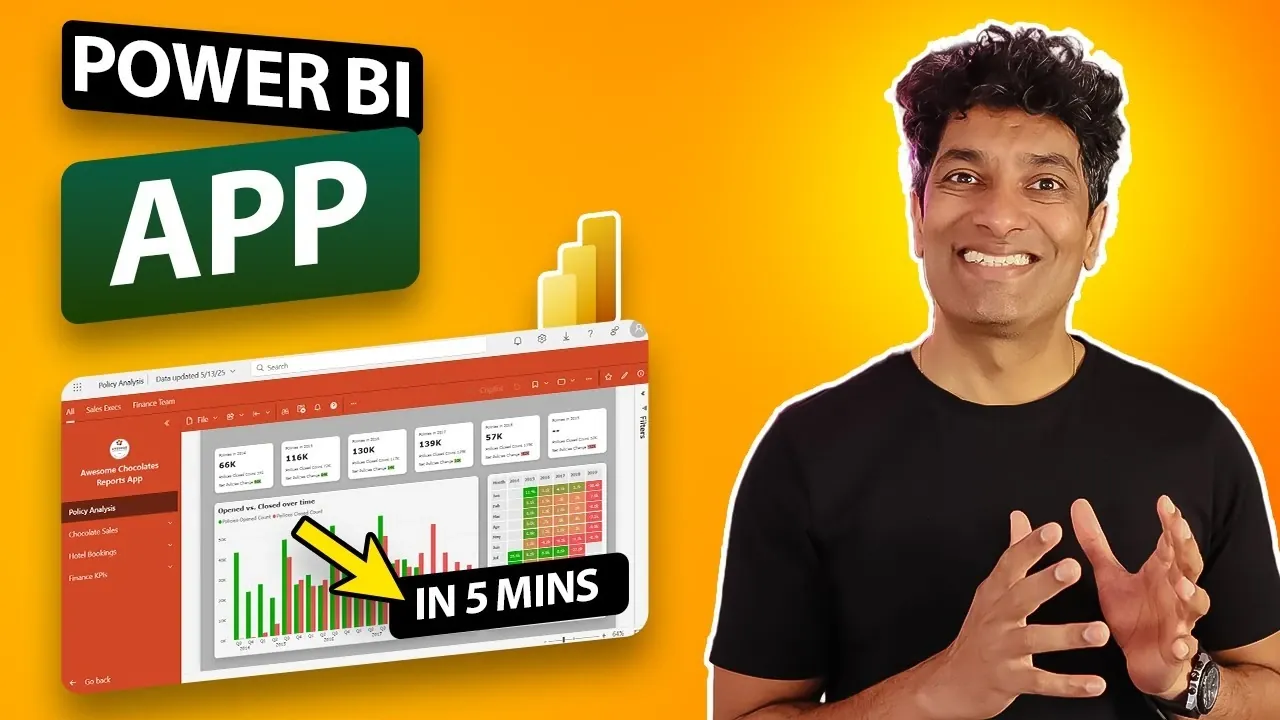
Have you ever felt overwhelmed by the chaos of sharing reports and dashboards across your organization? Between endless email chains, scattered file links, and the constant risk of exposing sensitive data to the wrong audience, managing data access can feel like a logistical nightmare. But what if you could create a single, secure hub where your team could access exactly what they need, nothing more, nothing less? Enter Power BI apps: a innovative solution that allows you to centralize content, customize permissions, and streamline data sharing. And here’s the best part, it’s so intuitive that you can build your first app in just five minutes. Yes, really. With just a few clicks, you’ll be on your way to transforming how your organization interacts with data.
In this quick-start guide, Chandoo takes you through how to create your first Power BI app with ease, even if you’re new to the platform. You’ll learn how to design a professional, user-friendly app that reflects your organization’s branding, organize dashboards and reports for seamless navigation, and tailor access to specific audiences, all while maintaining control over sensitive information. Whether you’re looking to share sales insights with executives or provide your finance team with up-to-date budget reports, Power BI apps offer a secure and efficient way to deliver the right data to the right people. By the end of this overview, you’ll not only understand the steps but also the immense value of using Power BI apps for smarter, more organized data sharing. So, what could you accomplish with five minutes and the right tools?
Why Use Power BI Apps?
TL;DR Key Takeaways :
- Power BI apps serve as a centralized hub for securely sharing reports and dashboards with specific user groups, enhancing organization and data accessibility.
- Creating a Power BI app involves logging into your workspace, customizing the app’s branding, adding and organizing content, and publishing it for easy sharing.
- Audience segmentation allows tailored access, making sure users only see relevant data, improving usability and maintaining security.
- Customization features, such as external links and access request management, enhance user experience and control over sensitive information.
- Key benefits of Power BI apps include centralized access, customizable permissions, and improved collaboration, making them essential for efficient data sharing.
Power BI apps serve as a centralized hub for sharing data insights with defined user groups. Unlike granting workspace access to multiple users, apps enable you to control what each audience sees without exposing the entire workspace. This approach enhances security, improves organization, and provides a more intuitive experience for your users.
By using Power BI apps, you can ensure that your teams have access to the data they need without compromising sensitive information. This makes it easier to manage permissions and maintain a streamlined workflow.
How to Create a Power BI App
Creating a Power BI app is a straightforward process. Follow these steps to get started:
- Log in to Power BI: Access your Power BI account and navigate to the workspace where your reports and dashboards are stored. Remember, each workspace can only have one app, so plan accordingly.
- Click “Create App”: Select the option to create an app. Customize its name, logo, and color theme to align with your organization’s branding. This step ensures a professional and cohesive look.
- Add Content: Choose the reports and dashboards you want to include in the app. Rename items as needed to make them more descriptive and user-friendly for your audience.
- Organize Content: Arrange the selected reports and dashboards in a logical order. This helps your audience navigate the app easily and find the information they need without confusion.
By following these steps, you can create a Power BI app that is both functional and visually appealing, making sure a seamless experience for your users.
Create Your First Power BI APP in 5 Minutes

Explore further guides and articles from our vast library that you may find relevant to your interests in Power BI.
- Power BI data visualization updates 2024
- How to Create a Power BI Account Without a Work Email Address
- How to Master Real-Time Data Visualization with Power BI
- 50 Power BI Technical Terms & Concepts Explained
- How to Use ChatGPT to Enhance Power BI Dashboards in 2025
- Using Excel Power BI Desktop to build Interactive Dashboards
- How to model data with Power BI
- How to Choose Between Power Query, Power Pivot & VBA in Excel
- How to Build an Interactive Dashboards with Power BI in 2025
- Python vs. Power Query: Best Tool for Cleaning Survey Data
Segmenting Your Audience for Tailored Access
One of the most powerful features of Power BI apps is the ability to segment your audience. This ensures that each group only sees the content relevant to their role, improving both usability and security. For example:
- Sales Executives: Provide access to sales performance dashboards and customer insights to help them track progress and identify opportunities.
- Finance Team: Share financial reports and budget tracking dashboards to support informed decision-making and financial planning.
By assigning specific content to each group, you can hide irrelevant or sensitive data from unintended users. This targeted approach not only enhances security but also ensures that users can focus on the data that matters most to them.
Publishing and Sharing Your App
Once your app is ready, publishing it is a simple process. After publishing, you can generate a shareable link that allows users to access the app directly. Alternatively, users can find the app by searching for it in the Power BI apps section.
This streamlined sharing process eliminates the need for cumbersome email chains or manual file sharing. Instead, users can access the app whenever they need it, making sure that data is always available and up to date.
Customization Features
Power BI apps offer several customization options to enhance the user experience and improve organization. These features allow you to tailor the app to meet the unique needs of your audience:
- External Links: Add links to external resources, such as training materials or supplementary documents, to provide additional context and support.
- Access Requests: Manage and approve access requests from users who need permissions to view the app. This feature ensures that only authorized users can access sensitive data.
These customization options make it easy to create a user-friendly app that aligns with your organization’s goals and requirements.
Key Benefits of Power BI Apps
Power BI apps offer several advantages for organizations looking to streamline data sharing and improve collaboration. Some of the key benefits include:
- Centralized Access: Consolidate reports and dashboards in one place, making it easier for users to find and access the data they need.
- Customizable Permissions: Assign specific content to different user groups, making sure that data is shared securely and appropriately.
- Enhanced Organization: Simplify navigation by grouping related content and customizing the app layout to suit your audience’s needs.
These benefits make Power BI apps an invaluable tool for organizations of all sizes. By using Power BI apps, you can improve collaboration, enhance data accessibility, and maintain control over sensitive information.
Start Building Your Power BI App Today
Creating a Power BI app is a simple yet effective way to improve how you share data within your organization. By following the steps outlined above, you can build a customized app that meets the unique needs of your audience. Whether you’re sharing sales insights, financial reports, or operational dashboards, Power BI apps provide a secure and organized way to deliver the right data to the right people. Take the first step today and experience the benefits of streamlined data sharing with Power BI apps.
Media Credit: Chandoo
Disclosure: Some of our articles include affiliate links. If you buy something through one of these links, Geeky Gadgets may earn an affiliate commission. Learn about our Disclosure Policy.
