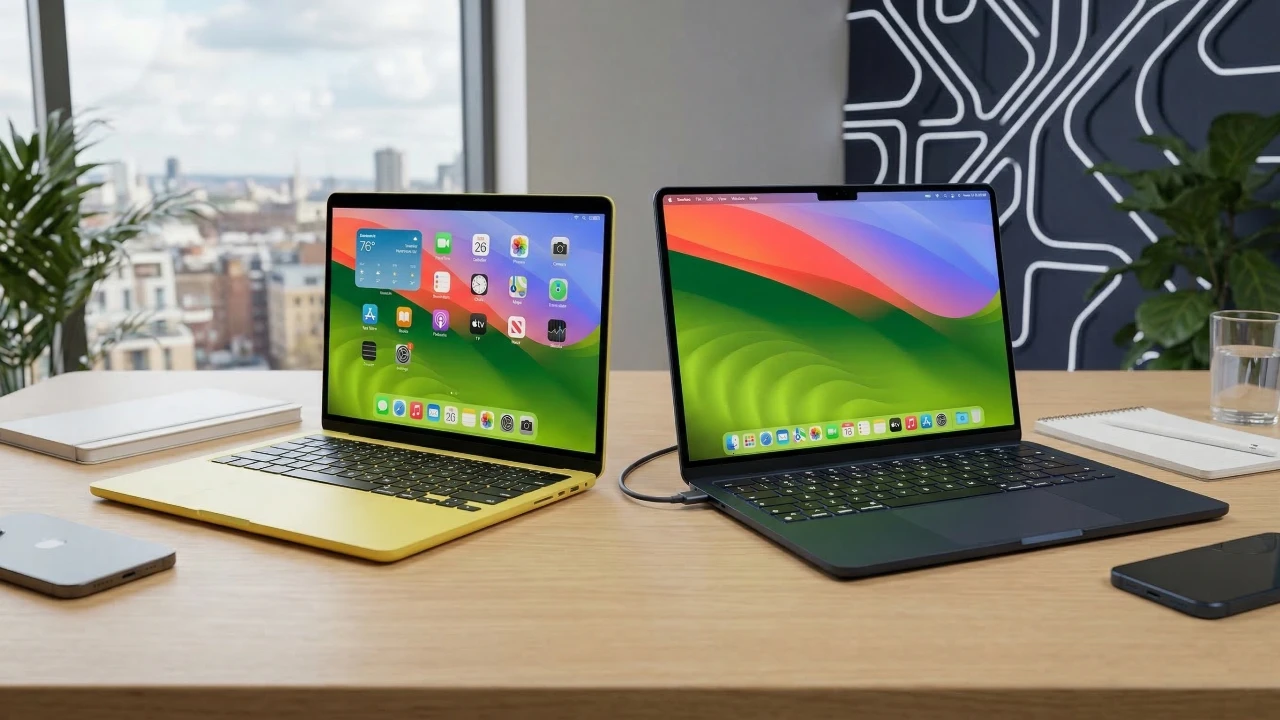
Setting up your Mac effectively is crucial for maximizing productivity and making sure a seamless user experience. Whether you’re a first-time macOS user or looking to refine your current setup, there are numerous ways to customize your device to better suit your needs. From enhancing navigation with trackpad settings to organizing your workspace, these actionable tips will help you create a more intuitive and efficient environment. The video below from Daniel About Tech shows us how to set up your Mac.

Trackpad Customization: Enhance Navigation
Your Mac’s trackpad is a powerful tool that can be tailored to your preferences, improving navigation and multitasking. To optimize it:
- Adjust the tracking speed to ensure the cursor moves at a pace that feels natural to you.
- Enable “Tap to Click” for easier interaction without needing to press down on the trackpad.
- Activate gestures such as natural scrolling, swiping between desktops and three-finger drag for smoother multitasking.
These options can be found in System Settings > Trackpad. Customizing these features not only enhances usability but also makes your Mac feel more responsive to your workflow.
Dock Management: Streamline Access
The Dock serves as a central hub for your most-used apps and tools and organizing it effectively can save time. Here’s how to make it work for you:
- Add, remove, or rearrange app icons to prioritize the tools you use most frequently.
- Adjust the Dock’s size and enable magnification to make navigation more precise and visually clear.
- Keep essential folders like Downloads and Trash easily accessible for quick file management.
A well-organized Dock minimizes distractions and ensures that your workspace remains efficient and clutter-free.
Desktop Organization: Declutter for Productivity
An organized desktop is essential for maintaining focus and efficiency. Use these strategies to keep it tidy:
- Enable the “Snap to Grid” feature to neatly align files and folders.
- Group related items into folders to create a logical structure for your files.
- Use Stacks to automatically sort files by type, such as documents, images, or PDFs, for a cleaner appearance.
A clutter-free desktop not only looks professional but also makes it easier to locate important files when you need them.
Finder Settings: Simplify File Management
Finder is the backbone of file management on macOS and customizing it can significantly improve your workflow. Consider these adjustments:
- Add frequently accessed locations, such as Desktop, Downloads, or iCloud Drive, to the Finder sidebar for quick access.
- Set the “New Finder windows show” option to open directly to a folder you use often.
- Use file tagging to categorize and locate files more efficiently during searches.
Mastering Finder’s features allows you to navigate your files with ease, saving time and reducing frustration.
Menu Bar and Control Center: Quick Access to Essentials
The menu bar and control center provide quick access to essential tools and settings. Here’s how to optimize them:
- Customize the menu bar to display key items like Bluetooth, battery percentage, and weather updates.
- Use the control center for shortcuts to frequently used settings such as Wi-Fi, AirDrop, and display brightness adjustments.
By tailoring these elements, you ensure that important tools are always within reach, streamlining your daily tasks.
Spotlight Search: A Powerful Time-Saver
Spotlight Search is one of macOS’s most versatile and efficient features. Activate it by pressing Command + Space to:
- Quickly locate files, apps and even online content without navigating through folders.
- Perform calculations or look up definitions directly within the search bar.
- Access system settings instantly without the need to browse through menus.
This feature is invaluable for both beginners and advanced users, offering a faster way to find what you need.
Personalization: Make Your Mac Your Own
Customizing your Mac not only enhances its usability but also makes it feel uniquely yours. Explore these options:
- Change your wallpaper to a pre-installed image or a personal photo to create a more inspiring workspace.
- Add widgets to your desktop or Notification Center for quick access to tools like the calendar, weather, or reminders.
These small adjustments can have a significant impact on your overall experience, making your Mac more enjoyable to use.
General Productivity Tips
To maximize your Mac’s potential, incorporate these habits into your routine:
- Learn and use gestures and keyboard shortcuts, such as Command + Tab to switch between apps or Command + Shift + 4 to take a screenshot of a specific area.
- Organize your apps, files and settings to align with your workflow and reduce unnecessary distractions.
- Regularly review and update your setup to ensure it continues to meet your evolving needs.
These strategies can help you work smarter, not harder and make the most of your Mac’s capabilities.
Source & Image Credit: Daniel About Tech
Disclosure: Some of our articles include affiliate links. If you buy something through one of these links, Geeky Gadgets may earn an affiliate commission. Learn about our Disclosure Policy.
