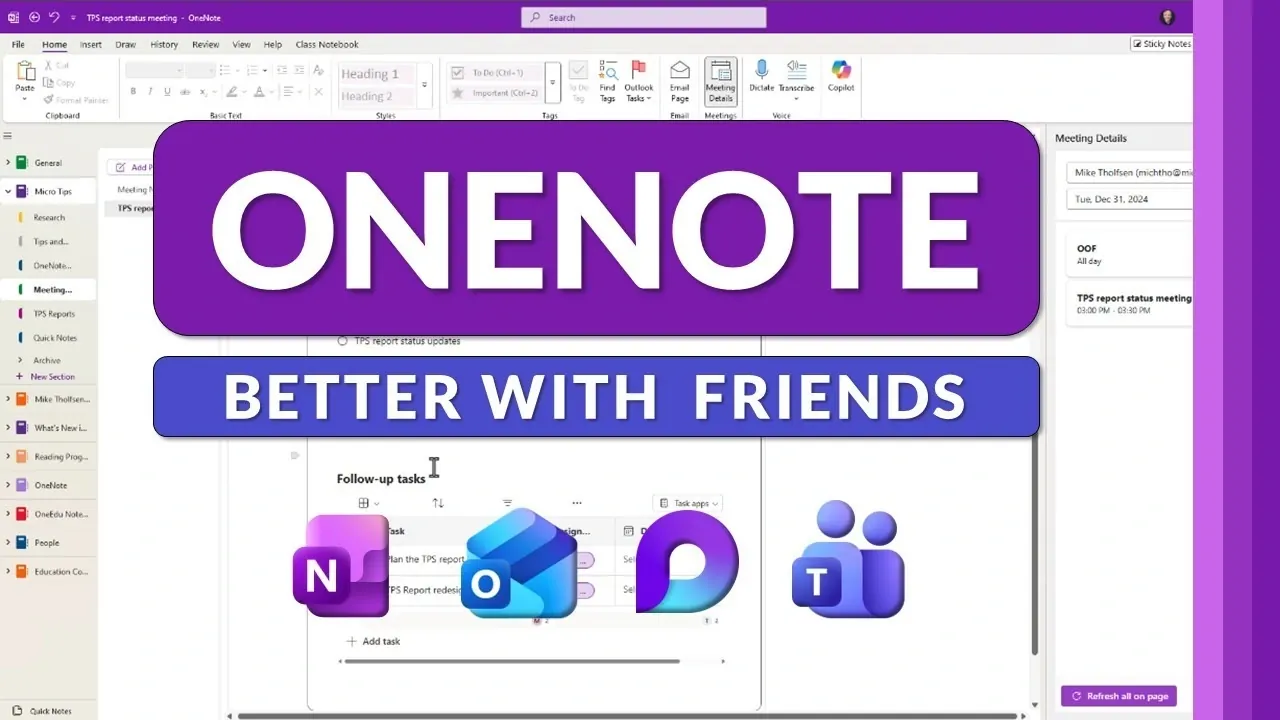
Microsoft OneNote offers a range of integrations with Outlook, Loop, and Teams, allowing users to streamline workflows and enhance collaboration. As outlined by Mike Tholfsen, these integrations allow you to manage tasks, share updates, and collaborate in real time without switching between platforms. For instance, Loop components in OneNote, such as voting tables and Kanban boards, synchronize instantly across Teams and Outlook, making sure consistency and reducing redundancy.
This guide explores how you can use these features to improve productivity and organization. You’ll learn how to embed Loop components for collaborative brainstorming, synchronize tasks between OneNote and Outlook, and centralize meeting notes with Teams integration. By using these capabilities, you can create a unified workspace that simplifies project management and keeps your team aligned.
Maximizing OneNote Integrations
TL;DR Key Takeaways :
- Microsoft OneNote integrates seamlessly with Loop, Teams, Outlook, Word, and PowerPoint, creating a unified workspace to enhance productivity and streamline workflows.
- Loop components in OneNote enable real-time collaboration with tools like Kanban boards and voting tables, making sure synchronized updates across platforms like Teams and Outlook.
- OneNote’s integration with Teams simplifies meeting management by centralizing agendas, notes, and follow-ups, while also supporting real-time updates and transcription features.
- Outlook integration allows tasks and emails to sync with OneNote, making sure consistent task tracking and easy access to important communications and updates.
- Linked notes in Word and PowerPoint help maintain context by connecting notes to specific document sections or slides, streamlining navigation and improving workflow efficiency.
Enhancing Collaboration with Loop in OneNote
Microsoft Loop introduces dynamic, real-time collaboration components that integrate directly with OneNote, transforming how teams work together. These components include tools like Kanban boards, voting tables, and code snippets, allowing you and your team to contribute simultaneously and stay aligned. The updates made to Loop components in OneNote are instantly synchronized across other platforms, such as Outlook, Teams, and the Loop app, making sure consistency and reducing redundancy.
For example, during a brainstorming session in OneNote, your team can collectively add ideas, vote on priorities, and assign tasks, all within the same interface. This eliminates the need to switch between multiple tools, keeping the focus on collaboration. The ability to work in real time ensures that everyone stays on the same page, fostering a more efficient and productive workflow.
Streamlining Meetings and Follow-Ups with Teams Integration
OneNote’s integration with Microsoft Teams transforms how you manage meetings, from preparation to follow-ups. By linking OneNote to Teams, you can access meeting agendas, notes, and tasks directly within the Teams interface. This integration allows you to embed Loop components in OneNote, making sure that collaborative notes are updated in real time during discussions.
Teams also offers features like automatic meeting transcription and recording, which can be saved directly to OneNote. These tools are invaluable for capturing key points, reviewing discussions, and assigning follow-up tasks. After the meeting, you can centralize all relevant information, such as recordings, notes, and action items, in OneNote for easy access. This ensures that nothing is overlooked and that your team can act on decisions promptly.
Supercharge OneNote Productivity with Outlook, Loop & Teams Working Together

Uncover more insights about OneNote in previous articles we have written.
- New OneNote 2026 Features, from Crop Tools to Copilot Chat
- How to Use Microsoft OneNote for Effective Project Management
- Advanced Note-Taking Techniques with Microsoft OneNote
- OneNote and OneDrive: Faster PARA Archive Searches in 2026
- Apple Notes vs MS OneNote : Which Note-Taking App is Best?
- 25 OneNote Tips to Help You Organize More Efficiently in 2026
- 10 Genius OneNote Hacks to Skyrocket Your Productivity
- How to Use Apple Pencil with OneNote on iPad
- How to Use PARA in Microsoft OneNote to Boost Productivity
- Apple Notes vs Microsoft OneNote : Detailed Comparison for 2025
Optimizing Task and Email Management with Outlook
OneNote’s integration with Outlook simplifies the way you manage tasks and organize emails, creating a more cohesive workflow. Tasks created in OneNote automatically sync with Outlook, allowing you to track deadlines and priorities across both platforms. Similarly, when you mark a task as complete in Outlook, it updates in OneNote, making sure that your task list remains consistent and up to date.
Additionally, you can save important emails directly to OneNote for future reference. For instance, client communications, project updates, or critical instructions can be stored in specific notebooks, making them easy to retrieve when needed. Conversely, OneNote allows you to email pages directly from the app, allowing you to share notes or updates with colleagues quickly and efficiently. These features help you stay organized and ensure that essential information is always at your fingertips.
Maintaining Context with Linked Notes in Word and PowerPoint
The linked notes feature in OneNote is a powerful tool for maintaining context while working with Word documents or PowerPoint presentations. This feature allows you to connect your notes to specific sections of a document or slide, making it easier to reference relevant information during reviews or preparations.
For example, while reviewing a Word document, you can take notes in OneNote that are automatically linked to the corresponding section of the document. Later, you can click the link in OneNote to navigate directly to the exact point in the Word document or PowerPoint slide. This eliminates the need to search for context, saving time and making sure accuracy. By using linked notes, you can streamline your workflow and focus on the task at hand without unnecessary interruptions.
Actionable Tips for Maximizing Efficiency
Integrating OneNote with Microsoft’s productivity suite allows you to build a cohesive workflow that minimizes disruptions and maximizes efficiency. Here are some practical tips to help you get the most out of these tools:
- Use Loop components in OneNote for collaborative brainstorming, task management, and real-time updates.
- Take advantage of Teams integration to prepare for meetings, capture discussions with transcription and recording, and centralize follow-up actions.
- Synchronize tasks between OneNote and Outlook to maintain consistency and stay organized across platforms.
- Save critical emails to OneNote for easy reference and use the email-sharing feature to distribute notes or updates efficiently.
- Use linked notes in Word and PowerPoint to maintain context and streamline navigation during document reviews or presentation preparations.
Unlocking the Full Potential of OneNote Integrations
OneNote’s seamless integration with Loop, Teams, Outlook, Word, and PowerPoint provides a comprehensive toolkit for enhancing productivity and collaboration. By adopting these features, you can streamline workflows, improve task management, and ensure that your team remains aligned. Whether you’re managing complex projects, preparing for important meetings, or reviewing critical documents, these integrations empower you to work smarter and achieve more. Embrace these tools to create a more efficient and connected workspace that supports your goals and drives success.
Media Credit: Mike Tholfsen
Disclosure: Some of our articles include affiliate links. If you buy something through one of these links, Geeky Gadgets may earn an affiliate commission. Learn about our Disclosure Policy.
