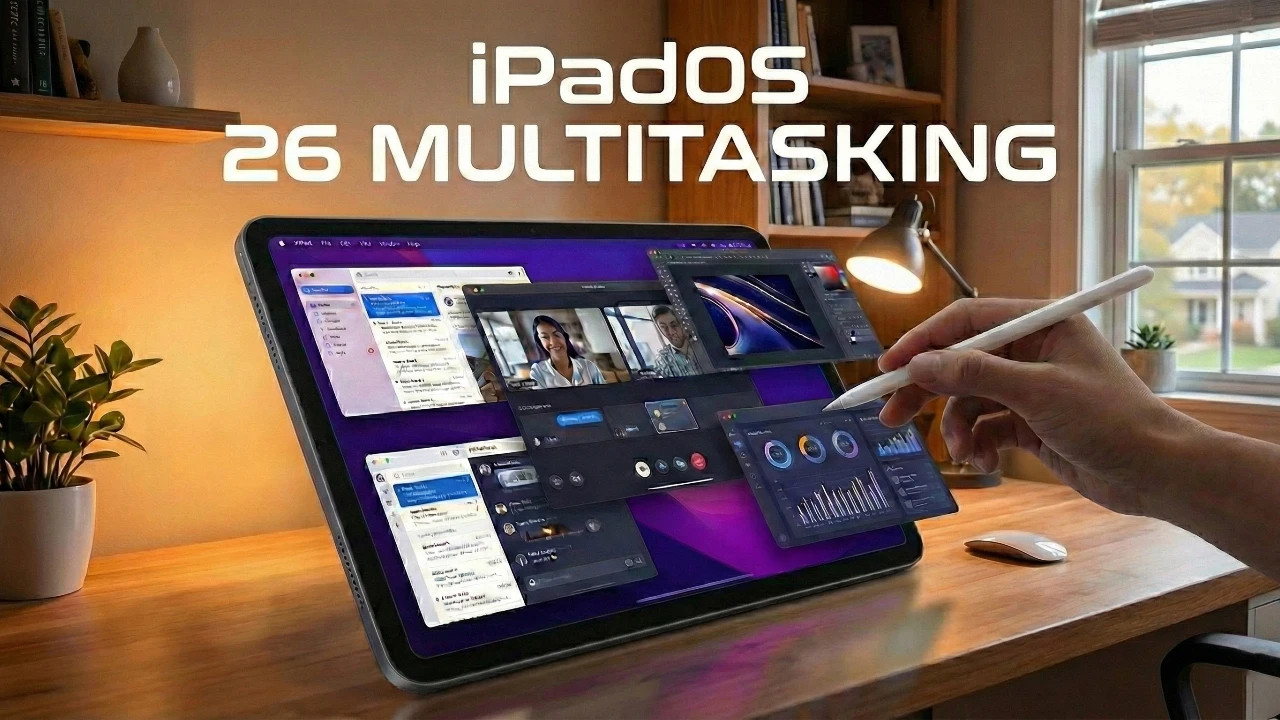
iPadOS 26 introduces a robust multitasking framework designed to cater to a diverse range of user preferences and workflows. Whether you thrive in a multitasking-heavy environment or prefer a focused, single-tasking approach, this operating system provides tools to enhance your productivity. With three distinct multitasking modes—Full Screen Apps, Windowed Apps, and Stage Manager—alongside features like Split View and Slide Over, iPadOS 26 offers unparalleled flexibility and adaptability. The video below from
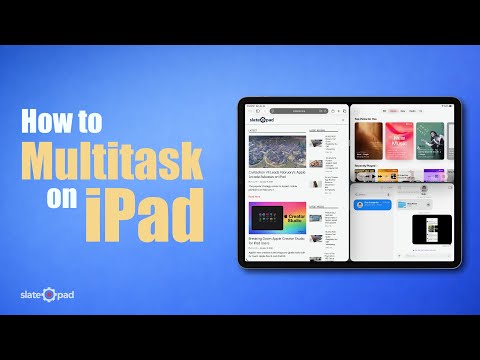
SlatePad explores these modes, their features, and practical tips to help you maximize your iPad’s potential.
Full Screen Apps Mode: Prioritize Focus and Simplicity
Full Screen Apps Mode is ideal for users who value a distraction-free environment. By eliminating visual clutter, this mode allows you to focus entirely on the active app, making it perfect for tasks such as reading, writing, or watching videos where undivided attention is essential.
Key features include:
- The Shelf: A convenient tool that organizes app windows for quick access, allowing seamless task switching without disrupting your workflow.
- Corner Shortcuts: Quick actions like taking screenshots or launching Quick Notes are just a tap away, enhancing efficiency.
This mode is particularly suited for users who prefer simplicity and a streamlined interface, making sure that your attention remains on the task at hand without unnecessary distractions.
Windowed Apps Mode: A Desktop-Like Experience
Windowed Apps Mode bridges the gap between mobile and desktop workflows, offering a familiar and flexible workspace for users accustomed to desktop environments. This mode allows you to work with floating, resizable windows, making it easier to manage multiple tasks simultaneously.
Here’s what sets this mode apart:
- Enhanced Window Management: Resize and arrange windows in splits, thirds, or quarters to optimize screen space and multitasking efficiency.
- Orientation-Specific Layouts: Adjust your workspace dynamically based on your iPad’s orientation, making sure maximum usability in both portrait and landscape modes.
- iPhone App Compatibility: Run iPhone-only apps in floating windows, providing a seamless cross-device experience for users who rely on apps designed for smaller screens.
This mode offers the flexibility to customize your workspace, making it an excellent choice for users who need a versatile and adaptable multitasking environment.
Split View and Slide Over: Efficient Multitasking Tools
Split View and Slide Over remain essential multitasking features in iPadOS 26, offering quick and efficient ways to share screen space between apps. These tools are particularly useful for users who need to multitask without overwhelming their screen space.
- Split View: Display two apps side by side, making it ideal for tasks like comparing documents, referencing information, or multitasking between apps. Activating Split View is simple, using drag-and-drop gestures, shortcuts, or the app dock.
- Slide Over: Open a single, resizable floating app window that can be moved across the screen. While the stack feature has been removed, this streamlined approach simplifies quick task management without disrupting your primary workflow.
These tools enhance productivity by allowing you to efficiently manage multiple tasks while maintaining a clean and organized workspace.
Stage Manager: Organize Tasks into Workspaces
Stage Manager introduces a new way to multitask by grouping apps into task-specific workspaces. This feature is designed for users managing multiple projects or workflows, making it easier to switch between tasks without losing focus.
Key aspects of Stage Manager include:
- Task-Specific Workspaces: Group apps into clusters, allowing seamless transitions between projects or workflows.
- Integration with Windowed Apps Mode: Manage multiple windows within each workspace, offering greater flexibility and control over your multitasking environment.
- Persistent Slide Over App: Keep a frequently used app accessible across all workspaces, making sure that essential tools are always within reach.
While customization options for each stage are somewhat limited, Stage Manager excels at organizing complex workflows into manageable clusters, making it a valuable tool for users juggling multiple tasks.
Keyboard Shortcuts and Menu Bar: Simplify Navigation
iPadOS 26 enhances navigation with improved keyboard shortcuts and a more functional menu bar, catering to both physical keyboard users and touch input enthusiasts. These tools streamline multitasking and improve overall efficiency.
- App-Specific Shortcuts: Access shortcuts directly from the menu bar, allowing faster navigation and task execution within apps.
- Universal Window Management: Use shortcuts to resize, switch, or manage windows effortlessly, making multitasking more intuitive and efficient.
These enhancements ensure that you can navigate your iPad with ease, regardless of your preferred input method, and make multitasking more accessible for all users.
Flexibility and Adaptability: Customize Your Workflow
One of the standout features of iPadOS 26 is its adaptability, allowing you to switch between multitasking modes to suit your needs. This flexibility ensures that the operating system aligns with your workflow, whether you’re focusing on a single task or juggling multiple projects.
- Control Center Toggle: Quickly enable or disable Stage Manager or switch to Windowed Apps Mode with a single tap, providing instant access to your preferred multitasking setup.
- Dynamic Adjustments: Tailor your multitasking experience based on your current needs, whether you’re working on a focused project or managing multiple tasks simultaneously.
This adaptability enables you to create a personalized workspace that enhances your productivity and ensures that your iPad remains a versatile tool for any task.
Redefining Productivity with iPadOS 26
iPadOS 26 offers a comprehensive multitasking framework that adapts to a wide range of user preferences and workflows. Whether you prefer the simplicity of Full Screen Apps Mode, the desktop-like functionality of Windowed Apps Mode, or the task-specific organization of Stage Manager, this operating system provides the tools you need to work efficiently and effectively. By using features like Split View, Slide Over, and enhanced keyboard shortcuts, you can optimize your productivity and make the most of your iPad. With its flexibility and user-centric design, iPadOS 26 ensures that your device is equipped to handle any challenge, empowering you to achieve more with ease.
Expand your understanding of iPadOS 26 Multitasking with additional resources from our extensive library of articles.
- iPadOS 26 Multitasking Features: Everything You Need to Know
- iPadOS 26 Features: Multitasking, AI, and Design Upgrades
- Top iPadOS 26 Features You Should Explore Today
- iPadOS 26: Everything You Need to Know
- iPadOS 26 Features: How It Redefines Multitasking
Source & Image Credit: SlatePad
Disclosure: Some of our articles include affiliate links. If you buy something through one of these links, Geeky Gadgets may earn an affiliate commission. Learn about our Disclosure Policy.
