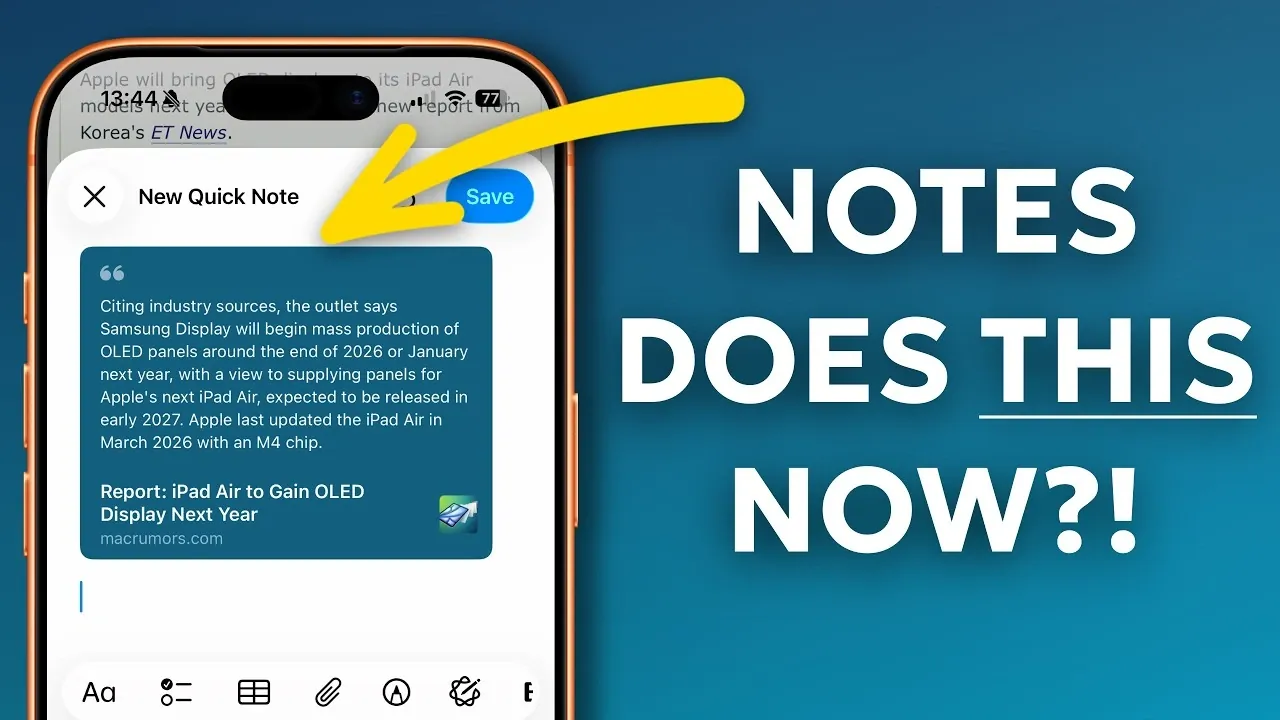
The iPhone Notes app is a versatile tool that goes beyond simple note-taking. With a range of advanced features, it allows you to organize, annotate, and collaborate effortlessly. Whether you’re managing PDFs, saving web content, or safeguarding sensitive information, the app offers powerful capabilities to streamline your workflow. Here are 10 practical tips to help you unlock its full potential and enhance your productivity. The video below from Proper Honest Tech gives us more details.

1. Save and Search PDFs with Ease
The Notes app simplifies the way you handle PDFs. You can convert web pages into searchable PDFs and save them directly within your notes. This feature is particularly useful for archiving important documents, contracts, or articles. Additionally, the app supports PDF annotation, allowing you to highlight text, add comments, or draw directly on the file. For instance, if you’re reviewing a research paper, you can annotate it without needing third-party apps. This integration ensures that all your important files are easily accessible and editable in one place.
2. Use QuickNote to Save Web Text
QuickNote is an essential tool for saving snippets of text while browsing in Safari. With just a few taps, you can select text and save it to a new or existing note. The app automatically includes a link to the original webpage, making it easy to revisit the source later. For example, if you’re planning a trip, you can save details about destinations, restaurants, or activities and link them to their respective websites for quick reference. This feature ensures that your research is organized and readily available.
3. Navigate Notes Efficiently
The “Recent Notes” feature makes it simple to find and access your most-used notes. This tool allows you to quickly switch between notes you’ve recently worked on, saving valuable time when juggling multiple tasks. Whether you’re brainstorming ideas, updating a to-do list, or revisiting meeting notes, this feature ensures that your workflow remains uninterrupted and efficient. By keeping your most relevant notes at your fingertips, you can stay focused and productive.
4. Organize Notes for Clarity
A well-organized Notes app can significantly improve your productivity. You can create a clear structure by dragging and dropping notes into folders, making it easy to categorize and locate your content. Additionally, the app’s formatting tools, such as bullet points and indentation, help you create visually clean and structured notes. For example, you can set up a folder for work projects and use bullet points to outline tasks or ideas within each note. This approach ensures that your notes are not only organized but also easy to navigate.
5. Integrate Notes with Reminders
The seamless integration between the Notes app and Reminders enhances your task management capabilities. You can link notes to specific tasks by dragging and dropping them into the Reminders app or by asking Siri to create a reminder tied to a note. For instance, you can set a reminder to review meeting notes before your next session. This feature bridges the gap between planning and execution, making sure that important tasks and information are always connected.
6. Collaborate in Real Time
Collaboration is effortless with the Notes app’s folder-sharing feature. You can share entire folders with others, allowing for real-time contributions and updates. This is particularly useful for group projects, event planning, or team brainstorming sessions. By allowing everyone to work on the same set of notes, the app ensures that all collaborators stay aligned and up-to-date. This feature fosters teamwork and simplifies the process of managing shared tasks and ideas.
7. Protect Sensitive Information
The Notes app prioritizes your privacy by allowing you to lock individual notes using Face ID, Touch ID, or a passcode. This feature is ideal for storing sensitive information such as passwords, financial details, or confidential documents. By securing your notes, you can ensure that only authorized users have access to your private data. This added layer of security makes the Notes app a reliable choice for managing both personal and professional information.
8. Record Audio Directly in Notes
The app’s audio recording feature is perfect for capturing ideas or discussions on the go. You can record meetings, lectures, or personal reminders directly within a note. Additionally, you can link audio recordings to specific notes, making it easy to revisit key points when needed. This feature is particularly useful for students, professionals, or anyone who needs to document spoken information quickly and efficiently.
9. Annotate Images and Documents
The Notes app includes a built-in Markup tool that allows you to annotate images and documents directly within your notes. You can draw, highlight, or add text to images and scanned documents, making it easier to emphasize specific details. This feature is especially helpful for visual learners or when collaborating on projects that require detailed feedback. By combining visuals with annotations, you can create comprehensive and informative notes.
10. Maximize Productivity with Advanced Features
By using the advanced features of the Notes app, you can transform it into a powerful tool for productivity, organization and collaboration. From managing PDFs and saving web content to securing sensitive information and collaborating in real time, the app is designed to simplify your workflow and enhance efficiency. Whether you’re using it for personal or professional purposes, these tips will help you make the most of this versatile app.
Why the iPhone Notes App Stands Out
The iPhone Notes app is more than just a digital notebook, it’s a comprehensive productivity solution. Its intuitive design, robust features and seamless integration with other apps make it an indispensable tool for managing tasks, ideas and information. By mastering these tips, you can unlock the full potential of the Notes app and turn it into your go-to resource for staying organized and productive.
Advance your skills in iPhone Notes app features by reading more of our detailed content.
Source & Image Credit: Proper Honest Tech
Disclosure: Some of our articles include affiliate links. If you buy something through one of these links, Geeky Gadgets may earn an affiliate commission. Learn about our Disclosure Policy.
