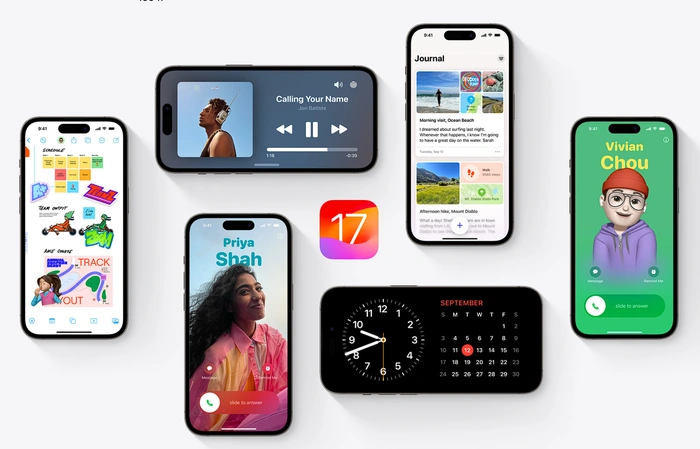
The release of iOS 17 by Apple across all its mobile devices has brought a wealth of new features, enhancements and utilities for iPhone users to enjoy. Apple’s iOS 17 has introduced a new feature that allows users to customize their iPhone Contact Poster. This feature, which is linked to the user’s Apple ID, offers a personalized touch to the way users share their contact information.
This quick guide will give you an overview of how to personalize your iPhone Contact Poster. The process begins with signing in using the Apple ID and setting up a contact card. This card, known as ‘My Card’, is a digital representation of the user’s contact information. It can be personalized with the user’s name, address, phone number, birthday, photo, and a unique feature called the Contact Poster. This poster can be shared with people when the user calls or messages them, adding a personal touch to every interaction.
Personalize your iPhone Contact Poster
Creating a new poster is a simple process. Users can open the Contacts app, tap on ‘My Card’, and then select ‘Contact Photo & Poster’. From here, they can choose a poster style that suits their personality and aesthetic. The customization options are vast, allowing users to edit the photo with filters and change the background to their liking. They can also edit the appearance of their name and the font style, ensuring that their Contact Poster is a true reflection of their identity.

Other articles you may find of interest on the subject of iOS 17 :
- iOS 17 RC battery life test
- Here are the iOS 17 supported devices
- Another looks at iOS 17 beta 2
- iOS 17 Beta 5 released
- What’s new in the revised iOS 17 beta 3
Once the poster has been customized, users can preview it to ensure it meets their expectations. If they are satisfied, they can confirm the poster and update their contact photo. This new photo will then be visible to anyone they share their contact information with.
Add or edit your photo and poster
– Open the Contacts app .
– Tap My Card at the top, then tap Contact Photo & Poster
– (Optionally) Tap Name, then enter your first and last name as you want it to appear to others, then tap Edit to pick a poster or create a new one.
– Scroll to the bottom and turn on Name & Photo Sharing to start sharing your contact photo and poster with others.
– You can choose to share automatically with Contacts Only, or select Always Ask to be prompted before your name, photo, and poster are shared with anyone you’re communicating with.
Sharing Options
The sharing options for the Contact Poster and photo are flexible. Users can choose to share their contact photo and poster automatically with ‘Contacts Only’, or they can select ‘Always Ask’ to be prompted before sharing. This ensures that users have control over who sees their personalized Contact Poster.
In addition to the basic contact information, users can also add or edit their or another contact’s pronouns in the Contacts app. By default, when sharing their contact information, the user’s pronouns are not shared. However, when sharing another contact’s information, their pronouns are never shared. This feature respects the privacy of the user and their contacts.
My Card on iPhone
The ‘My Card’ feature in the Contacts app makes it easy to share contact information with others. To complete or edit ‘My Card’, users can open the Contacts app, tap ‘My Card’, then tap ‘edit’ and enter their contact information. If there is no ‘My Card’, users can tap the ‘Add’ button and enter their information. They can then return to the contact list, touch and hold their contact, and tap ‘Make this My Card’.
For more information on how to customize iPhone Contact Posters in iOS 17, users are encouraged to subscribe to the Apple support YouTube channel. This channel provides a wealth of information on how to make the most of Apple’s innovative features.
The ability to customize iPhone Contact Posters in iOS 17 offers a unique and personalized way for users to share their contact information. With a range of customization options and flexible sharing settings, this feature ensures that users can express their identity in every interaction. For more information jump over to the Apple support website.
Disclosure: Some of our articles include affiliate links. If you buy something through one of these links, Geeky Gadgets may earn an affiliate commission. Learn about our Disclosure Policy.
