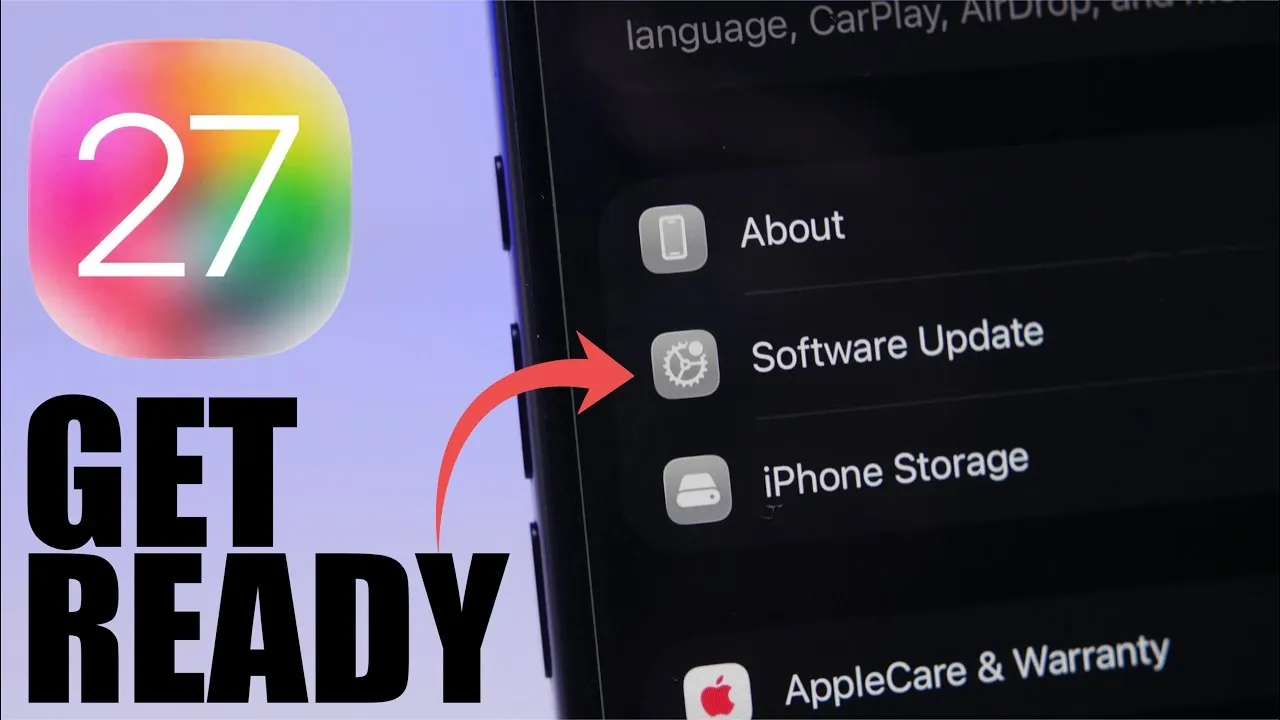
The release of the iOS 27 beta marks an exciting opportunity for Apple users to explore upcoming features and improvements before the official launch, we are expecting the first beta of iOS 27 to be released at WWDC on June 8th, 2026. However, installing beta software requires careful preparation and an understanding of potential challenges. This guide provides a detailed, step-by-step approach to help you install iOS 27 beta on your iPhone while minimizing risks and making sure a smooth experience.

Preparing Your iPhone for iOS 27 Beta
Proper preparation is essential before installing beta software. Taking the time to ready your device can prevent compatibility issues and reduce the likelihood of encountering errors during the installation process. Follow these steps to prepare your iPhone:
- Update to iOS 26.5: Ensure your iPhone is running the latest stable version of iOS 26.5. This step is critical for a seamless transition to the beta version and helps avoid compatibility issues.
- Disable beta updates: If you are already enrolled in Apple’s beta program, temporarily turn off beta updates to prevent accidentally installing iOS 26.6 beta 1 instead of iOS 27 beta.
- Verify device compatibility: Check whether your iPhone supports iOS 27. Devices with older hardware, such as those powered by the A13 chip (e.g., iPhone SE 2nd generation and iPhone 11 series), may not be eligible. Confirming compatibility is crucial to avoid installation errors.
- Free up storage space: Ensure your device has at least 20 GB of free storage available. Beta installations often require significant space for downloading and running the software.
- Back up your data: Create a full backup of your iPhone using iCloud or iTunes. This ensures you can restore your data if any issues arise during or after the installation.
By completing these steps, you can prepare your iPhone for the beta installation and reduce the chances of encountering technical problems.
Installing iOS 27 Beta
Once the iOS 27 developer beta becomes available, anticipated on June 8, you can proceed with the installation. Follow these instructions to install the beta software on your iPhone:
- Open the Settings app on your iPhone.
- Navigate to General and select Software Update.
- Under the Beta Updates section, choose the iOS 27 Developer Beta option.
- Refresh the software update page to display the iOS 27 beta update.
- Tap Download and Install to begin the installation process.
The installation process may take some time, depending on your internet speed and device performance. To avoid interruptions, ensure your iPhone is connected to a stable Wi-Fi network and has sufficient battery life or is plugged into a power source during the update.
Understanding the Risks of Beta Software
While beta software provides early access to new features, it is important to recognize the potential risks associated with installing a developer beta. These risks include:
- Unstable performance: Developer beta versions are often less stable than public releases and may contain bugs that cause crashes, app malfunctions, or other performance issues.
- Battery drain: Beta software may lead to increased battery consumption due to unoptimized code and background processes.
- Limited app compatibility: Some third-party apps may not function properly with the beta software, as developers may not yet have updated their apps for compatibility.
- Public beta option: If you are hesitant about installing the developer beta, consider waiting for the public beta release, which is typically more stable and available approximately 5-6 weeks later.
Being aware of these risks allows you to make an informed decision about whether to proceed with the beta installation or wait for a more refined version.
Tips for a Smooth Beta Experience
To maximize your experience with iOS 27 beta while minimizing potential disruptions, consider the following best practices:
- Monitor user feedback: Before installing the beta, review feedback from other users or developers. This can help you identify potential issues and determine whether they might impact your device usage.
- Use a secondary device: If possible, install the beta on a secondary device rather than your primary iPhone. This minimizes the impact of bugs and performance issues on your daily activities.
- Overview bugs: If you encounter issues while using the beta, overview them to Apple through the Feedback app. This helps Apple improve the software before its official release.
- Stay updated: Regularly check for updates to the beta software, as Apple often releases patches to address bugs and improve performance during the beta testing period.
By following these tips, you can explore the new features of iOS 27 beta while minimizing potential challenges and disruptions.
Exploring iOS 27 Beta with Confidence
The iOS 27 beta will offer a unique opportunity to experience Apple’s latest features and enhancements ahead of the official release. However, installing beta software requires careful preparation, an understanding of potential risks, and adherence to best practices. By following the steps outlined in this guide, you can confidently navigate the installation process and enjoy the new features of iOS 27 beta with minimal complications.
Unlock more potential in iOS by reading the previous articles we have written.
- Liquid Glass 2.0: Apple’s Massive iOS 27 Redesign Revealed
- Apple’s 8GB Mystery: What’s Really Inside the iOS 26.5 Beta 1?
- The iOS 27 Compatibility Shock: Every iPhone That Will (and Won’t) Get the 2026 Update
- iOS 26.5 Beta 4 Released: Top Features Revealed
- Siri 2.0 Plans Include Siri App and Dynamic Island Controls
Source & Image Credit: iReviews
Disclosure: Some of our articles include affiliate links. If you buy something through one of these links, Geeky Gadgets may earn an affiliate commission. Learn about our Disclosure Policy.
